
We may earn commissions from products we recommend. Learn more.
Top 5 Ways to Block YouTube App Ads on Android and iOS

Top 5 Ways to Block YouTube App Ads on Android and iOS
Watching YouTube on your phone now means dealing with more than just videos. Many users are annoyed by frequent ads, including pre-rolls, mid-rolls, banners, Shorts, and promotional overlays. Blocking ads in the official YouTube app is much harder than in a browser. Companies say the app is one of the hardest places to block ads, especially on iPhones, and YouTube warns that using ad blockers can cause warnings or playback problems. In 2026, the best strategy is not to just install a blocker and hope for the best. Instead, choose the method that matches your device, how you use YouTube, and how much effort you want to put in.
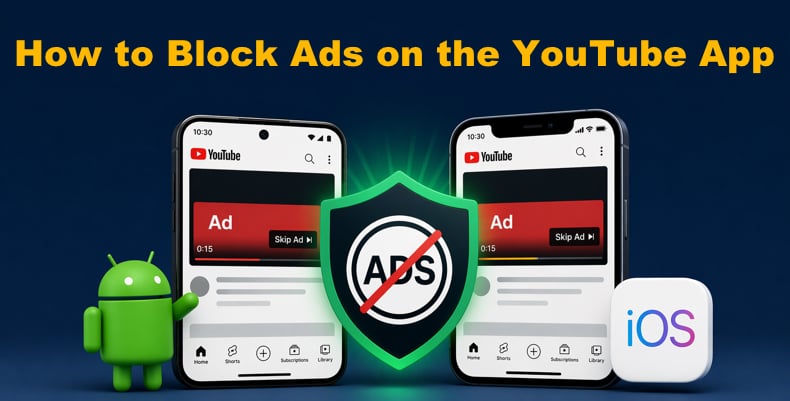
This article covers only the ad blockers PCrisk has already reviewed: AdGuard, Surfshark CleanWeb, Total Adblock, AdLock, and Adblock Plus. These have been tested for effectiveness, privacy, ease of use, and platform support. If you want a trusted list instead of picking random apps, these are the ones we recommend.
Block YouTube Ads with AdGuardSpecial deal30-day money-back guarantee→
Table of Contents:
- Introduction
- Why Should You Consider an Ad Blocker for YouTube on Mobile
- 1. Block YouTube Ads with an Ad Blocker App
- 2. Block YouTube Ads with an Ad Blocker Extension
- 3. Use the Brave Browser to Watch YouTube Ad-Free
- 4. Watch YouTube Using Vanced or ReVanced
- 5. Enable PiP Mode and Skip YouTube Ads
- Ad Blocker vs. YouTube Premium - Which Is Better?
- Final Thoughts
- Frequently Asked Questions (FAQs)
Why Should You Consider an Ad Blocker for YouTube on Mobile
The main reason is to avoid constant interruptions. YouTube shows ads before and during videos, and many are personalized based on your viewing habits, websites, apps, location, and account details. If you watch YouTube often on your phone, especially short videos where ads feel longer, blocking ads can make the experience much better.
Privacy is another key reason. PCrisk tests ad blockers for more than just hiding ads. We also check whether the ad blocker blocks trackers, analytics scripts, cookies, and fingerprinting, and whether it reduces background connections to ad and tracking sites without breaking the page. This is important on mobile because your phone handles entertainment, messages, location, logins, and even banking. Allowing fewer trackers means less of your personal data is shared while you browse.
Performance is also important. PCrisk checks how ad blockers affect page loading speed, CPU and memory use, and how smoothly you can browse on different devices. Good ad blockers can speed up website load times by blocking ad scripts, autoplay videos, trackers, and other unwanted content. AdGuard, Adblock Browser, and Total Adblock all promise faster, cleaner pages, and PCrisk tests to confirm these claims.
But it is important to be realistic. If you want to block ads in the official YouTube app, do not expect the same results as on a desktop browser. Many companies are upfront about this. AdGuard says it cannot fully remove ads from the YouTube app on Android due to technical limitations. AdLock calls the app's defenses 'airtight.' Total Adblock says it cannot block ads within the app, and Adblock Plus explains that big apps like YouTube often show ads that cannot be separated from the rest of the content. So, while mobile ad blocking helps, the real question is which workaround or method is easiest for you.
1. Block YouTube Ads with an Ad Blocker App
If you want a straightforward answer, ad blocker apps are still the most flexible option. They work best if you are willing to watch YouTube in a browser, use the built-in player, or try a share-to-player method, rather than expecting perfect ad blocking in the official app. This is especially true for iPhone users. Among the PCrisk-reviewed apps, some are better than others for blocking YouTube ads on mobile.
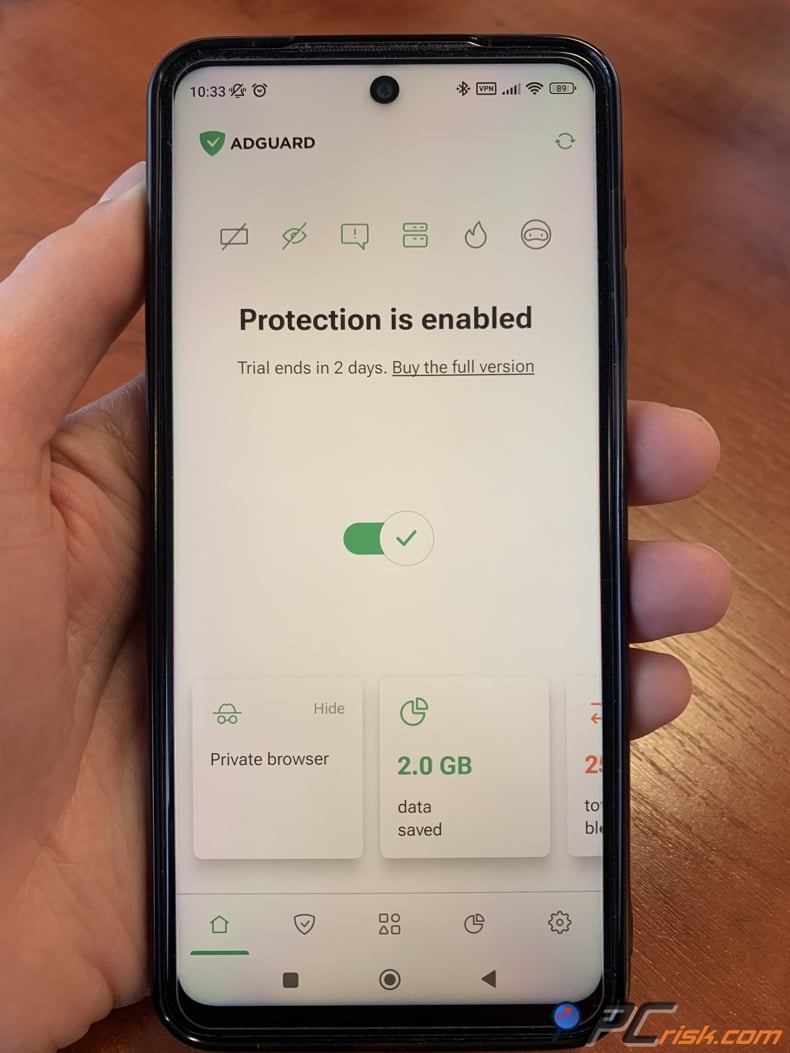
AdGuard - Best overall pick: AdGuard is the strongest all-around choice for YouTube on mobile. We at PCrisk highlight it as the top-reviewed blocker in its current roundup, noting unusually broad platform support, deep custom filter support, Android app filtering, Safari support on iOS, and strong real-world performance. AdGuard reliably blocks YouTube ads in browsers and can offer a share-based workaround or browser-based ad-free playback on mobile.
AdGuard's biggest advantage is breadth. The official license page says a personal plan covers 3 devices and a family plan covers 9, with one license usable across Windows, macOS, Android, and iOS. On Android, AdGuard runs as a local VPN-style filtering tool and can inspect HTTPS traffic when properly configured, which is why it can go beyond a simple browser extension. On iPhone and iPad, AdGuard is primarily a Safari content blocker with DNS protection, which means it is more limited than the Android version but still very useful for browser-based YouTube viewing.
The only reason AdGuard is not a completely universal "just install this" answer is that even AdGuard's own knowledge base says there is no way to remove ads from the native YouTube app on Android completely. Its official recommendation is to share videos from the YouTube app into AdGuard or watch them in a browser, where ads can be filtered more effectively. On iOS, PCrisk and AdGuard both point users toward Safari-based playback rather than pretending the official app can be cleaned up perfectly.
In simple terms, AdGuard is the top choice for Android users who want strong filtering, and for iPhone users who do not mind watching YouTube in Safari. It is also the best option for advanced users, since it offers more custom rules, regional filters, whitelisting, and privacy controls than most basic mobile blockers.
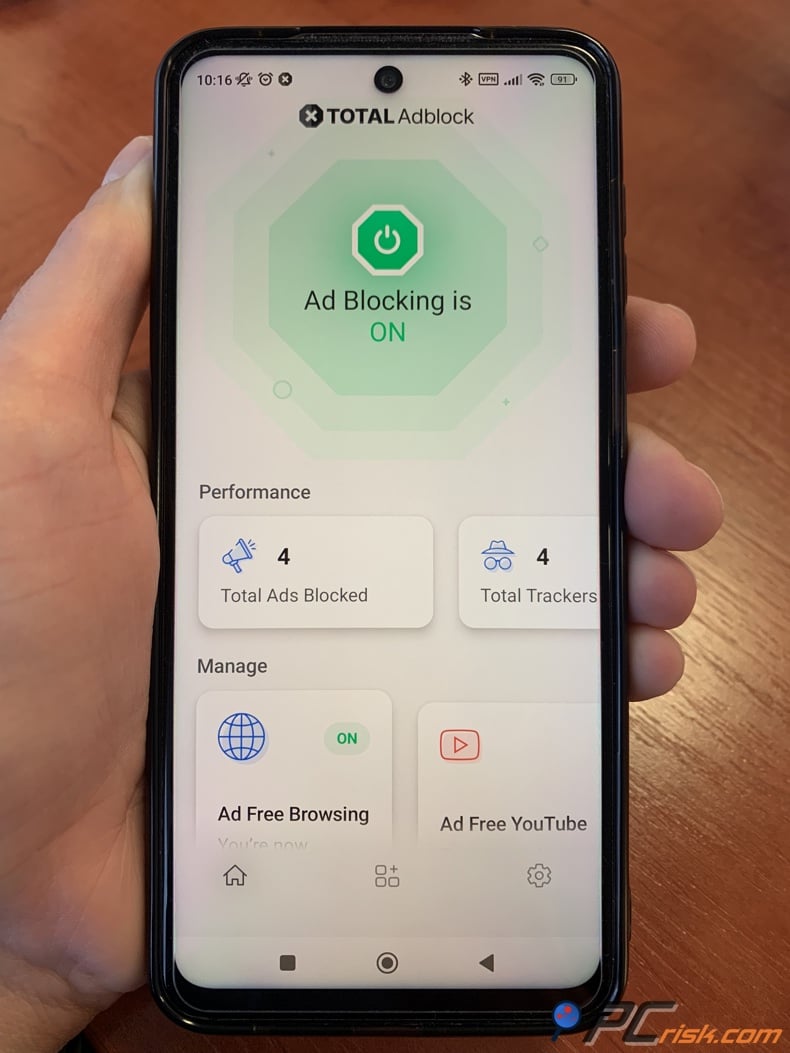
Total Adblock - Easiest cross-platform workaround: Total Adblock is one of the 5 products PCrisk currently reviews, and it is a better fit for YouTube on mobile than some people might think. The company is clear in its support documents: it cannot block ads inside the YouTube app, but it can open shared videos in the Total Adblock app or block ads in the browser. This honesty is helpful. You are getting a real solution, not an unrealistic promise.
From a compatibility standpoint, Total Adblock supports Android and iOS apps, as well as Chrome, Edge, and Safari. Its support center also confirms that the Android app uses a connection method similar to a local VPN and certificate setup to filter incoming ad traffic. PCrisk's broader reviews page lists it among the current top-reviewed blockers, and its methodology strongly rewards ease of use, which is where Total Adblock tends to score well with less technical users.
The main limitation is that this is not true ad removal inside the YouTube app. If you want to use only the official app, Total Adblock is not the best choice. But if you are okay with tapping 'Share' and opening videos in its ad-free player, it is one of the easier options that works on both Android and iOS. It is a good choice for people who want a simple, guided setup and are willing to use a workaround.
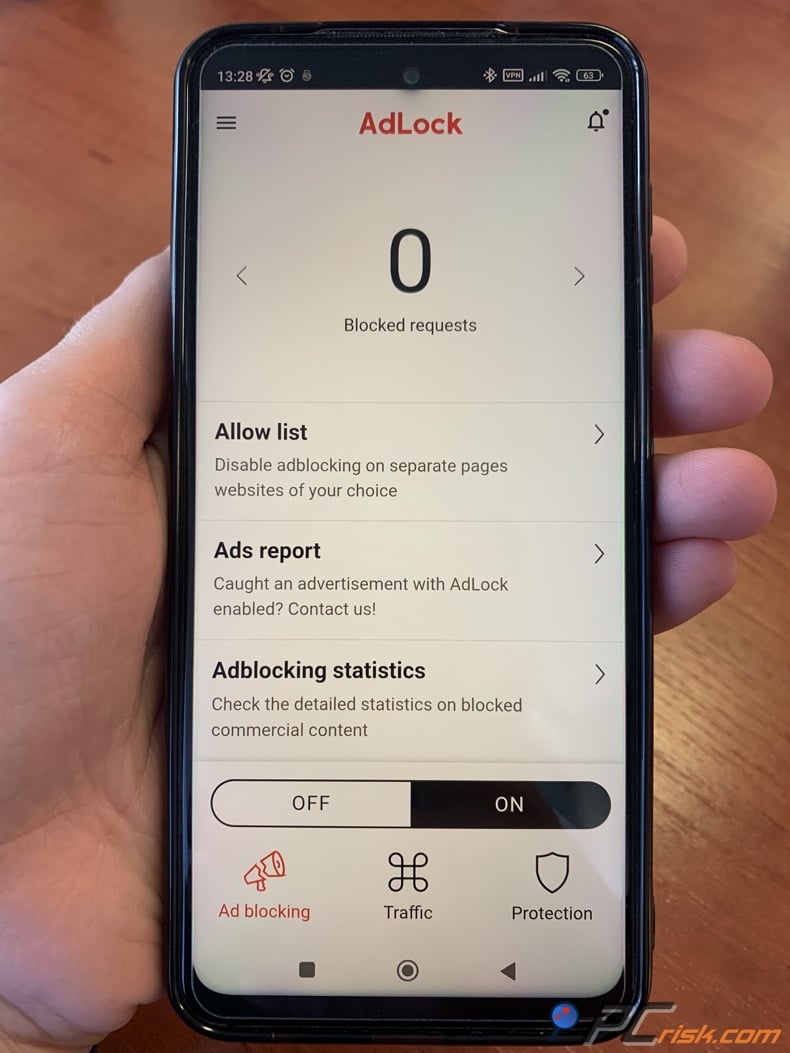
AdLock - Strong alternative with a built-in player: AdLock is another option that deserves serious consideration, especially if you prefer a dedicated player workflow rather than fiddling with filters all day. The official purchase page says that every paid plan covers 5 devices, and that the product is available on Android, iOS, and desktop platforms.
On iOS, AdLock splits its approach into two parts: a free Safari content blocker and a paid system-wide ad and online surveillance blocker via DNS filtering. Its user guide then adds two YouTube-specific workarounds: a Safari share action called "Block YouTube ads" and a custom AdLock player that opens shared videos from the native YouTube app. On the surface, that sounds similar to Total Adblock, and in many ways it is. The difference is that AdLock also gives more traditional ad-blocking controls and a more enthusiast-friendly feel.
On Android, AdLock is positioned as a systemwide blocker for browsers, games, and apps, but its own guide is still refreshingly candid about YouTube. It says the native YouTube app on both iOS and Android is effectively locked down and that no mainstream blocker can truly "clean up" the app itself. So, again, AdLock falls back to what actually works: browser playback and its custom player. That is not a flaw unique to AdLock. It is the reality of mobile YouTube ad blocking in 2026.
AdLock is a good choice if you want more options than Total Adblock but do not need all the advanced features of AdGuard. If you like using dedicated players, want Safari integration, are comfortable installing Android APKs, and prefer a simple 5-device license, AdLock is a well-balanced option.
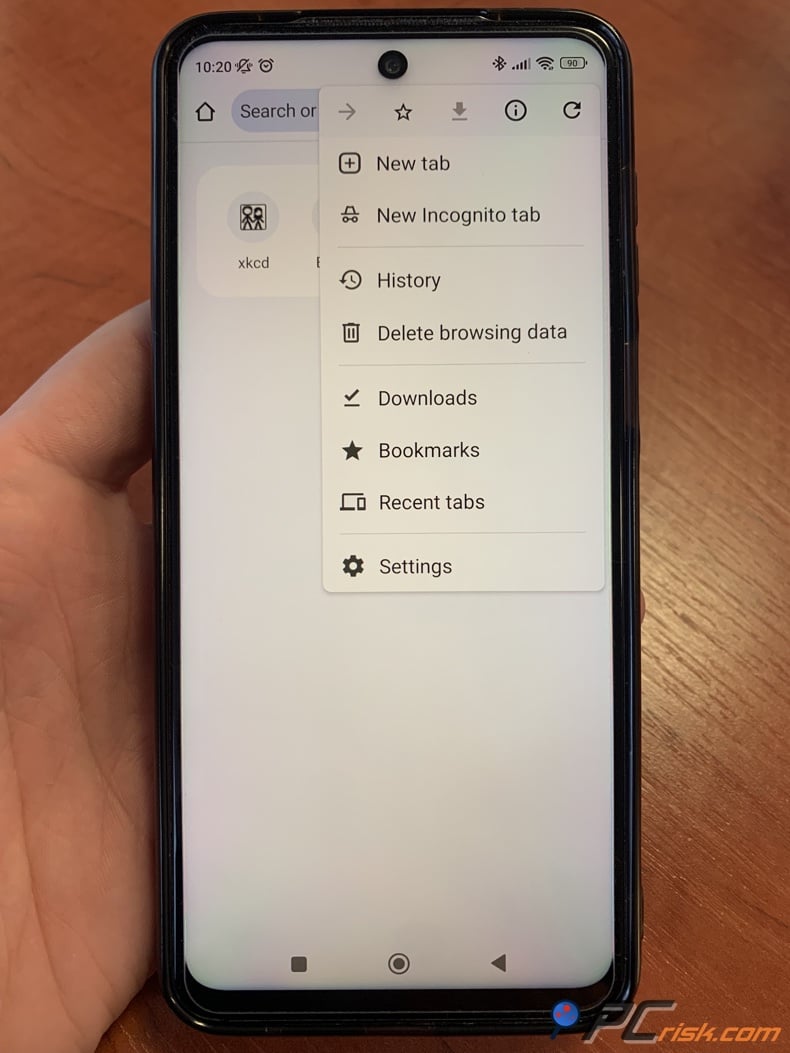
Adblock Plus - Best if you mostly watch in Safari or Samsung Browser: Adblock Plus is one of the most recognizable names in the category, and PCrisk's review still recommends it for general ad blocking. But for YouTube on mobile, you need to understand its limits upfront. PCrisk says it struggles with YouTube more than the stronger contenders in the lineup, especially under recent anti-adblock pressure, and the company's own mobile docs say that on Android, it only works with Samsung Browser or the separate Adblock Browser, not with apps such as YouTube.
The iOS story is a little better, but only a little. Adblock Plus for Safari blocks ads in Safari for free, and Premium adds third-party in-app ad blocking on iOS. However, the iOS documentation also says apps like YouTube, TikTok, Instagram, and Facebook often serve first-party ads through their own systems, making those ads hard or impossible to distinguish from normal content. In plain English, that means ABP can still help on iPhone, but not as a reliable official YouTube app solution. Safari is where it works best.
Another thing to keep in mind is Acceptable Ads. By default, Adblock Plus lets some non-intrusive ads through unless you turn off this setting. Some users like this approach, but if you want a cleaner YouTube or browser experience, you may want to disable it. ABP Premium works on as many browsers, profiles, and computers as you want, and the iOS app now includes Premium features. Still, this is mainly a browser-focused blocker, not a true YouTube app blocker.
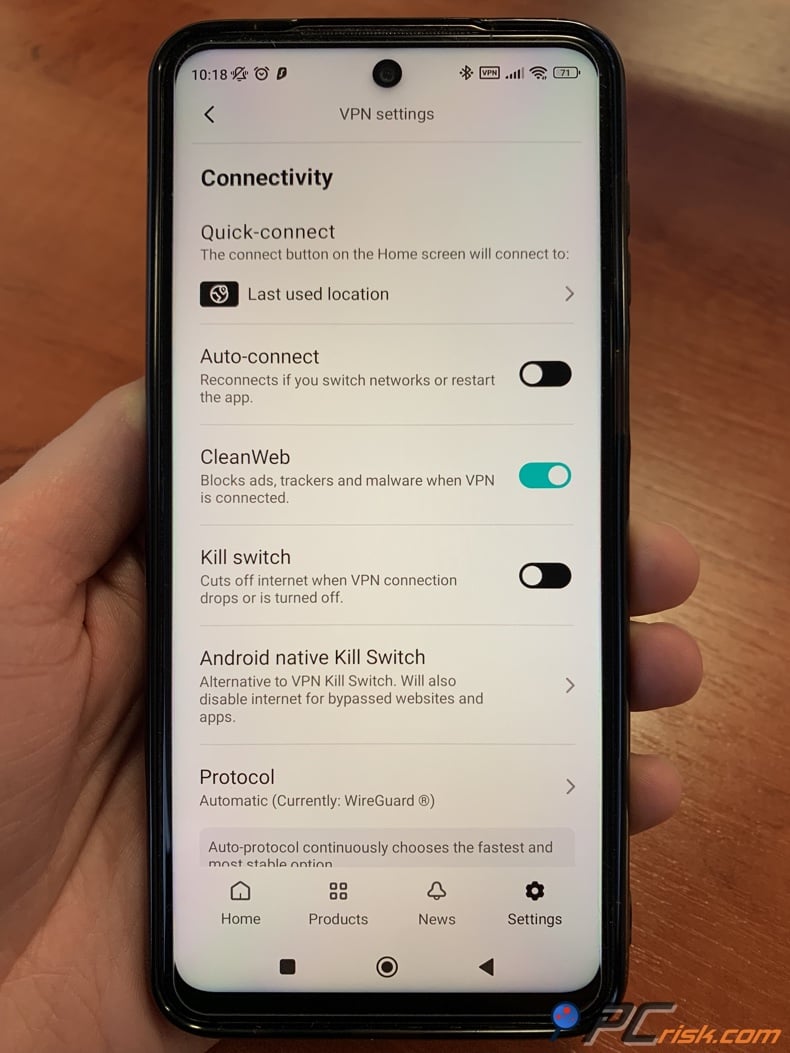
Surfshark CleanWeb - Best only if you already pay for the VPN: We rank Surfshark CleanWeb very highly as a broader ad-blocking and privacy package, but for YouTube on mobile specifically, it is the weakest fit in this top five. That is not because it is a bad product. It is because the official and review evidence points in the same direction: the extension version is where CleanWeb shines, while the mobile app version is much less effective against in-app YouTube ads. PCrisk says the browser extension blocks YouTube ads well, but the standard CleanWeb feature in the mobile VPN app does not block ads in the native YouTube mobile app.
The upside is scale. Surfshark says one subscription supports unlimited simultaneous devices, and its support pages list Android, iOS, Windows, and macOS apps, as well as browser extensions for Chrome, Firefox, and Edge. If you already have Surfshark for VPN reasons, CleanWeb is a useful bonus. It blocks ads, trackers, malware, and phishing attempts, and the upgraded extension adds browser-focused features beyond standard network-level blocking.
But if your main goal is to block YouTube app ads on your phone, basic or bundled VPN blockers are usually not the best place to start. PCrisk points out that mobile coverage is incomplete, which is a problem for this use. Surfshark CleanWeb is best for people who already have a Surfshark subscription and want extra browser ad blocking, not for those who need the most direct YouTube ad solution on mobile.
To sum up: For Android, AdGuard is the top standalone choice, with AdLock and Total Adblock as good alternatives if you like the share-to-player method. For iPhone, browser-based options are best: AdGuard in Safari, AdLock in Safari or its player, and Total Adblock's share feature. Adblock Plus is helpful but more limited, and Surfshark is best seen as an extra if you already use their VPN.
How We Test Adblockers for YouTube
At PCrisk, ad blocker testing is not based on marketing claims or app store ratings. The methodology uses real websites and dedicated test pages to see what gets blocked in practice. That includes ad-heavy pages, sites with pop-ups and overlays, YouTube-style video ad scenarios, and tracking environments that reveal whether analytics scripts, advertising beacons, cookies, and fingerprinting tools still load in the background.
Block YouTube Ads with AdGuardSpecial deal30-day money-back guarantee→
Performance is just as important as blocking ads. We check how ad blockers affect page loading speed, CPU and memory use, and how smooth browsing feels. A blocker that hides one ad but makes everything else slower is not helpful. This is especially true on phones, where battery life, data use, and how responsive the app feels are even more important than on a desktop.
Usability is also a big part of the rating. We at PCrisk look at whether the blocker works on different platforms, how easy it is to install, how clear the interface is, if the default settings make sense, the quality of the instructions, and how simple it is to whitelist sites or change features. That is why these blockers are ranked by how practical they are for everyday Android and iPhone users, not just by their technical ad-blocking power.
PCrisk also tests additional features rather than just trusting the company's claims. We check for custom filter options, whitelisting, cosmetic filtering, protection against phishing and malware, anti-adblock defenses, and special features like DNS filtering, VPN integration, or privacy controls. This wider view is important for YouTube on mobile, because the best blocker isn't always the one that scores highest in desktop tests. Often, it is the one that works smoothly on mobile, causes the fewest problems, and has reliable support.
Key Features to Consider in an Ad Blocker
The first thing to check is not whether a blocker claims to block all ads. On mobile, that is often an overpromise. The real question is whether the blocker has a good way to handle YouTube ads. AdGuard, AdLock, and Total Adblock all offer browser-based or share-to-player options. ABP mainly works in Safari, Samsung Browser, or its own browser, and Surfshark's best YouTube blocking is in its browser extension, not the main mobile VPN app.
The next thing to consider is how realistic the blocker is for your platform. Android lets you use stronger filtering methods than iOS, like network filtering, local VPNs, and HTTPS inspection. iPhone users usually get the best results with Safari content blockers, DNS filtering, or browsers like Brave. If you mostly watch YouTube in the official iOS app, expect to use workarounds rather than hoping for a perfect solution.
Third, check how much control you have over filters and how often they are updated. AdGuard is the best in this group for custom filters, regional lists, and privacy settings. Adblock Plus is good for basic filter changes but still allows Acceptable Ads by default. Surfshark CleanWeb is simpler, which can be nice, but it gives you less detailed control. If you want to block more than just ads, like cookie pop-ups, trackers, and anti-adblock messages, having more filter options is important.
Fourth, check device coverage and licensing. AdGuard covers 3 devices on a personal plan and 9 on a family plan. AdLock covers 5 devices per plan. Surfshark offers unlimited simultaneous devices. Adblock Plus Premium can be unlocked on as many supported browsers, profiles, and computers as you like, with Premium support on the iOS app. Total Adblock offers multiple subscription terms and cross-platform installs, but its exact renewal pricing and terms deserve a close read because the company heavily markets introductory pricing.
Finally, think about trust and how the blocker is distributed. Some blockers need you to install APKs, certificates, or patches, which can be safe but require more effort. PCrisk values easy setup, regular updates, and good support, and you should too. If you want the simplest experience, choose an official app or a browser with built-in blocking. If you want the most control, be ready for more setup and possible troubleshooting.
Seeing ads, pop-ups, redirects, or suspicious behavior outside the YouTube app can indicate a broader adware or security issue on your device. Combo Cleaner helps Android and iOS users improve mobile security with web browsing protection, anti-malware tools, and cleanup features. Download Combo Cleaner to check your device and make your mobile browsing experience safer and cleaner."
Combo Cleaner is available for Android and iPhone, and its official pages describe features such as web browsing protection, anti-malware protection, and phone cleaning tools.
A VPN encrypts your traffic — but your device still needs protection against malware and ransomware. Combo Cleaner adds the missing layer of defense.
Download Combo CleanerAntivirusDetect & remove malware threats→2. Block YouTube Ads with an Ad Blocker Extension
For many users, the most reliable way to reduce YouTube ads on mobile is to use a mobile browser instead of the official app. Browsers let ad blockers work better because they can block content directly on web pages, while the YouTube app often hides ads in ways that are harder to block.
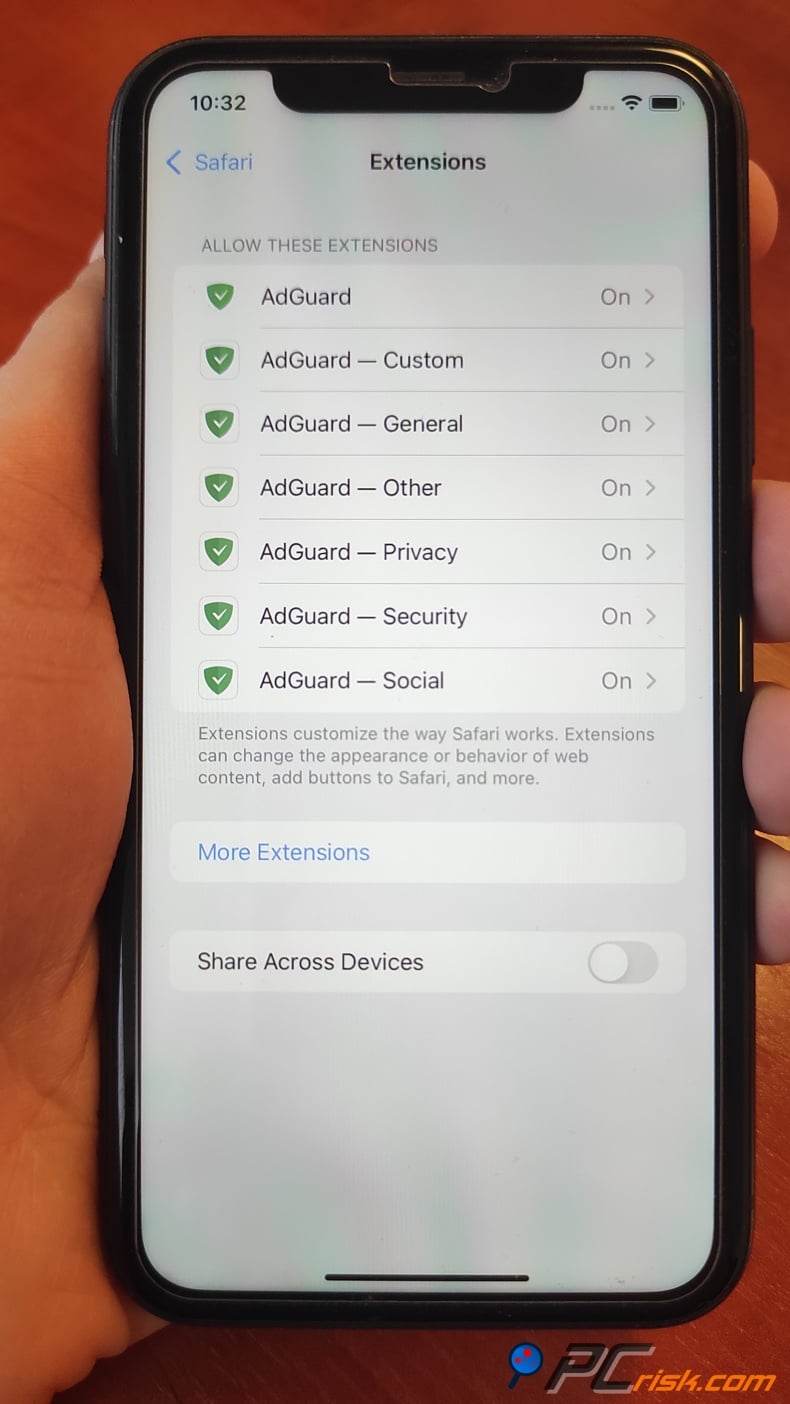
On iPhone and iPad, Safari is still the best browser for using extensions. Apple allows third-party content blockers in Safari, and several of the blockers reviewed here - AdGuard, Adblock Plus, Total Adblock, and AdLock - work with it. If you want ad-free YouTube on iOS, using Safari with one of these blockers is usually better than trying to block ads in the official app.
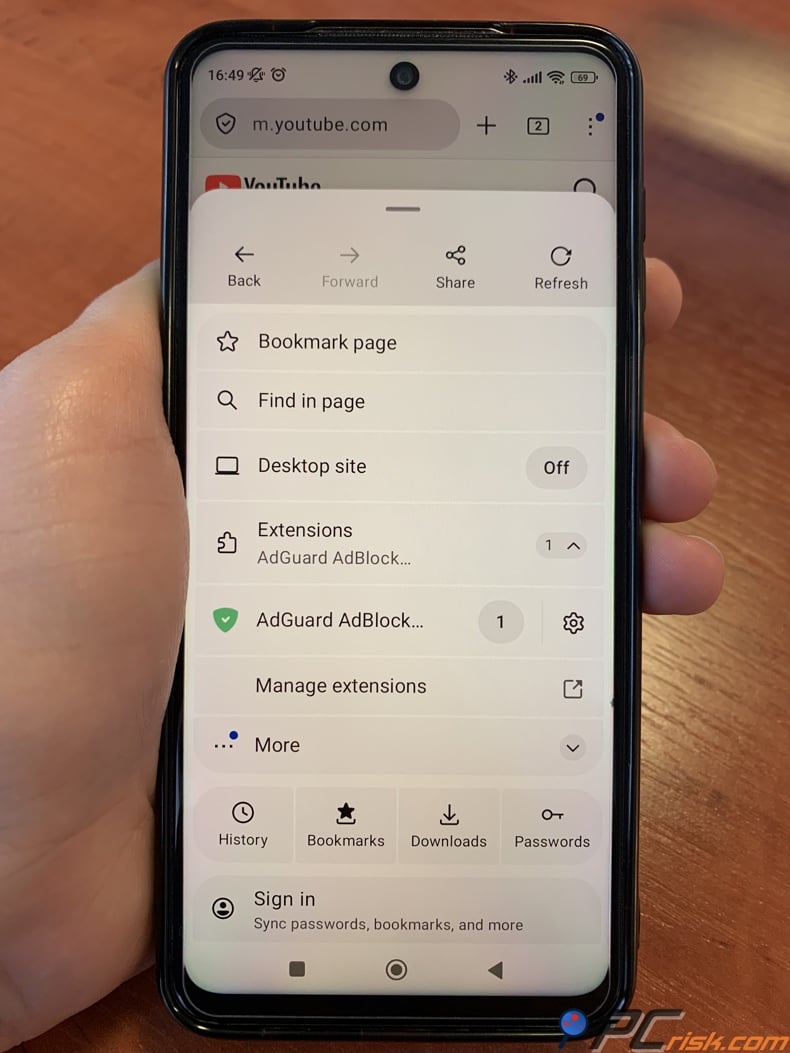
On Android, Firefox is a great choice for using extensions. Mozilla says Firefox for Android supports add-ons, but Firefox for iOS does not because of Apple's rules. So, Firefox on Android is a good option for watching YouTube with a browser-based blocker like AdGuard's Firefox extension, while Firefox on iPhone does not offer the same extension support.
Chrome is not a good choice for using ad blocker extensions on mobile. Google says extensions and themes only work on computers, not on mobile devices. So, if you mainly use YouTube in Chrome on your phone, you cannot use traditional ad blocker extensions. This means iPhone users should use Safari, and Android users should try Firefox, Samsung Browser, Edge, Brave, or a browser with built-in ad blocking.
Edge is more straightforward. Microsoft says Edge for mobile includes Adblock Plus support on Android and iOS, with settings to block most ads or all ads if you turn off acceptable ads. This makes Edge a good, easy option for people who do not want to install a separate blocker and are okay with watching YouTube in the browser instead of the app.
Brave also fits in this browser group, but it stands out because its ad blocker is built in, not added as an extension. In short, browser extensions are still more reliable than app-based blockers for YouTube on mobile. Safari, Firefox for Android, Edge, and Brave are the best browser choices, while Chrome on mobile does not support traditional extensions.
3. Use the Brave Browser to Watch YouTube Ad-Free
If you want the easiest browser-only recommendation, Brave is probably it. Its YouTube marketing page specifically says the browser blocks ads, trackers, and other YouTube annoyances, and that Brave Shields are enabled by default with no extra downloads or external extensions required. That matters on mobile because simplicity is half the battle. A blocker you actually use every day is better than a theoretically stronger one you never finish setting up.
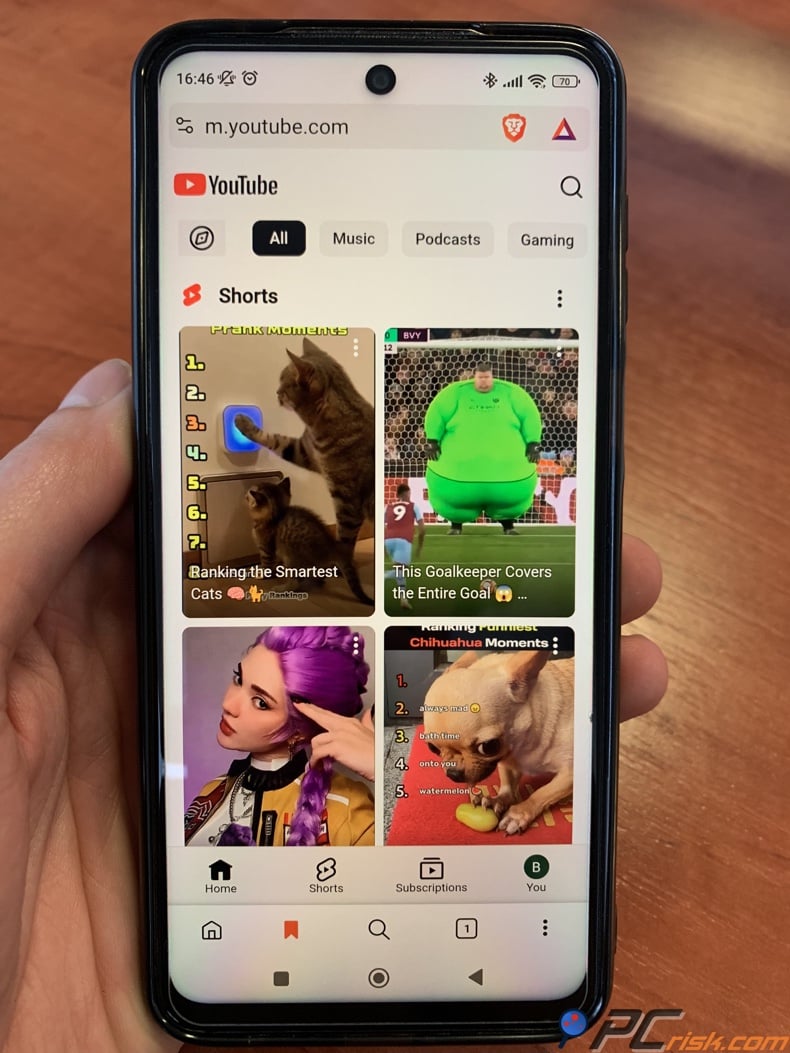
Brave is available on both Android and iOS. It offers built-in ad and tracker blocking, background play with lockscreen controls, optional settings to block distracting elements, and additional quality-of-life features. On iOS, Brave Playlist goes even further, letting you add media to a playlist for ad-free playback with background listening and lockscreen control. Brave says Playlist content plays without pre-roll, mid-roll, or on-page ads, and that can feel very close to a premium mobile YouTube experience.
The main limitation is that Brave is not the official YouTube app. It gives you an ad-free experience by having you watch in a browser that it can control. For many people, this trade-off is worth it because the setup is easy. For others who need special YouTube app features or deep account integration, it might feel like a compromise. Also, keep in mind that YouTube warns that ad blockers can trigger prompts or playback limits.
If you want the quickest way to watch YouTube without ads on your phone and do not want to pay for Premium, Brave is one of the best options. It does not try to block ads in the official app. Instead, it gives you a cleaner, more private, and easy-to-use browser-based experience.
4. Watch YouTube Using Vanced or ReVanced
Many Android power users still ask about this method, so here is the honest answer. YouTube Vanced is no longer available. The project was shut down in 2022 after legal pressure from Google, and the team had to stop distributing it. In short, Vanced is now part of Android history, not a reliable option for 2026.
ReVanced is the modern successor, but it is not a normal consumer app. The official project describes itself as an Android app patcher, says it is not available on iOS, and confirms support for both rooted and non-rooted Android devices. The official documentation also notes that patched YouTube installs on non-root devices may require GmsCore support, and the project's own announcements and issues show a familiar pattern: when YouTube changes something upstream, users may need to update ReVanced Manager, update patches, and repatch their apps.
That does not mean ReVanced is useless. For advanced Android users, it can work very well. But it is a niche option. It is unofficial, available only on Android, and requires more technical skill and trust than a regular app store download. It also requires more maintenance than the other methods mentioned. If you want a stable, easy recommendation, ReVanced is for power users, not most people. If you use an iPhone, it is not an option at all.
5. Enable PiP Mode and Skip YouTube Ads
This is the weakest of the 5 methods, and it is important to be clear about that. Picture-in-picture does not block ads. It just lets you keep the video in a small window while you use other apps, or sometimes lets you return to background play after closing the PiP window. If your main goal is to remove ads, this is not the solution.
Where PiP does help is annoyance management. On Android and iPhone, YouTube says PiP works across YouTube with a YouTube Premium membership. In the United States, non-Premium users can still use PiP for most videos, though not for certain content, such as music videos. Outside the U.S., YouTube says PiP requires Premium for any content. If you are in a supported region and can use PiP, you can at least minimize the disruption of long skippable ad breaks by shrinking the player while the ad runs and returning after the standard "Skip Ad" timing kicks in. That is a workaround, not ad removal.
Should you use PiP? Yes, but only as an extra tool. It is similar to muting your phone during an ad or switching back after a few seconds. PiP is a convenience, not a real ad blocker. If you want to actually reduce ads, start with an ad blocker or a browser solution.
If you want the official, least troublesome route, YouTube Premium is better. YouTube says Premium removes ads before and during videos, third-party banner ads, and search ads across YouTube-connected devices and apps, while also adding background play, downloads, and picture-in-picture support. In the U.S., YouTube's current public pricing shows $15.99 per month for an individual plan, $26.99 for a family plan, and $8.99 for a student plan. Premium Lite also exists in some markets as a cheaper option with fewer perks and some remaining ad exposure on music content, Shorts, and browsing surfaces.
But ad blockers still offer real benefits that Premium does not. First, they block ads, trackers, cookie pop-ups, autoplay clutter, and even dangerous ads across the whole web, not just YouTube. Second, they can make pages load faster by stopping ad and tracking requests before they appear. Third, they help protect your privacy in ways a YouTube subscription cannot. If you use the internet for more than just YouTube, these benefits might be more important than the convenience of the official app.
There is another reason to consider blockers: they can sometimes give you the experience you really want. Premium removes ads in the official app, but it does not block creator sponsorships, embedded promotions, merch shelves, or every promotional feature. YouTube says some creator-added promotions and certain channel features may still show up. For some people, using a browser-based blocker and a cleaner interface can feel less cluttered than the paid app.
So, which option should you choose? If you want the easiest experience in the official YouTube app on Android or iPhone, go with Premium. If you care more about privacy, blocking ads across the web, custom filters, and not paying every month, use an ad blocker. Just remember, the best mobile results usually come from using Safari, Firefox for Android, Brave, or share-to-player methods, not from blocking ads inside the app itself. For many people, the best approach is a mix: use a good blocker for the rest of the web, and decide if YouTube is annoying enough to pay for Premium.
Final Thoughts
The most important thing to know is that blocking YouTube ads on mobile is no longer a one-step, one-tool solution. On Android, you can still do a lot with a good blocker like AdGuard, especially if you are willing to watch in a browser or use a share-to-player method. On iPhone, watching in Safari is still the best way, whether you use AdGuard, AdLock, Total Adblock, or another blocker from the PCrisk list.
If you want the shortest advice: Choose AdGuard for the most complete mobile blocker. Choose Total Adblock or AdLock for a simple YouTube sharing workflow across devices. Use Adblock Plus only if you are okay with a browser-first approach and limited Android support. Pick Surfshark CleanWeb only if you already have Surfshark and want extra browser ad blocking. Use Brave for the easiest free browser-based solution. Buy YouTube Premium to ensure the official app works smoothly without any hassle.
The main takeaway is that mobile ad blocking works best when you have realistic expectations. Do not believe claims that every ad will disappear in every app. Instead, pick the blocker that fits how you watch YouTube on your phone. If you use the official app, Premium is the simplest solution. If you watch in a browser, Brave or Safari with a good blocker will usually give you a more ad-free experience.
Frequently Asked Questions (FAQs)
Can you really block ads inside the official YouTube app on iPhone?
Not reliably in the same way as you can on desktop browsers. Adblock Plus says large apps like YouTube often serve first-party ads that cannot be separated from normal content, and AdGuard, AdLock, and Total Adblock all steer iPhone users toward Safari-based playback or share-to-player workarounds instead.
Which ad blocker is best for YouTube on Android?
From the PCrisk-reviewed pool, AdGuard is the strongest overall Android pick because it combines deep filtering, strong browser support, Android app-level filtering features, and a YouTube-specific share workflow. It is still not a perfect native YouTube app sanitizer, but it goes further than the other reviewed options.
Why do ad blockers usually work better in browsers than in the YouTube app?
Because browsers allow content blocking at the page level, while the official app often serves ads through first-party systems that are harder to distinguish from regular content. Multiple vendors, including Adblock Plus, AdGuard, AdLock, and Total Adblock, say the browser path is more realistic on mobile.
Does mobile Chrome support ad blocker extensions?
No. Google says Chrome Web Store extensions and themes are for computers and cannot be installed on mobile devices. That is why Safari, Firefox for Android, Edge, and Brave are better choices for reducing YouTube ads on phones.
Is Adblock Plus good for YouTube on Android?
Only in a limited way. Adblock Plus says Android support is mainly through the Samsung Browser or the separate Adblock Browser, and its docs explicitly state that it cannot block ads in apps such as YouTube. PCrisk also says it struggles more with YouTube than with stronger alternatives.
Is ReVanced available on iPhone?
No. ReVanced's official documentation says it is a patcher for Android apps and is not available on iOS. It is an Android-only option for advanced users who are comfortable with unofficial patching workflows.
Can YouTube detect ad blockers?
Yes. YouTube says ad blockers can violate its Terms of Service, that it may ask users to allow ads or subscribe to YouTube Premium, and that continued ad-blocking can result in playback restrictions. That is one reason browser-based workflows can sometimes require more trial and error than users expect.
Does PiP remove YouTube ads?
No. Picture-in-picture only lets you continue watching while using other apps. It can reduce how annoying ad breaks feel, but it does not block them. Outside the U.S., YouTube says PiP generally requires Premium for all content.
Is YouTube Premium better than an ad blocker for mobile?
For the official app, yes. Premium is the most reliable and convenient way to remove standard YouTube ads inside the official experience. But a good ad blocker still offers broader benefits across the rest of the web, including reduced tracking, lighter pages, and malware or phishing protection that a YouTube subscription does not provide.
What is the simplest free way to watch YouTube with fewer ads on mobile?
For many users, it is better to open YouTube in Brave instead of the official app. Brave blocks ads and trackers by default, needs almost no setup, and on iOS adds Playlist-based background and ad-free playback features that can feel close to a premium experience.
Share:
 Facebook
 X.com
X.com
 LinkedIn
 Copy Link

Rimvydas Iliavicius
Researcher, author
Rimvydas is a researcher with over four years of experience in the cybersecurity industry. He attended Kaunas University of Technology and graduated with a Master's degree in Translation and Localization of Technical texts. His interests in computers and technology led him to become a versatile author in the IT industry. At PCrisk, he's responsible for writing in-depth how-to articles for Microsoft Windows.
▼ Show Discussion