
We may earn commissions from products we recommend. Learn more.
10 ways to fix uTorrent not working with a VPN

How to fix uTorrent not working with a VPN
Most of the time, using uTorrent with a VPN is simple. You just connect to the VPN, open uTorrent, and start downloading torrents. But sometimes things go wrong. uTorrent might get stuck on "Connecting to peers," downloads could stay at 0%, trackers might time out, or your speeds could drop sharply when the VPN is on.
These issues do not always mean that uTorrent or your VPN is broken. A VPN changes how your network traffic moves, adds a virtual network interface, and can set up things like firewalls, kill switches, DNS, protocol, or P2P restrictions. uTorrent also has its own connection and port settings, so if the two do not match, peer-to-peer traffic might not work right. The steps below focus mainly on uTorrent Classic for Windows, the primary Windows client for bulk torrent downloads, and the one that provides the networking options needed for these fixes.
Before you make any changes, remember to use torrents only for content you are legally allowed to download or share. A VPN can help protect your privacy, but it does not make illegal downloading legal.
Disclaimer: PCrisk.com does not promote, encourage, or support the use of torrenting to obtain copyrighted material without permission. Laws vary by location, and readers are responsible for following local regulations and respecting intellectual property rights.
 Our top-rated VPN
4.5/5 in our review. Our top pick of the year: almost no slowdown in our speed tests, and it unblocked Netflix, BBC iPlayer and Disney+ without trouble.
Table of Contents:
- Introduction
- Why can uTorrent stop working with a VPN?
- 10 ways to fix uTorrent not working with a VPN
- Conclusion
- Frequently asked questions (FAQs)
Why can uTorrent stop working with a VPN?
A VPN creates an encrypted tunnel between your computer and a remote server. Because of this, uTorrent's connections do not follow the same path as your regular internet connection. This setup is good for privacy, but it can also add extra parts that might fail or conflict with each other.
A common problem is connecting to a server that does not support P2P traffic. Not all VPN providers treat torrent traffic the same way on every server, subscription, or app. For example, Proton VPN marks its P2P servers in its apps and says that P2P support is available with paid plans. These servers are set up for peer-to-peer traffic, including BitTorrent.
The VPN protocol you use can also make a difference. Different protocols create different virtual adapters and connect in different ways. A network that works well with one protocol might behave differently with another, depending on your router, Wi-Fi restrictions, security software, or a damaged virtual network adapter. The VPNs we recommend at PCrisk use technologies like NordVPN's NordLynx, Surfshark's WireGuard, Mullvad's WireGuard and OpenVPN, and ExpressVPN's Lightway.
Another thing to check is the VPN kill switch. This feature stops your internet traffic if the VPN connection drops, which is helpful for torrenting because it keeps uTorrent from using an unprotected connection. But if your VPN keeps reconnecting, cannot set up its tunnel, or has a broken network adapter, uTorrent might lose network access.
Split tunneling can cause the opposite issue. This feature lets you choose which apps use the VPN. If uTorrent is accidentally left out, your web browsing might go through the VPN, but torrent traffic could use your normal internet connection. This defeats the privacy purpose of using a VPN with uTorrent. Our PCrisk tests note that Surfshark offers split tunneling, while NordVPN's version has some platform-specific limits.
Common barriers to P2P performance also include:
- A congested or distant VPN server
- Poorly seeded torrents
- A firewall blocking uTorrent or the VPN application
- Incorrect uTorrent connection settings
- An outdated VPN client or uTorrent installation
- A malfunctioning VPN network adapter
- Incorrectly configured port forwarding
- Binding uTorrent to an old VPN IP address
- Tracker or DNS resolution problems
- A VPN connection that repeatedly drops and reconnects
It's important to distinguish between a VPN issue and a torrent issue. If only one download is stuck, but other well-seeded legal torrents work fine, changing your VPN settings probably won't help that specific torrent. On the other hand, if browsing, DNS, and all other internet apps stop working right after you connect to the VPN, you should check the VPN connection itself before making changes to uTorrent.
PCrisk currently recommends NordVPN, Surfshark VPN, Mullvad VPN, Proton VPN, and ExpressVPN. In our 2026 tests, NordVPN ranked first overall and is especially good for torrenting. We also found Mullvad to be fast and stable enough for torrenting.
10 ways to fix uTorrent not working with a VPN
Start by checking basic connections first, and only adjust advanced uTorrent settings if you need to.


1. Verify that the VPN is actually causing the problem
Before changing ports, protocols, or advanced settings, check if the VPN is actually causing the problem.
First, stop or pause any active torrent downloads. Disconnect the VPN and see if your regular internet works. Then reconnect the VPN and check again. Try opening a few websites while the VPN is on.
Next, try uTorrent with a legal, well-seeded torrent. If a torrent has very few seeders, it might stay stuck no matter how well your VPN works.
Based on what you find, here's where to focus next:
If your internet works with the VPN but uTorrent doesn't, check your P2P server choice, uTorrent settings, firewall rules, ports, and binding.
If everything stops working when you connect the VPN, start by troubleshooting the VPN app, protocol, virtual adapter, or your network connection.
If only one torrent fails, the problem is probably with the torrent itself, the tracker, or the number of available peers.
Don't keep disconnecting your VPN while torrents are running. If you use a VPN for privacy, pause your downloads before testing your connection.
2. Connect to another VPN server or a P2P-compatible server
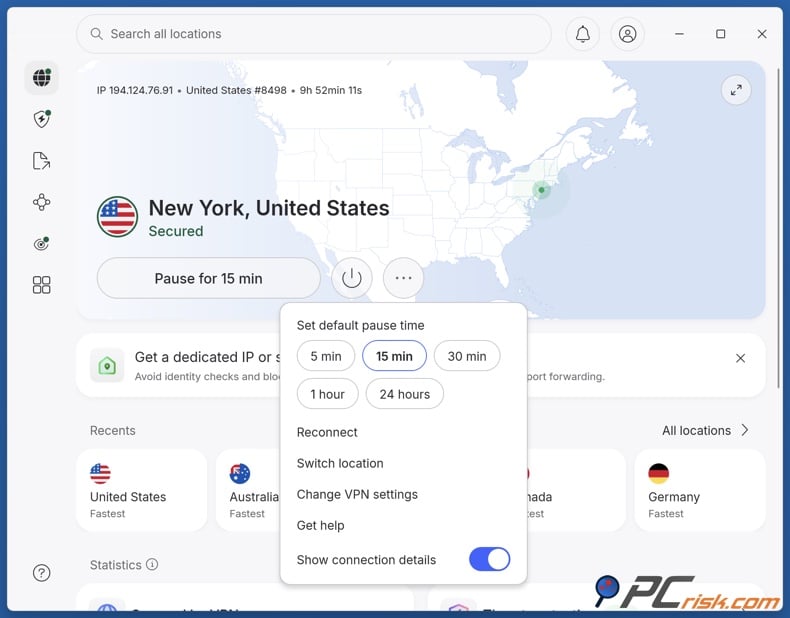
One of the first things to check is which server you're using.
If your VPN provider offers servers meant for P2P traffic, choose one of those. For example, Proton VPN labels its P2P servers and says they are set up to handle peer-to-peer traffic like BitTorrent. P2P support is available with Proton VPN's paid plans.
If your VPN does not need a special server for P2P, switching servers can still help if you have slow speeds. Disconnect from your current server and try another one nearby. Usually, a closer server gives a faster connection, but speed also depends on server load, your ISP, and the peers you connect to.
Don't judge the connection based on the first few seconds. Let uTorrent run for a bit so it can contact trackers and find peers.
If most nearby servers work but one always fails, you probably don't need to keep troubleshooting uTorrent. Just use a server that works and let your VPN provider know about the problem if it keeps happening.
3. Change the VPN protocol
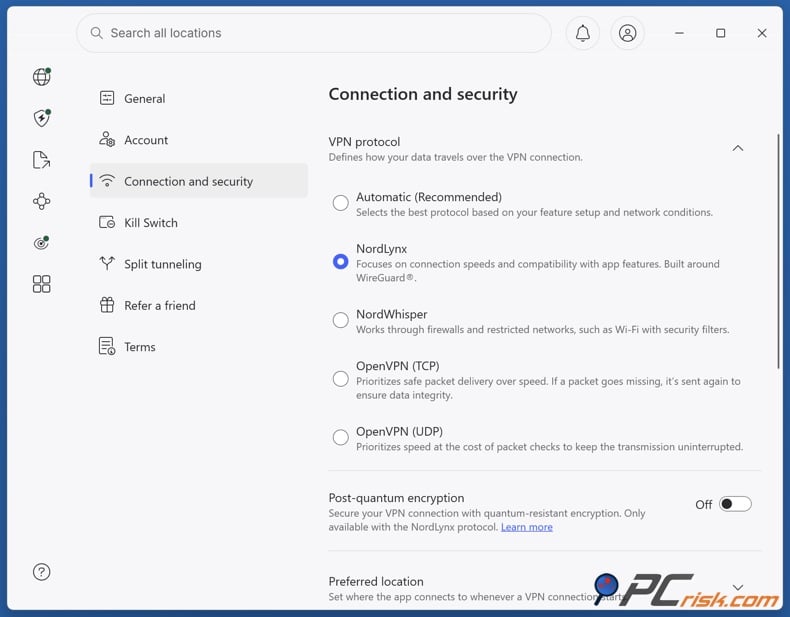
If changing servers does not solve the problem, try using a different VPN protocol.
Most VPN apps offer an automatic mode and let you pick from several protocols. Our latest reviews mention NordLynx for NordVPN, WireGuard for Surfshark, WireGuard and OpenVPN for Mullvad, and Lightway for ExpressVPN.
Go to your VPN settings, find the protocol or connection option, and see which one is selected. Switch to a different protocol, reconnect your VPN, and try using uTorrent again.
This is particularly worthwhile when:
- The VPN connects but uTorrent never finds peers.
- The VPN frequently reconnects.
- Torrent speeds suddenly became extremely poor.
- The problem occurs on one Wi-Fi network but not another.
- The issue began after a VPN or operating system update.
Switching protocols can create or select a new virtual network interface. This is important if you set up uTorrent to use a specific VPN IP address. After changing the protocol, check any manual settings you made in uTorrent.
4. Check the kill switch and split tunneling settings
Kill switch and split tunneling settings control your traffic in different ways, so it is important to check both.
You should usually keep the kill switch on when torrenting if you want the VPN to block uTorrent from using your regular internet. If uTorrent stops whenever the VPN reconnects, the kill switch is working as intended. In this case, the real issue is the unstable VPN connection, not uTorrent itself.
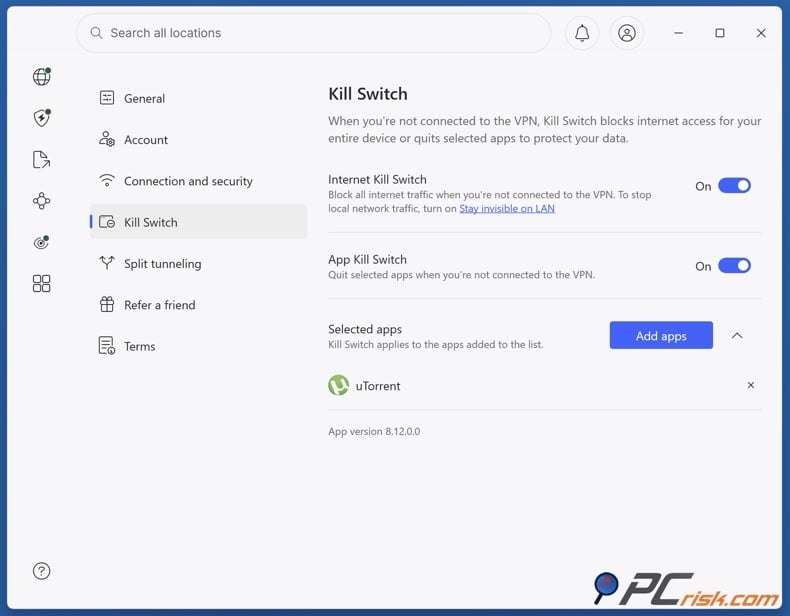
Do not turn off the kill switch just to get uTorrent working again. Instead, try connecting to a different server, switching protocols, or fixing the VPN app.
Next, check your split tunneling settings. If your VPN lets you pick which apps use the VPN, make sure uTorrent is not set to bypass it. For better privacy, uTorrent should go through the VPN.
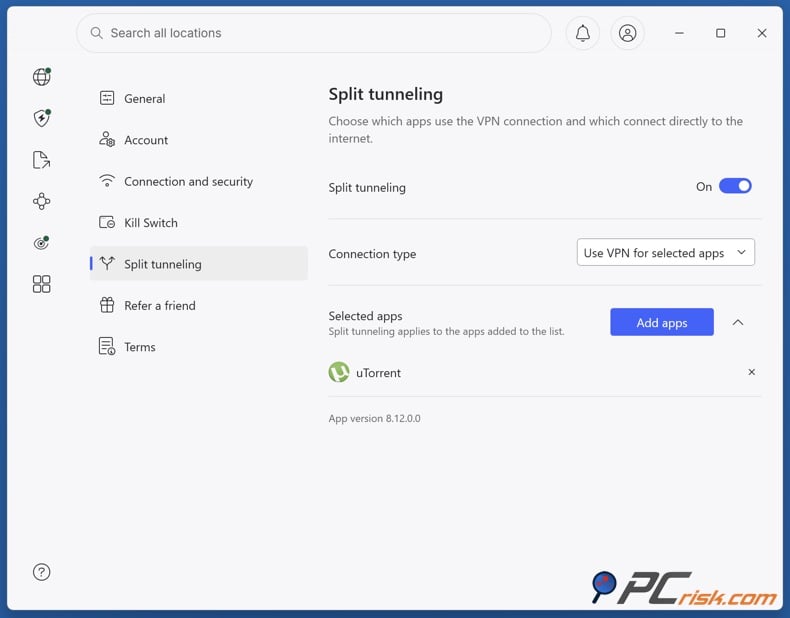
After you make a change, close uTorrent completely, reconnect your VPN, and reopen uTorrent. This way, new connections will use the updated routing setup.
5. Allow uTorrent and the VPN through the firewall
A firewall or security program can block an app from making or receiving network connections. This can happen after you reinstall uTorrent, update your VPN, change your network profile, or replace the VPN's network adapter.
On Windows, check your firewall's list of allowed apps and make sure both uTorrent and your VPN are permitted. You can do this using the "Allow an app or feature through Windows Defender Firewall" option.
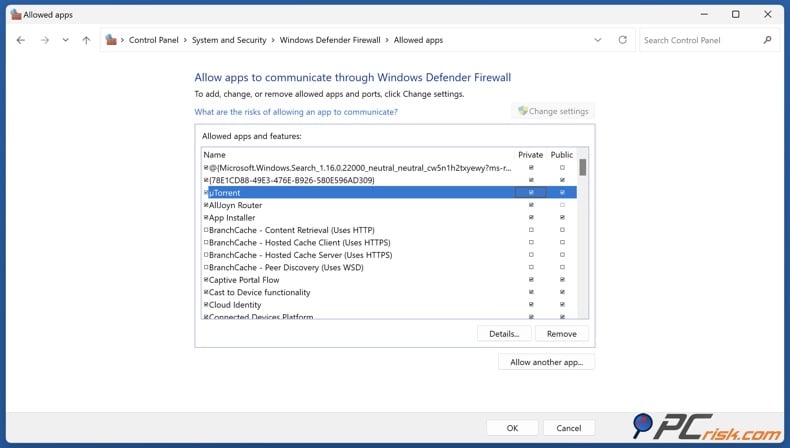
If you use a different security program, check its firewall or network protection settings too.
We don't recommend turning off Windows Firewall or your antivirus for troubleshooting. It's safer to add an exception for the app instead of disabling protection for your whole computer.
After you change firewall permissions, close both uTorrent and your VPN app. Then open the VPN, connect, and start uTorrent again.
6. Update uTorrent, your VPN app, and Windows
Networking software relies on drivers, adapters, protocols, and your operating system's network parts. Keeping everything up to date can prevent many problems before you need to try more complex fixes.
Update:
uTorrent: Download and install the latest stable version of uTorrent Classic from the official website. uTorrent Classic is the original Windows client for bulk downloads.
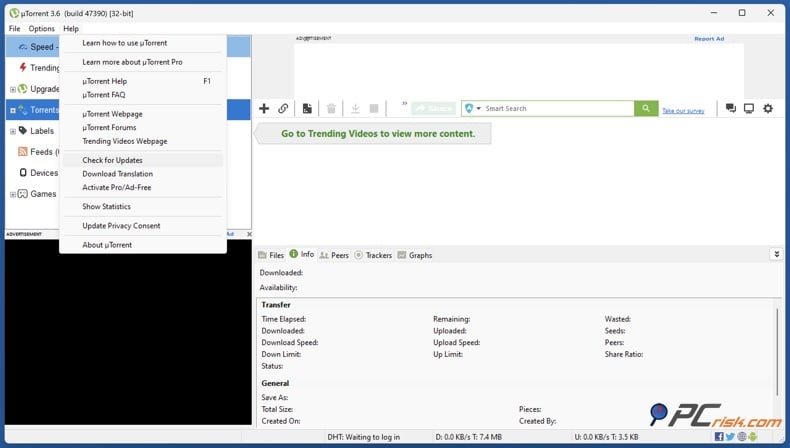
Your VPN: Make sure you have the latest version of your VPN provider's desktop app installed.
Windows: Install any available Windows updates and restart your computer if needed.
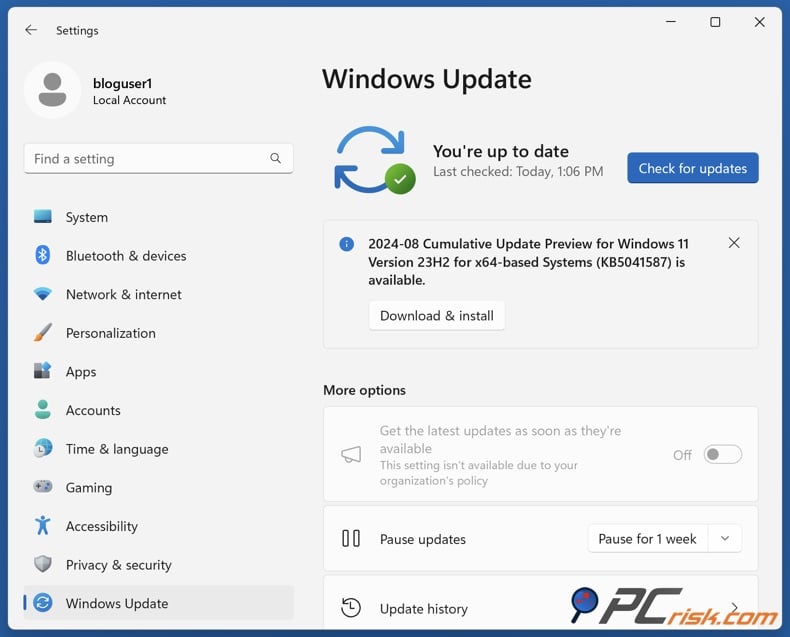
Once you've updated everything, restart your computer fully instead of just closing and reopening the apps. After that, connect to your VPN before opening uTorrent.
If the issue started right after a VPN update and switching servers or protocols doesn't help, try reinstalling the VPN app. This can fix damaged virtual adapters and reset VPN network settings to default.


7. Reconnect the VPN and clear stale network state
Sometimes, even if all the settings look right, uTorrent might still use old network information from before you changed your VPN connection.
Try these steps in order:
- Exit uTorrent completely.
- Disconnect the VPN.
- Close the VPN application.
- Restart Windows.
- Open the VPN.
- Connect to a suitable server.
- Confirm that normal internet access works.
- Start uTorrent.
These steps are especially helpful if you often switch VPN servers or protocols.
If your VPN works in a browser but uTorrent still shows tracker errors, check if the VPN's DNS settings have been changed. Try switching the DNS settings back to the provider's recommended or automatic option before using a different DNS service.
If the VPN's virtual adapter is unreliable, try reinstalling the VPN. Uninstall it as usual, restart your computer, and install the latest version. Test the default settings first before adding any old custom configurations.
8. Check uTorrent's incoming port and VPN port forwarding
Many people misunderstand port forwarding. You don't always need VPN port forwarding for uTorrent to download files, but allowing incoming peer connections can help with connectivity in some peer-to-peer situations.
The key point is whether your VPN provider supports port forwarding. Forwarding a port on your home router does not automatically open that port through the VPN server.
Proton VPN supports port forwarding on paid plans for supported desktop platforms. The app assigns an active port, which you need to set in your torrent program. Keep in mind, this port often changes when the VPN reconnects.
In uTorrent, go to Options, then Preferences, then Connection to find the incoming listening port. If you use Proton VPN's port forwarding, enter the port number Proton gives you. Make sure uTorrent doesn't randomly change the port if you need it to match the VPN port. Proton also recommends setting your torrent client to use the assigned port.
Not every recommended VPN supports port forwarding. For example, Mullvad says it does not offer this feature, but our testing still finds Mullvad fast and stable for torrenting.
Therefore, lack of port forwarding alone does not mean that uTorrent cannot work with a VPN.
9. Bind uTorrent to the VPN connection
This step is more advanced, so take your time and follow the instructions closely.
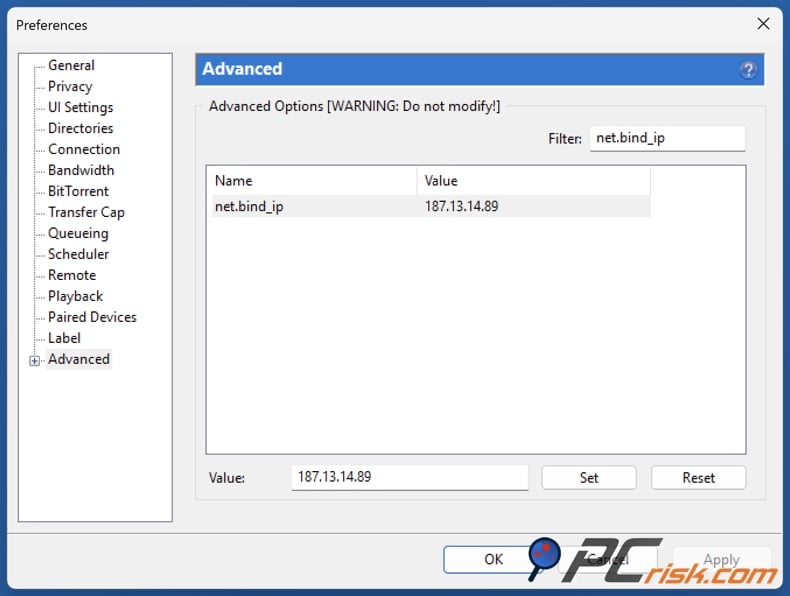
uTorrent has advanced settings called net.bind_ip and net.outgoing_ip. According to uTorrent's community documentation, these let you choose which local network adapter's IP address to use for incoming and outgoing connections.
What matters here is using the local IP address given to your VPN network interface, not the public VPN IP you see on an IP-checking website.
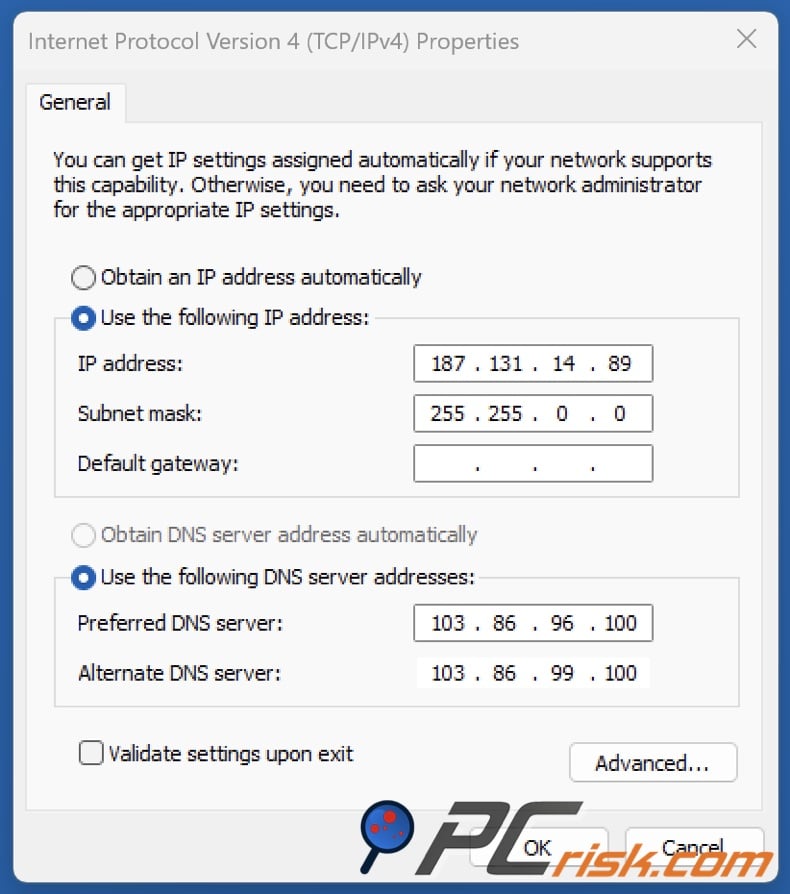
First, connect to your VPN. On Windows, check your network adapters and find the local address for the active VPN connection. Then follow these steps:
- Open uTorrent Classic.
- Select Options > Preferences > Advanced.
- Search for net.bind_ip.
- Enter the VPN adapter's local IP address if you intend to bind incoming connections.
- Search for net.outgoing_ip.
- Enter the appropriate VPN adapter's local IP address for outgoing connections.
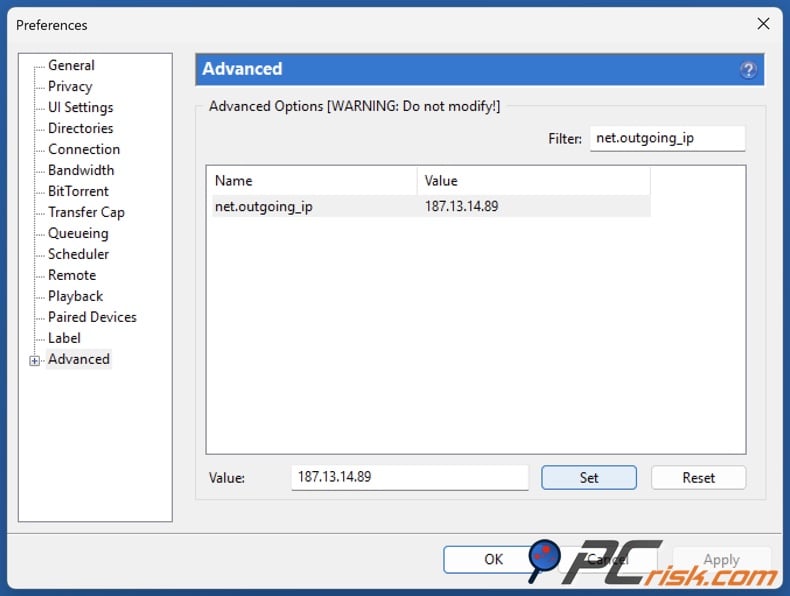
- Apply the changes and restart uTorrent.
Think of this as an advanced safety setup, not your first option. If you enter the wrong address, uTorrent might stop working entirely.
Another thing to keep in mind is that your VPN adapter's IP address can change if you reconnect. If this happens, uTorrent might not connect until you update the setting with the new address.
For most people, using a reliable VPN kill switch is much easier to manage. Binding is best if you know your way around Windows network settings and want extra control over how uTorrent connects.
10. Reinstall the VPN or change to a VPN better suited to your setup
If uTorrent works when the VPN is off but keeps failing after you've tried different servers, protocols, firewall settings, ports, and default options, the problem might be with your VPN installation or its settings.
Try reinstalling your VPN first. This can fix any damaged settings or missing network parts. After reinstalling, test the app before turning on any extra features.
If your VPN still doesn't work well for P2P after reinstalling, it might be easier to switch to a different VPN instead of constantly tweaking uTorrent.
Our latest PCrisk VPN review highlights NordVPN, Surfshark VPN, Mullvad VPN, Proton VPN, and ExpressVPN as our top five picks. NordVPN is our overall favorite and works well for torrenting. Surfshark stands out if you need unlimited device connections. Mullvad is a strong choice for privacy and torrenting, but it does not offer port forwarding. Proton VPN has clearly marked P2P servers and supports port forwarding on paid plans, which is helpful if you need incoming connections. ExpressVPN is easy to use and features the Lightway protocol.
The right VPN for you depends on the cause of your issue. Before changing VPN providers, make sure that uTorrent, your torrent file, and your Windows network settings are all working as they should.
Conclusion
If uTorrent stops working with your VPN, avoid changing all the settings at once. This can make it harder to find the real problem.
First, check whether the issue is only with uTorrent or affects your entire VPN connection. Next, try switching servers, make sure P2P traffic is allowed, and test a different VPN protocol. These steps are quick to try and easy to undo, and you won't need to change uTorrent's advanced settings.
After that, check that your VPN's kill switch and split tunneling settings are set up correctly for your needs. Make sure uTorrent isn't bypassing the VPN by mistake, and remember that a kill switch blocking traffic during a VPN drop is not the same as a uTorrent problem.
Next, check your firewall permissions, update your software, and restart everything. Only try changing uTorrent's incoming port or setting up advanced IP binding if these basic steps don't solve the problem.
Our top pick of the year: almost no slowdown in our speed tests, and it unblocked Netflix, BBC iPlayer and Disney+ without trouble. $3.39/mo on the 2-year plan or $4.99/mo on the 1-year plan, 30-day money-back guarantee. Compare all three
Port forwarding is optional and depends on your VPN provider. For example, Proton VPN offers P2P servers and port forwarding on paid plans, but Mullvad does not support port forwarding. So, a uTorrent setup that works with one VPN might not work with another.
If you want a VPN mainly for torrenting, our PCrisk list includes NordVPN, Surfshark VPN, Mullvad VPN, Proton VPN, and ExpressVPN. NordVPN is our top pick overall, but the other VPNs have unique features that might suit your needs better.
Most importantly, after you get uTorrent working, check that your privacy settings are still in place. Don't fix a connection issue by turning off the kill switch, excluding uTorrent from the VPN, or letting torrent traffic use your regular connection. Your setup should give you both reliable P2P connections and the VPN protection you want.
Frequently asked questions (FAQs)
How to get uTorrent working with a VPN?
First, connect to a VPN server that allows P2P traffic before you open uTorrent. If uTorrent won't connect, try switching to a different server or VPN protocol, check your firewall settings, make sure split tunneling isn't leaving out uTorrent, and restart both the VPN and uTorrent. If your VPN offers port forwarding, set uTorrent's incoming port to match. For example, Proton VPN has special P2P servers and supports port forwarding on its paid plans.
Why doesn't uTorrent work with a VPN?
Common reasons include using a VPN server that isn't right for P2P, server overload, unstable VPN protocols, firewall blocks, split tunneling set up wrong, a kill switch stopping traffic after a disconnect, incorrect uTorrent settings, old IP binding, or torrents with few seeders. Start troubleshooting by checking whether only uTorrent is experiencing issues or if your entire internet connection is affected when using the VPN.
Should I enable port forwarding for uTorrent with a VPN?
You don't always need to enable port forwarding for uTorrent. It usually works fine without it, but port forwarding can help with incoming P2P connections in some cases. Only set it up if your VPN allows it, and follow their instructions. For example, Proton VPN offers port forwarding on paid plans, but Mullvad does not support it.
Can a VPN slow down uTorrent?
Yes, a VPN can slow down uTorrent. Your traffic goes through an extra server and an encrypted tunnel, so things like server distance, congestion, protocol, your internet speed, and the number of peers can all affect how fast torrents download. PCrisk's tests highlight VPN speed as important, naming NordVPN as a top choice for torrenting, and also finding Mullvad fast and stable enough.
Should uTorrent use split tunneling?
If you want all your torrent activity to go through the VPN, make sure uTorrent is not set to bypass it. Split tunneling can help exclude apps that don't need the VPN, but be careful not to exclude uTorrent by mistake, or it will use your regular internet connection. It's also a good idea to keep the VPN's kill switch on, so if the VPN disconnects, uTorrent won't be left unprotected.
Which VPN should we use with uTorrent?
According to PCrisk's latest recommendations, NordVPN is the top choice overall and works well for torrenting. Surfshark VPN is a good pick if you need unlimited devices. Mullvad VPN focuses on privacy and has good torrenting speeds, but doesn't offer port forwarding. Proton VPN is helpful if you want clear P2P servers and port forwarding on paid plans. ExpressVPN is also easy to use and uses the Lightway protocol. The best VPN for you depends on what matters most: speed, device limits, privacy, ease of use, or P2P connectivity.
Share:
 Facebook
 X.com
X.com
 LinkedIn
 Copy Link

Rimvydas Iliavicius
Researcher, author
Rimvydas is a researcher with over four years of experience in the cybersecurity industry. He attended Kaunas University of Technology and graduated with a Master's degree in Translation and Localization of Technical texts. His interests in computers and technology led him to become a versatile author in the IT industry. At PCrisk, he's responsible for writing in-depth how-to articles for Microsoft Windows.
▼ Show Discussion