
We may earn commissions from products we recommend. Learn more.
VPN keeps disconnecting | How it fix it

How to fix a VPN that keeps disconnecting
A VPN that keeps disconnecting can be very frustrating. Sometimes your connection seems fine, but then your traffic drops, websites stop loading, streaming buffers, or your remote work session ends suddenly. At PCrisk, we have seen this problem come from many sources. It is important to know that a disconnected VPN is not always the VPN's fault. Your network, operating system, firewall, battery settings, router, DNS setup, or another app on your device can all be involved.
The good news is that you can fix most VPN disconnects without needing advanced IT skills. Often, the issue is a bad server, the wrong protocol, unstable Wi-Fi, battery optimization on your phone, an outdated app, or a conflict with security software. In this guide, we will explain why VPNs disconnect, show you step-by-step troubleshooting, cover fixes for Windows 11, macOS, Android, iOS, and remote desktop, and share which VPNs we find most stable based on our tests and reviews.
 Our top-rated VPN
4.5/5 in our review. Our top pick of the year: almost no slowdown in our speed tests, and it unblocked Netflix, BBC iPlayer and Disney+ without trouble.
Table of Contents:
- Introduction
- Why does your VPN keep disconnecting?
- Reasons why your VPN keeps disconnecting
- Ways to fix a disconnecting VPN
- Common VPN disconnecting issues and solutions by device
- Most stable tested VPNs
- Wrapping up
- Frequently Asked Questions (FAQs)
Why does your VPN keep disconnecting?
When a VPN keeps disconnecting, the secure tunnel between your device and the VPN server is breaking and trying to reconnect. This can happen if the app loses internet access for a moment, the server becomes unstable, the protocol does not work well on your network, or the operating system interferes with the VPN in the background.
There are a few common patterns. The VPN might drop when your Wi-Fi signal is weak, only on mobile data, or after your device goes idle or the screen turns off. Sometimes, it looks like the VPN disconnects, but it is actually the kill switch blocking internet access after the tunnel drops.
The table below sums up the most common disconnect scenarios and the quickest fixes to try first.
| Common issue | What it usually means | Best first fix |
| Weak or unstable Wi-Fi | Your base internet connection is dropping for a moment | Test on another network or move closer to the router |
| One server keeps failing | The selected VPN server may be overloaded or under maintenance | Switch to another nearby server |
| Drops happen only on one network | Your ISP, router, or local firewall may be interfering | Try a mobile hotspot or another Wi-Fi connection |
| VPN drops after sleep or screen off | Power management is suspending the app or network stack | Disable battery optimization or sleep-related limits |
| Drops happen on mobile only | Battery saver, Wi-Fi Assist, or mobile data switching is interrupting the tunnel | Turn off Low Power Mode, battery saver, and auto network switching |
| No internet after disconnect | The kill switch may be blocking all traffic until the tunnel reconnects | Temporarily disable the kill switch to test |
| Connection issues started after an update | App files, drivers, or network settings may be corrupted or incompatible | Update or reinstall the VPN app |
| The browser works badly, but apps are fine | A proxy, DNS issue, or browser network setting may be interfering | Clear proxy settings and flush DNS |
| Remote desktop dies when VPN connects | The VPN is changing the routing and breaking the control path | Connect the VPN before starting RDP or use split tunneling |
| The problem affects only one device | The issue is likely local to that system | Reboot, update, reinstall, and reset network settings |
If you want a quick fix, try these five steps first: switch servers, change the protocol, restart your device, test on another network, and update your VPN app. These simple actions solve many disconnect issues.
Reasons why your VPN keeps disconnecting
A VPN that keeps disconnecting usually means something is going wrong behind the scenes. Sometimes the VPN itself is fine, but your network is unstable. Other times, the network works, but issues such as protocol selection, firewall settings, or battery settings cause problems. Here are the main reasons this happens.


1. Your internet connection is unstable
A VPN needs a stable internet connection to work well. If your regular internet is dropping, lagging, or switching between access points, the VPN will also struggle to stay connected. This often happens on public Wi-Fi, weak home Wi-Fi, crowded apartments, trains, hotels, airports, or mobile hotspots.
Even small interruptions can cause problems. You might not notice a quick network drop while browsing, but a VPN will. If these drops happen often, the encrypted session may reset, reconnect, or fail completely.
That's why it's smart to disconnect from the VPN first and check whether your regular internet is stable. If your main network has issues, fixing just the VPN app won't help much.
2. The VPN server you picked is overloaded or temporarily unstable
Not all VPN servers work the same all the time. Some servers are busier, under maintenance, or farther away, which can cause delays or lost data. If your VPN disconnects on one server but works fine on another, the problem might not be your device.
This happens more often than you might think. Many people keep using the same server or city, even if it's overloaded. Switching to a nearby server can quickly make your connection more stable.
3. The selected VPN protocol is a poor fit for the network
Protocols are often a hidden cause of VPN problems. A protocol that works well at home might not work as well on an office network, campus Wi-Fi, hotel internet, or mobile data.
Put simply, different protocols focus on different things. Some are built for speed, others for compatibility, and some for working on restricted networks. Automatic or smart modes usually help, but not always. If your VPN keeps disconnecting, try changing the protocol.
A few useful rules of thumb:
- If speed is good but stability is bad, try another modern protocol or let the app choose automatically.
- If you are on a restrictive network, TCP-based options often hold up better than UDP-based ones.
- If a protocol reconnects poorly after network changes, another protocol may handle handoffs better.
That's why good VPN apps let you choose from several protocols instead of just one.
4. Another VPN, proxy, firewall, or security tool is interfering
We regularly see VPN apps conflict with other software that also wants control over network traffic. That includes:
- another VPN app left installed in the background
- antivirus products with web filtering
- firewall tools
- browser security extensions
- custom DNS software
- traffic filtering apps
- parental control systems
- ad blockers that modify system-wide networking
- proxy settings left behind by old software
These conflicts can lead to random disconnects, failed reconnects, blocked ports, or endless connecting loops. On Windows and macOS, this can happen even if the other app isn't open. On mobile, security apps and VPN ad blockers can compete for the same VPN slot.
5. Battery optimization is killing the VPN app on mobile
This is a top reason for VPN drops on Android and sometimes on iPhone. Modern phones save battery by limiting background activity, pausing apps, and switching networks when the signal changes.
On Android, features like battery saver, adaptive battery, and app management can pause a VPN app in the background. On iPhone, Low Power Mode and network switching can make the connection less stable. If your device thinks the VPN app isn't important, it may stop it from running all the time.
If your VPN disconnects when the screen is off, the phone is idle, or you switch between Wi-Fi and mobile data, power management is likely the cause.
6. The app or operating system is outdated
Old versions of VPN apps can have bugs, outdated drivers, broken profiles, or may not work well with new versions of Windows, macOS, Android, or iOS. Sometimes, the VPN app is fine, but a system update changes how networking or permissions work.
That's why disconnect problems often start after a system update, router firmware update, or VPN app upgrade. Keeping your VPN app and operating system up to date is more important than many people think.
7. Network settings are corrupted
Sometimes a device accumulates bad network settings over time. DNS caches can go stale. Proxy settings can linger. A VPN profile may become corrupted. Virtual adapters can misbehave. On Windows in particular, the network stack can get into a strange state after repeated installs, uninstalls, or large updates.
This kind of problem usually affects just one device, not all devices on your account. You might see random disconnects, failed reconnections, DNS errors, or lose internet access after disconnecting from the VPN.
8. Router or ISP restrictions are interfering
Some routers and networks do not play nicely with VPNs. You may run into issues if your network uses:
- aggressive parental controls
- "safe DNS" filtering
- ISP-level traffic shaping
- blocked ports or protocols
- captive portals
- unstable dual-band roaming
- badly configured IPv6
- guest networks with restrictions
A common sign is when your VPN disconnects on home Wi-Fi but works fine on mobile data, or fails on hotel Wi-Fi but not on your usual network.
9. The kill switch is making a normal drop look worse
A kill switch is a safety feature that stops all internet traffic if your VPN disconnects suddenly. This keeps your real IP address and regular traffic from leaking outside the secure tunnel. While helpful, it can sometimes confuse people when they are trying to fix connection issues.
If the VPN tunnel drops for a moment, the kill switch might block all traffic and make it seem like your internet is down. In fact, the VPN could just be reconnecting, and the kill switch is working as intended. Instead of removing the VPN, try temporarily turning off the kill switch to see if the VPN tunnel itself is the issue.
10. You are switching networks too often
VPNs do not always switch between networks smoothly. If your laptop goes from Ethernet to Wi-Fi, changes access points, or switches from home Wi-Fi to tethering, the app might need a moment to reconnect. The same thing can happen on phones that switch between Wi-Fi and mobile data or try to pick the strongest signal.
If you lose connection while walking around your house, leaving the office, or moving between rooms or floors, network switching is likely the cause.
11. Remote desktop routing is breaking the session
If you connect to a computer using Remote Desktop and then turn on a VPN on that computer, the VPN might change the network route and disconnect your session. This is a routing problem, not just a VPN problem.
This can also happen if forced-tunnel settings send all traffic through the VPN, even traffic that should stay outside it. In these cases, your Remote Desktop session might freeze, disconnect, or keep reconnecting.
Ways to fix a disconnecting VPN
At PCrisk, we suggest resolving a disconnecting VPN issue in a clear order. Start with the easy checks, and only try more advanced fixes if those do not solve the problem.
1. Start with the basics
First, restart your VPN app. Next, reboot your device. If you are using home internet, restart your router too. These simple steps often fix temporary problems more often than you might think.
After that, check your internet without the VPN. Try opening some websites, running a speed test, or streaming a video for a few minutes. If your regular connection is unstable, fix that before anything else.
2. Switch to another server
If the problem only happens with one server location, try another server in the same country or region. If that does not work, try a server in a nearby country. When troubleshooting, do not stick to your usual server. A stable connection is more important than using your favorite one.
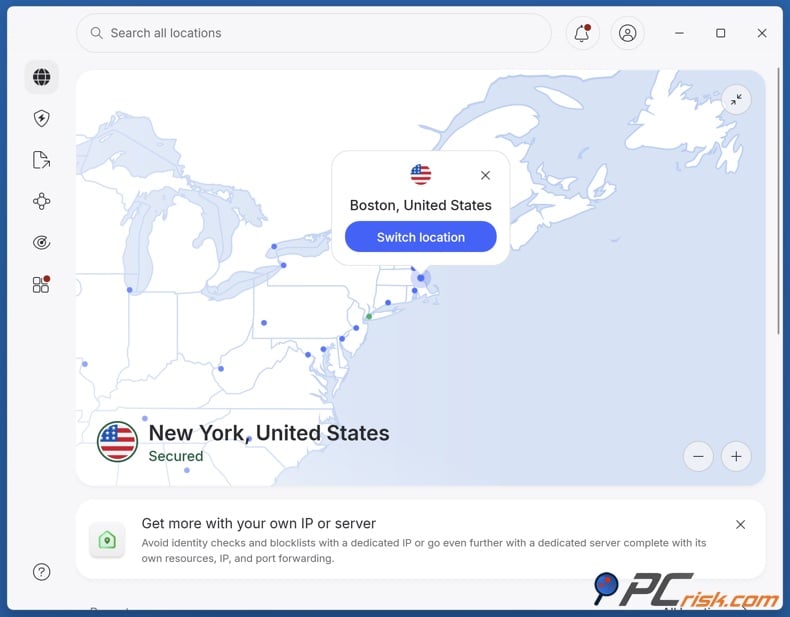
In general, the best sequence is:
- Try another nearby server.
- Try a different city in the same country.
- Try a nearby country.
- Avoid the farthest servers until the connection is stable again.
3. Change the protocol
Changing the protocol is one of the most important fixes. Open your VPN settings and switch the protocol. If there is an Automatic, Smart, or Recommended option, try that first. If you are already using automatic mode and still have disconnects, test the other protocols one by one.
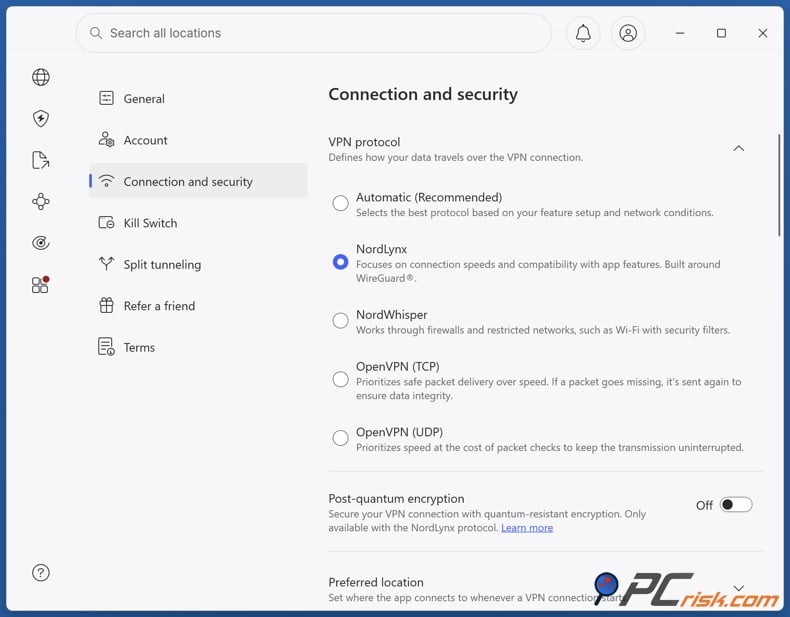
A practical way to test is:
- Try Automatic or Smart mode.
- Try the provider's modern performance protocol.
- Try OpenVPN UDP.
- Try OpenVPN TCP if you are on a restrictive or unstable network.
Test each protocol for a few minutes instead of switching too quickly. Just because a protocol connects does not mean it will stay stable over time.
4. Update or reinstall the VPN app
If you are not using the latest version, update your VPN app right away. If you already have the newest version but problems started recently, do a clean reinstall. This often fixes issues with corrupted profiles, virtual adapters, helper services, or broken files.
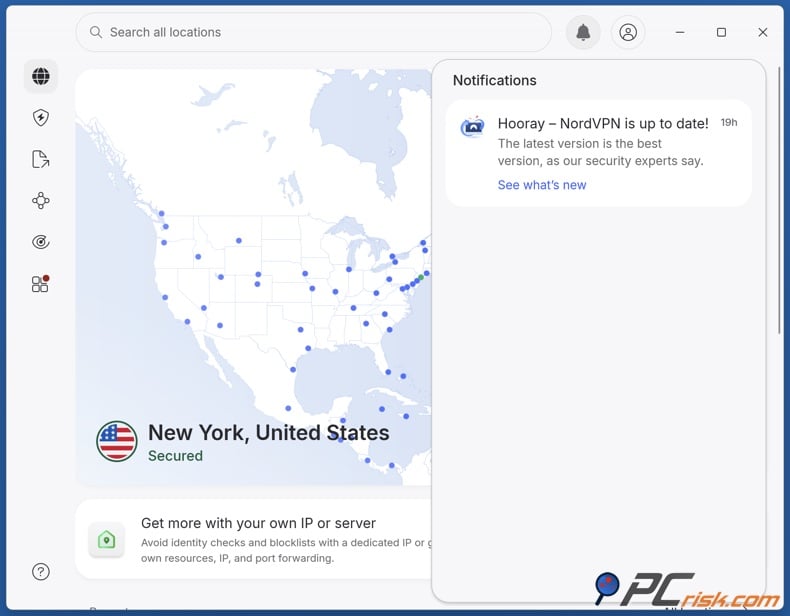
When we suggest reinstalling, we mean doing a full reinstall:
- uninstall the VPN app
- reboot the device
- install the newest version from the official source
- sign back in
- test before restoring extras like custom DNS, split tunneling, or specialty settings
5. Check for conflicting software and network tools
Temporarily turn off or remove any software that might interfere with your VPN. This includes other VPN apps, proxies, antivirus web shields, third-party firewalls, DNS changers, system cleaners, and traffic filters.

If your VPN works after disabling one of these programs, add the VPN app to that program's exclusions list or keep the conflicting software removed. Running several programs that all try to control your network usually causes problems.
Sometimes, VPN problems are really security problems. Adware, fake browser extensions, malicious downloads, and scam sites can change your DNS, proxy, or browser settings, which often causes unstable connections and disconnects. Combo Cleaner can help find suspicious files, block dangerous websites, and remove threats that might be affecting your device.
 Made by RCS LT, the company behind PCrisk
- Detect malware already on the device
- Block phishing pages once you open them
- Remove adware or browser hijackers
- Scans for free and shows what it finds
- Removes it with a licence, 7-day free trial
- Blocks scam and phishing sites in the browser (Windows)
6. Disable battery-saving and network switching features
On Android, set your VPN app to Unrestricted or Do not optimize. Turn off Battery Saver while you are testing. Also, if your phone allows it, turn off automatic switching between Wi-Fi and mobile data.
On iPhone, turn off Low Power Mode and Wi-Fi Assist. These features help with battery and convenience, but they can cause the network switching that makes a VPN unstable.
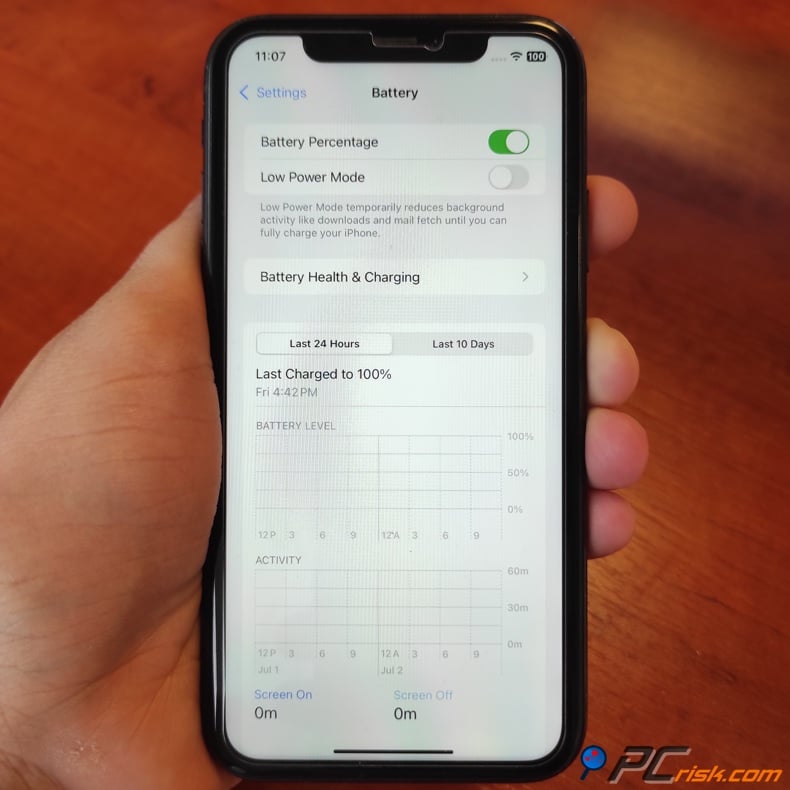
If you mostly lose connection when your screen is off, this step is especially important.
7. Check firewall, proxy, DNS, and IPv6 settings
On Windows, make sure you do not have a manual proxy turned on unless you need it. Check if your firewall or antivirus is blocking the VPN app. If your VPN provider does not fully support IPv6 on your device, turning off IPv6 can sometimes make things more stable.
If DNS issues are suspected, reset DNS locally. On Windows, the simplest command is:
Hold down Windows+R keys to open Run.
1. In the Run dialog box, type in CMD and hold down Ctrl+Shift+Enter keys to open the elevated Command Prompt.
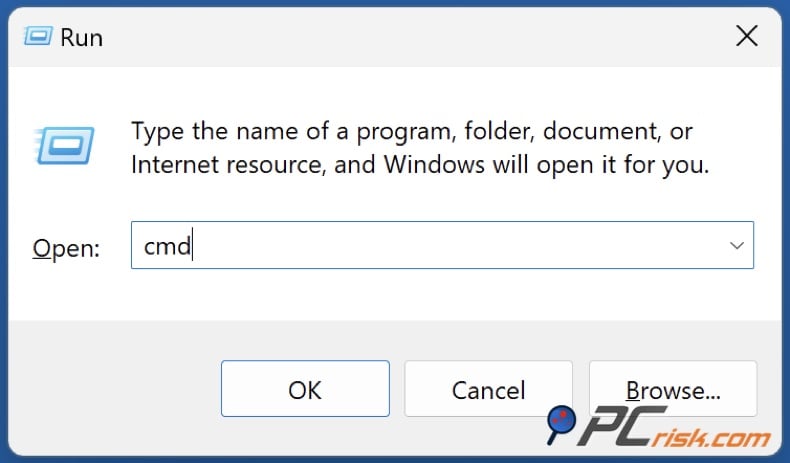
3. In the Command Prompt window, type in ipconfig /flushdns and press the Enter key. Running this command will clear the DNS cache files and reset the DNS resolver cache.
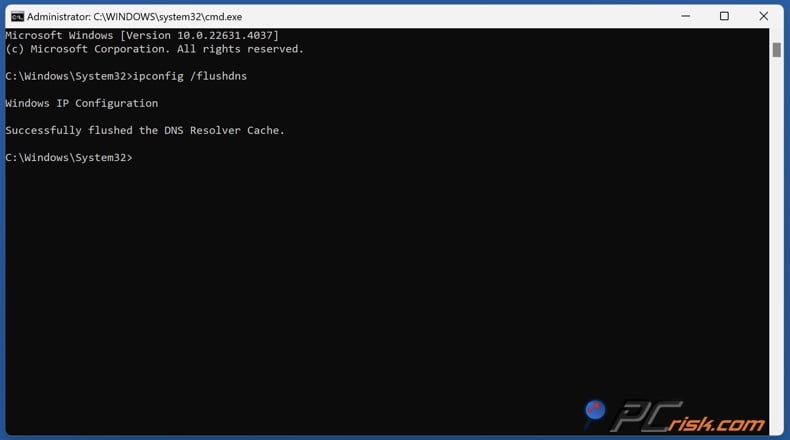
3. Close the Command Prompt.
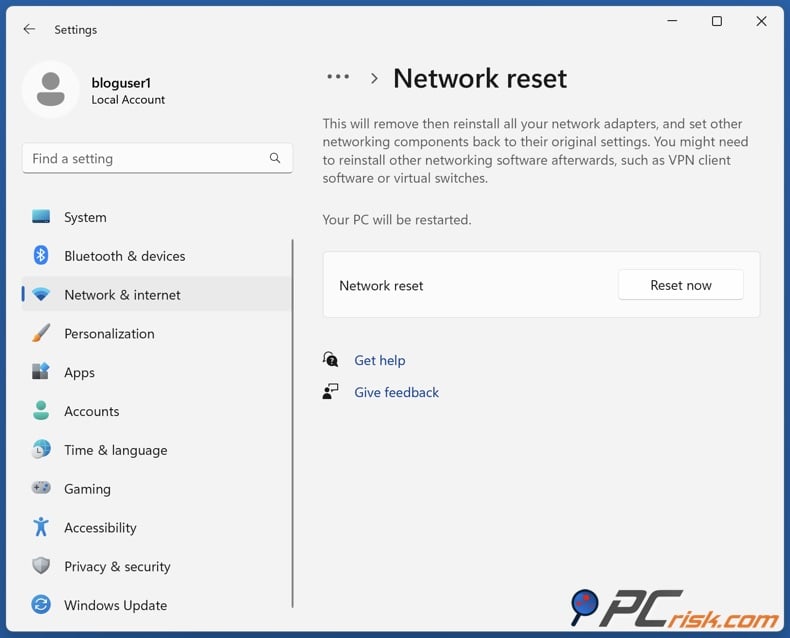
If your Windows network is still unstable, you can try a full network reset by going to Settings > Network & internet > Advanced network settings > Network reset. Only do this after other steps, since it resets adapters and might mean you have to reinstall some networking software.
8. Reconnect on a different network
If you can, try connecting on a different network. Use a mobile hotspot, another Wi-Fi, or Ethernet if you have it. This helps you quickly see if the problem is with your ISP, router, or current network.
If your VPN works fine on another network, focus on fixing your original network. Common causes include router DNS filtering, safe browsing tools, parental controls, guest network rules, or restrictions from your ISP.
9. Review kill switch and auto-connect settings
If your connection stops working after a drop, try turning off the kill switch for a short test. Only do this to figure out the problem. Once you know the cause, make sure to turn the kill switch back on.
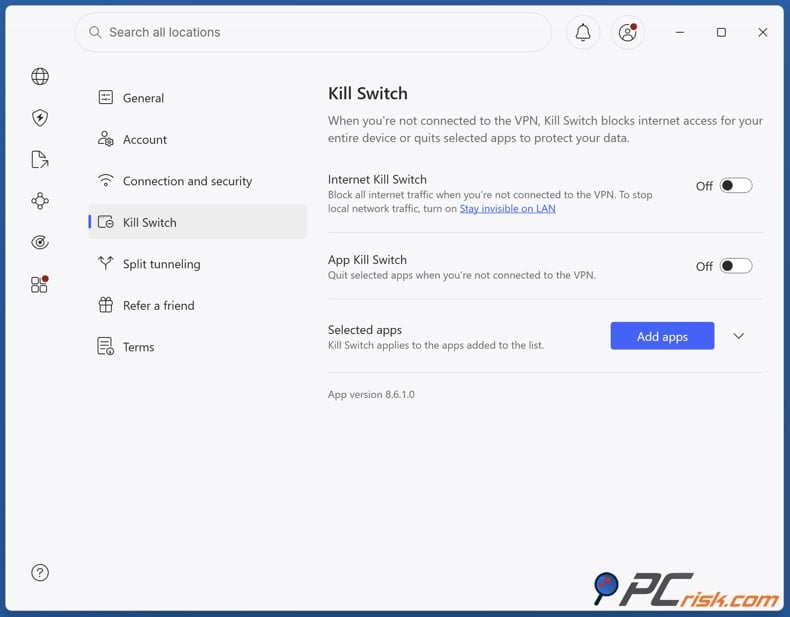
Check your auto-connect settings too. Sometimes, connecting automatically to a bad server or network profile can cause endless reconnecting. Try choosing a different default location and see if that helps.
10. Reset local network settings if deeper fixes fail
If none of the previous steps work and only one device has the problem, you might need to reset that device's network settings.
For Windows, use the Network reset feature. On iPhone, resetting network settings can fix tough VPN or APN issues. On macOS, try removing old VPN entries and adding them again. On Android, a network reset can help if you've had repeated failed installs or profile problems.
Only use this step if other fixes have not worked. It should not be your first option.
11. Contact the VPN provider and send diagnostics
If you have gone through the steps above and the VPN still disconnects, contact support from the provider you use. Good VPN support can often identify whether the issue is server-side, protocol-specific, app-specific, or related to your local environment.
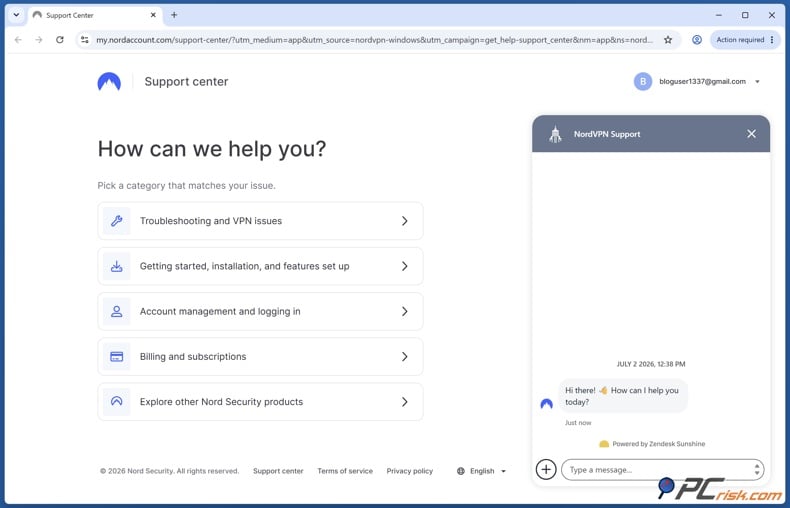
This is why having a provider with good support and stable apps matters. It's also why we focus on everyday reliability when we review VPNs.
Common VPN disconnecting issues and solutions by device
How to fix a VPN disconnecting on Windows 11
Windows 11 offers a lot of options, but that also means more things can go wrong. VPN problems on Windows often come from issues with virtual adapters, firewall rules, proxy settings, or drivers.
Start with the simplest path:
- Update the VPN app.
- Reboot the PC.
- Change the protocol.
- Try another server.
- Make sure no other VPN is installed and running.
Next, try these Windows-specific checks:
- Run the built-in Network and Internet troubleshooter.
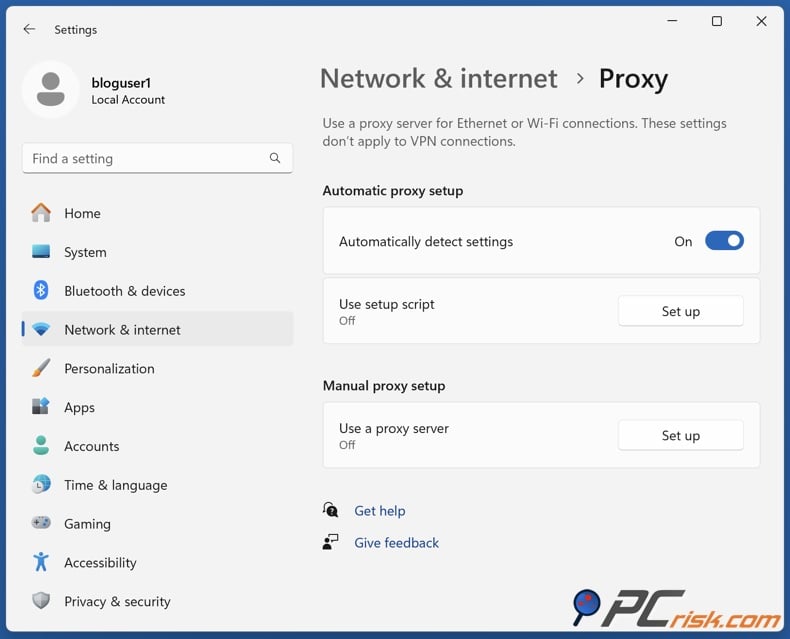
- Go to Settings > Network & internet > Proxy and make sure no unwanted manual proxy is on.
- Open Windows Security > Firewall & network protection and verify the VPN app is not being blocked.
- If a third-party security suite is installed, add the VPN to its exclusions list.
- In Device Manager, update or reinstall the network adapter if the problem began after a system update.
- Flush DNS.
- If needed, perform a full network reset.
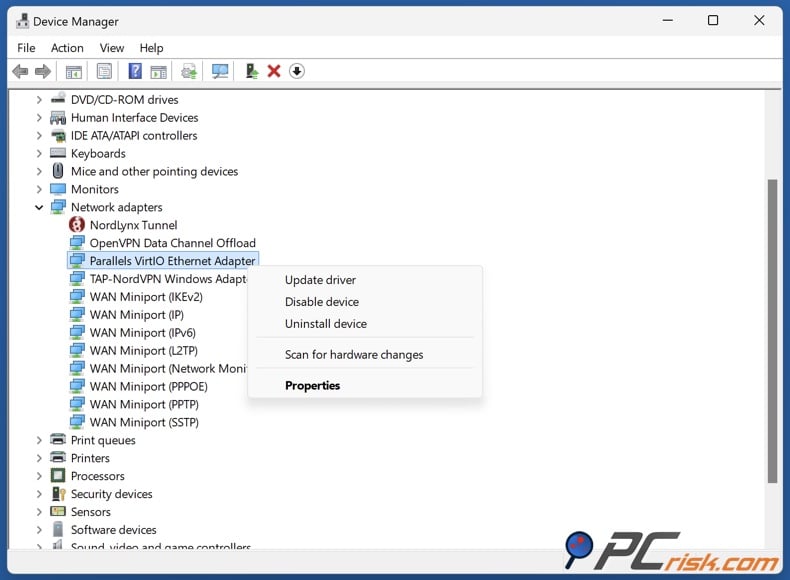
On Windows 11, installing and uninstalling VPNs repeatedly can cause problems. If your VPN used to work but now keeps disconnecting, try reinstalling the app, then perform a network reset. This often solves the issue.
How to fix a VPN disconnecting on macOS
On macOS, VPN disconnects often happen because of protocol choices, old settings, app conflicts, or leftover VPN entries in System Settings.
Our recommended order is:
- Update the VPN app and macOS.
- Change protocol.
- Try another server near your actual location.
- Reboot the Mac.
- Disable other firewalls, VPNs, file-sharing tools, or filtering apps for testing.
If the problem continues, open System Settings and check the VPN section. Remove any old or unused VPN setups. Sometimes, a broken or outdated VPN setup can cause trouble even after you reinstall the app.
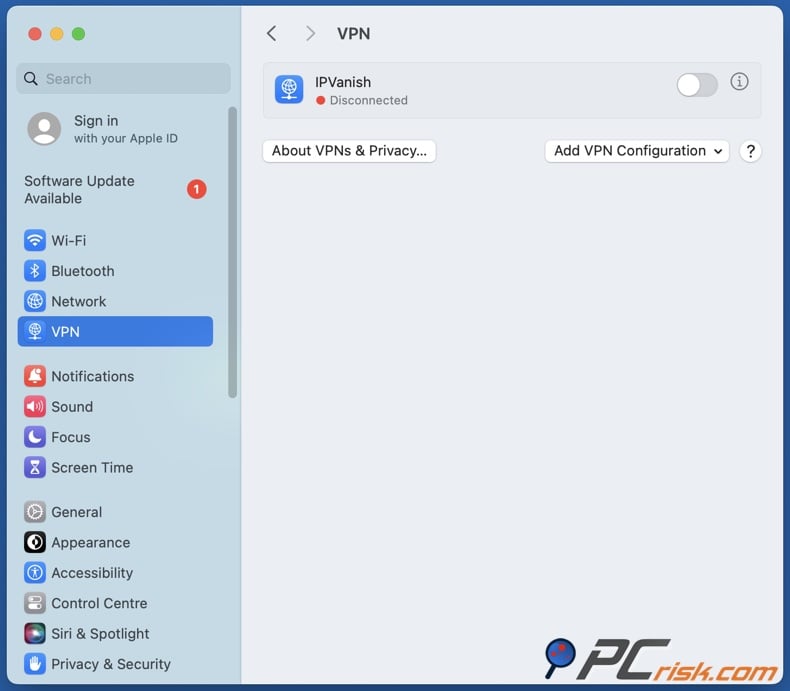
If you set up your VPN manually on macOS, check if it is set to route all traffic through the VPN. This is sometimes needed, but it can cause problems in complex setups. If you think the profile is damaged, set up the connection from scratch.
How to fix a VPN disconnecting on Android
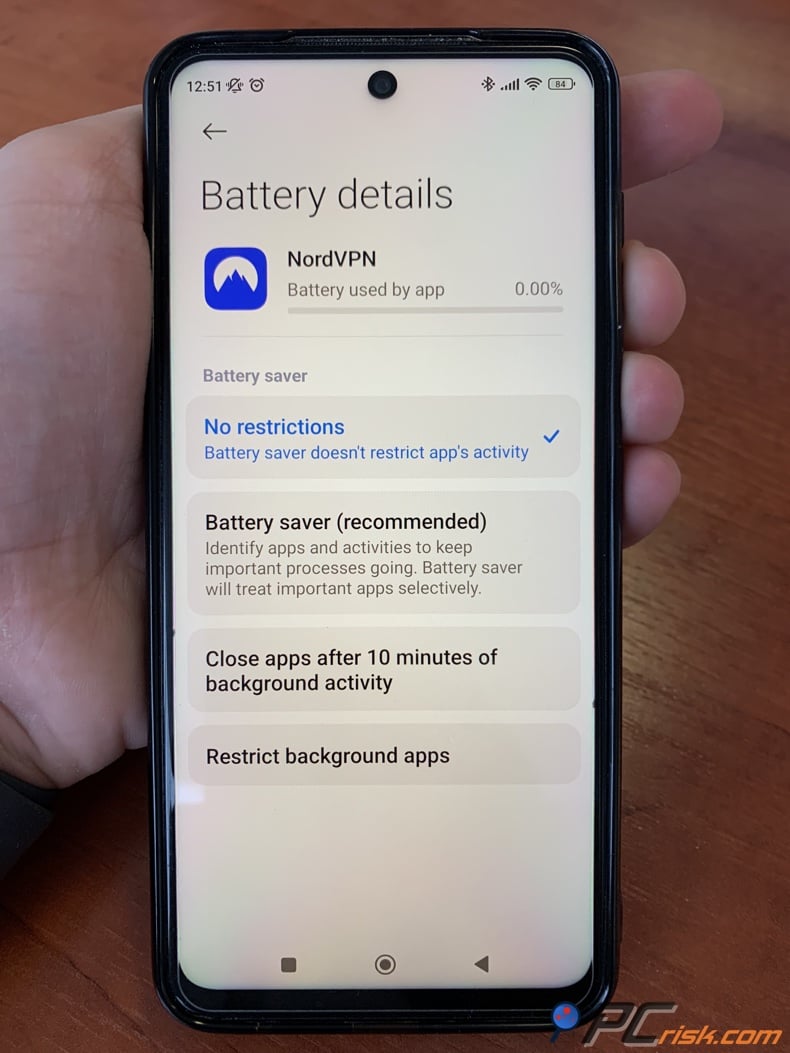
Many people experience VPN disconnects on Android, and battery management is often the main reason.
Start here:
- Update the VPN app and Android.
- Change protocol.
- Try another server.
- Turn off Battery Saver.
- Set the VPN app's battery usage to Unrestricted or Do not optimize.
If those steps do not work, try these next:
- Disable automatic switching to mobile data on weak Wi-Fi.
- Test on Wi-Fi and on mobile data separately.
- Remove other VPN-based apps, ad blockers, or traffic filters.
- Reboot the device.
- If needed, reset network settings.
If your VPN only disconnects when your phone is idle, locked, or in your pocket, battery optimization is probably the cause. Try fixing that before blaming the VPN app.
How to fix a VPN disconnecting on iOS
On iPhones and iPads, VPN disconnects often happen because of Low Power Mode, Wi-Fi Assist, switching networks, or old profiles.
Use this order:
- Update the VPN app and iOS.
- Change protocol.
- Switch to another server.
- Turn off Low Power Mode.
- Turn off Wi-Fi Assist.
If the issue continues:
- Remove any old VPN profile you no longer need.
- Check Settings > General > VPN & Device Management for leftover profiles.
- Restart the device.
- Test on a different Wi-Fi network and on mobile data.
- Only reset network settings if nothing else works.
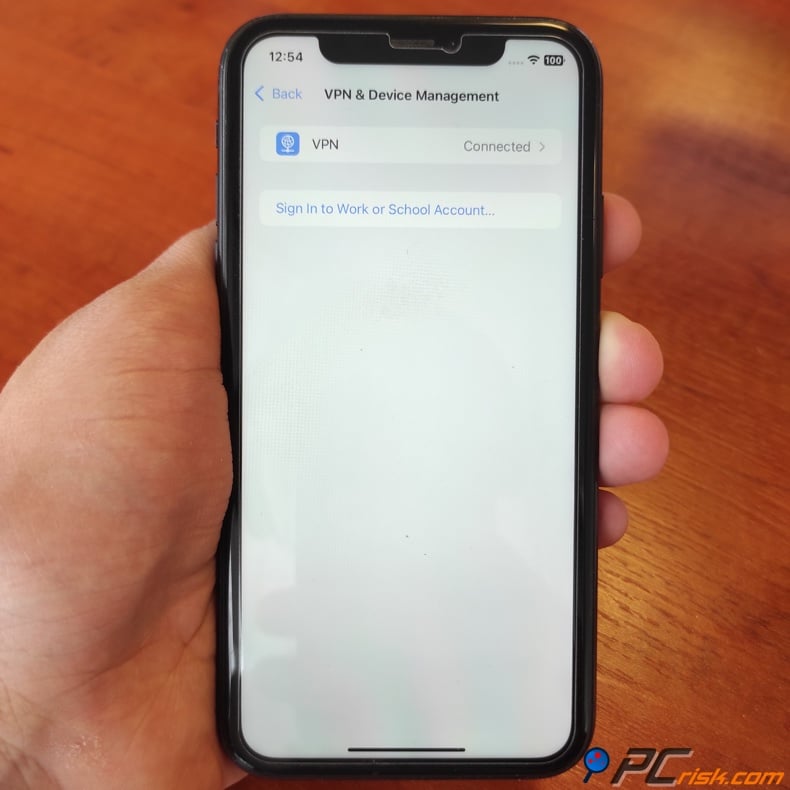
If your provider offers an always-on style reconnect feature, enable it. That can keep the VPN from staying down after a short interruption.
How to fix a VPN disconnecting on a remote desktop
Remote desktop issues need special attention because the problem is often with routing, not just VPN stability.
If you use Remote Desktop to connect to a Windows machine and then turn on a VPN on that machine, the VPN might change the default route and break your RDP connection. This can cause your desktop to freeze or disconnect.
Here is the best way to handle it:
- If possible, connect the VPN before you start the remote desktop session.
- If you must use both at the same time, use split tunneling so your RDP client or remote subnet bypasses the VPN.
- Do not use full-tunnel settings unless you really need them.
- Make sure your home network and the remote network do not use the same IP range.
- Try to use the most stable connection you can, like a wired connection, before assuming the VPN is the problem.
- If this is a work setup, ask IT whether the default gateway or forced-tunnel settings are causing the drop.
Some VPN apps make split tunneling easier to use than others. Proton VPN and ExpressVPN have clear split tunneling controls, and NordVPN and Surfshark also offer this feature on supported platforms. If you use split tunneling correctly, it can keep your remote desktop traffic from getting stuck inside the VPN tunnel.
Most stable tested VPNs
When stability matters most, we look at more than just speed. At PCrisk, we check how fast a VPN connects, how well it handles network changes, how reliable protocol switching is, how it works at home and on mobile, and how much help the provider offers if something goes wrong.
Here are the five VPNs from our current review list that we consider the strongest picks for connection stability.


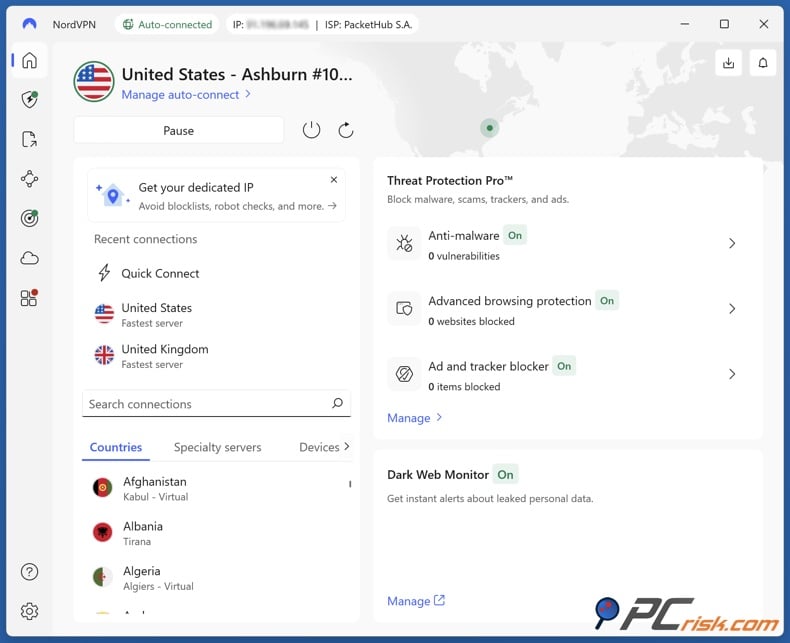
NordVPN is our top choice for stability because it balances speed, reliable reconnections, mature apps, and strong safety features. In our tests, it feels dependable for everyday use, especially on desktop and mobile. The NordLynx protocol is fast and solid, and the apps are easy to use, so troubleshooting is rarely a hassle.
- Pros: excellent overall stability, fast NordLynx protocol, strong kill switch, broad platform support, very good support resources.
- Cons: more expensive than some rivals, and split tunneling is not as flexible on every platform.
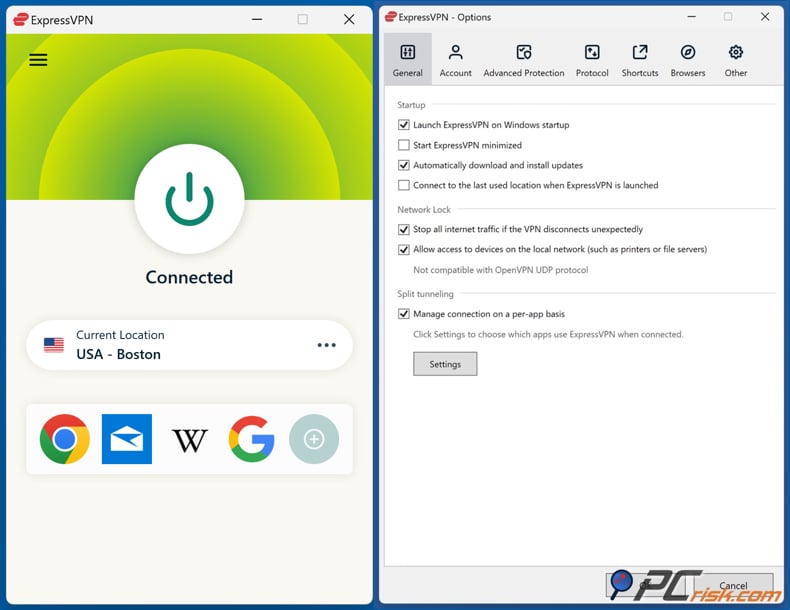
ExpressVPN is a top pick if you want consistent connections. Its Lightway protocol reconnects quickly and works well on changing networks, making it great for travelers, families with many devices, and anyone who wants an easy, low-maintenance VPN. It's also simple to change protocols, try other locations, and troubleshoot without dealing with complicated menus.
- Pros: excellent reliability, strong reconnect behavior, polished apps, solid router support, very easy to use.
- Cons: usually costs more than many competitors, and power users may want more advanced features than it includes.
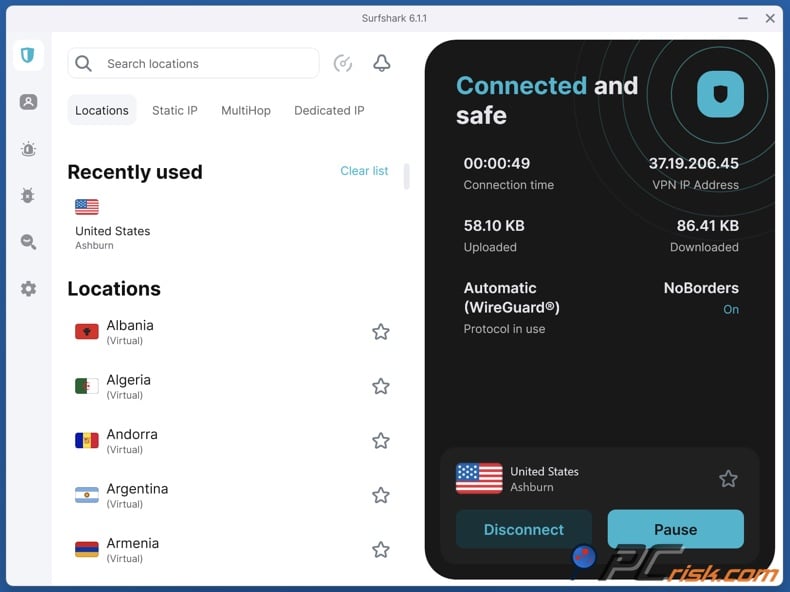
Surfshark is a great all-around VPN for people who want stability without high prices. You can connect unlimited devices, and it offers many features for the price. Surfshark also provides troubleshooting guides for Windows, macOS, Android, and iOS, which are helpful if you have issues on different devices.
- Pros: strong performance, great value, unlimited device connections, useful connection-recovery features, easy multi-device use.
- Cons: renewal prices can jump sharply, and some platform-specific limitations still exist compared with the very best stability-focused apps.
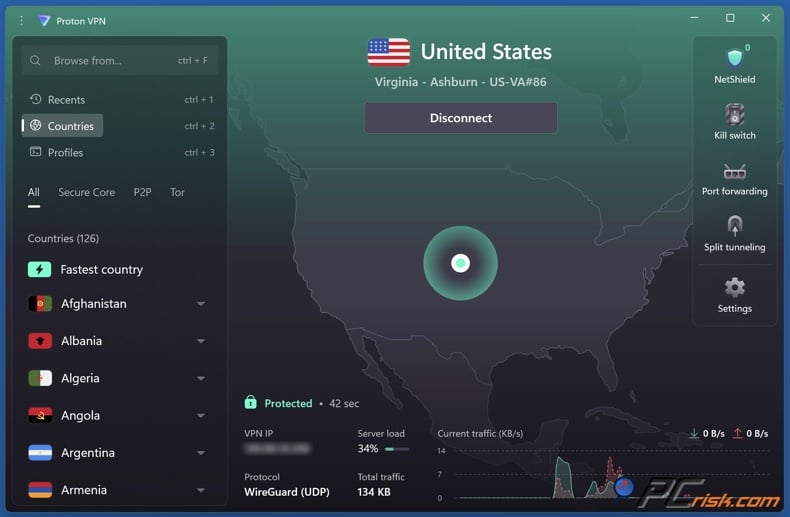
Proton VPN stands out for its transparency and flexible protocols. It's a good choice if you want strong privacy without losing reliability. Features like Smart protocol selection, Stealth for tough networks, and always-on reconnection make it a strong option for unstable or blocked environments.
- Pros: strong privacy foundation, smart protocol options, good reconnect features, very strong reputation for transparency.
- Cons: support can feel slower than the most support-heavy rivals, and the overall experience can feel more technical for beginners.
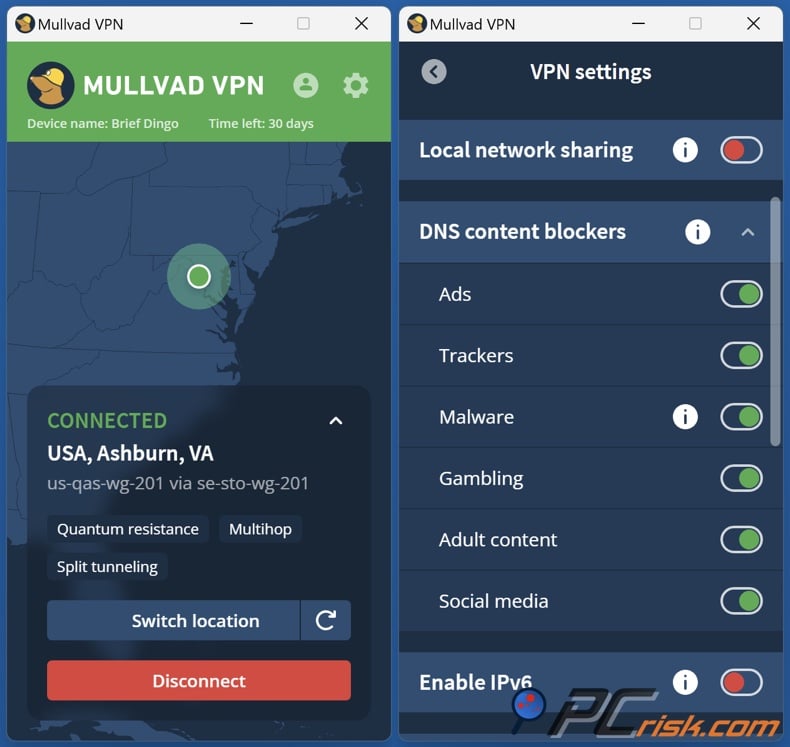
Mullvad VPN is not flashy, but it is clean and honest. If you want a simple, privacy-focused VPN without distractions, Mullvad is a solid choice. Its minimalist design can help with stability because there is less clutter and fewer things that can go wrong. If you care more about basics than extras, this style is valuable.
- Pros: simple and reliable core experience, strong privacy approach, open-source focus, consistent no-nonsense design.
- Cons: smaller overall ecosystem, fewer convenience features, and not the best choice if streaming access or hand-holding support matters to you.
Wrapping up
If your VPN keeps disconnecting, it does not always mean you picked a bad provider. Often, the real problem is something like weak Wi-Fi, battery optimization, a bad server, the wrong protocol, a firewall rule, or old network settings. That is why it is best to follow a step-by-step process instead of guessing.
If you remember just a few things from this guide, keep these in mind: Test your regular internet first. Try different servers. Change the protocol. Update or reinstall your VPN app. Check for issues with antivirus, proxies, battery settings, or your router. These steps solve most disconnect problems.
If you still have problems after trying these steps, consider the VPN itself. At PCrisk, we value stability because a VPN should work all the time, not just sometimes. If your service keeps failing on different devices and networks, switching to a more reliable provider can save you time and frustration.
Our top pick of the year: almost no slowdown in our speed tests, and it unblocked Netflix, BBC iPlayer and Disney+ without trouble. $3.39/mo on the 2-year plan or $4.99/mo on the 1-year plan, 30-day money-back guarantee. Compare all three
Frequently Asked Questions (FAQs)
Why does my VPN keep disconnecting every few minutes?
This usually happens when the VPN tunnel loses contact with the server. The most common reasons include an unstable internet connection, server issues, using the wrong protocol, battery-saving settings, or interference from antivirus software, proxies, or another VPN app.
Can bad Wi-Fi make a VPN disconnect?
Yes. A VPN needs a stable internet connection. Even brief Wi-Fi interruptions, which you might not notice, can disrupt the encrypted tunnel and force the VPN to reconnect.
Does changing the VPN protocol really help?
Yes, changing the protocol can help more than most other fixes. Different protocols work better on different networks. If one protocol keeps disconnecting, another might be much more stable in the same situation.
Why does my VPN disconnect only on my phone?
Mobile operating systems often try to save battery and switch networks automatically. Features like battery optimization, Low Power Mode, Wi-Fi Assist, and switching between Wi-Fi and mobile data are common reasons for VPN disconnects on phones.
Can antivirus or firewall software break a VPN connection?
Yes. Some security programs see VPN traffic as suspicious, block certain ports, or interfere with the VPN adapter. Adding your VPN app to the exclusions list usually solves this problem.
Why do I lose internet when the VPN disconnects?
This is often because the kill switch is working as intended. A kill switch blocks all internet traffic when the VPN disconnects, so your regular connection does not leak. It might seem like your internet is broken, but the feature is actually keeping you safe.
Should I reinstall my VPN app?
If updating, switching servers, and changing protocols do not work, then yes, you should reinstall. Reinstalling can fix corrupted profiles, broken adapters, or damaged files that a normal restart cannot repair.
Why does Remote Desktop disconnect when I start a VPN?
This happens because the VPN might change the route your Remote Desktop session uses. The safest way is to connect the VPN before starting Remote Desktop, or use split tunneling so Remote Desktop is not forced through the VPN.
Is it worth resetting network settings?
Yes, but only try this after other fixes do not work. Resetting network settings can solve tough adapter, DNS, proxy, and profile problems, but it will also remove your saved settings and you may need to set things up again.
Do I still need security software if I use a VPN?
Yes. A VPN protects your data while it is being sent, but it does not replace anti-malware tools, malicious site blocking, or system cleanup. If you have suspicious apps, harmful websites, or browser hijackers, security software like Combo Cleaner can help find and remove what is causing problems with your connection.
Share:
 Facebook
 X.com
X.com
 LinkedIn
 Copy Link

Rimvydas Iliavicius
Researcher, author
Rimvydas is a researcher with over four years of experience in the cybersecurity industry. He attended Kaunas University of Technology and graduated with a Master's degree in Translation and Localization of Technical texts. His interests in computers and technology led him to become a versatile author in the IT industry. At PCrisk, he's responsible for writing in-depth how-to articles for Microsoft Windows.
▼ Show Discussion