
We may earn commissions from products we recommend. Learn more.
How to unblock websites on school Chromebook in 2026

How to unblock websites on a school Chromebook in 2026
A school Chromebook might block a website for several reasons. The school Wi-Fi could filter the site, Google Workspace policies might prevent Chrome from opening it, the school could manage the Chromebook, or Chrome might have a site permission that blocks part of the page. It's important to know the difference because a fix for a network block won't always work for an administrator-imposed restriction. Google says that administrators can limit features, install apps, monitor activity, and control how Chromebooks are used.
This guide covers practical ways to unblock websites in 2026, including VPNs, proxies, Chrome site permissions, direct IP addresses, mobile versions of sites, and mobile hotspots. Our top VPN choice is NordVPN, based on our tests and rankings, but we’ll also compare Surfshark, ExpressVPN, Proton VPN, and Mullvad. These five services make up PCrisk's 2026 VPN ranking.
Before you start, keep in mind an important limitation. If your Chromebook is school-owned and managed, you might not be able to install VPNs, add extensions, change proxy settings, or adjust other key options. A VPN also won't give you admin control over ChromeOS. Google recommends contacting your administrator if restrictions cause issues on a managed Chromebook. So, only use the methods below if you are allowed to change these settings, such as on your own Chromebook, with an unrestricted account, or when trying to access a blocked educational resource.
Unblock websites on your Chromebook with NordVPNSpecial deal30-day money-back guarantee→
Table of Contents:
- Introduction
- Why do websites get blocked on school computers?
- How to unblock websites on school Chromebooks with a VPN
- Best VPNs for unblocking websites on school Chromebooks
- How we test VPNs
- Key features to consider when choosing a VPN
- Other ways to unblock websites on a school Chromebook
- To sum up
- Frequently asked questions (FAQs)
Why do websites get blocked on school computers?
Schools block websites for various reasons, so identifying the source of the block is the best first step when troubleshooting.
If your school manages your Chromebook, an administrator can set up website restrictions using Google's admin tools. According to Google Chrome Enterprise documentation, admins can block or allow specific websites on managed Chrome browsers and ChromeOS devices. These restrictions might be tied to your Chromebook or school account, not just the Wi-Fi network you are on.
Schools can also block websites using their network. In this case, the school’s firewall, DNS filter, web gateway, or proxy decides which sites you can visit on school Wi-Fi. One way to check is to try the website on your Chromebook using a different network. If it works elsewhere but not on school Wi-Fi, it’s likely a network block. However, keep in mind that device management and network filtering can sometimes overlap.
There are legitimate safety and regulatory reasons for school filtering. In the United States, for example, the Children's Internet Protection Act applies to schools and libraries receiving certain E-Rate discounts and requires internet safety policies and technology protection measures that filter obscene visual depictions, constitute child pornography, or are harmful to minors.
Schools don’t just block dangerous websites. Administrators might also block streaming sites, social media, games, downloads, browser extensions, or other services in accordance with school rules. Google lets admins control website access in detail, including making lists of blocked sites and exceptions. Sometimes, schools set things up so that only the websites needed for a test are allowed.
Sometimes Chrome itself might block a website rather than the school network. Chrome has its own settings for things like pop-ups, JavaScript, notifications, location, camera, microphone, downloads, and insecure content. Adjusting these settings can help if a website seems blocked because it needs a permission you denied. But this won’t get around a website block set by your school administrator.
Before you try anything, check if your Chromebook is managed. Click the time in the lower-right corner. If you see a managed-device indicator, it means your school or another organization controls your Chromebook. If it is managed, some steps in this guide might not be available or could be blocked by policy.
Our top recommendation for streaming and privacy. NordVPN consistently leads our tests with fast speeds, reliable geo-unblocking, and a strict no-logs policy.
- ✔ Unblocks geo-restricted streaming services reliably
- ✔ 202+ locations across 111 countries
- ✔ 30-day money-back guarantee · Special deal available
How to unblock websites on school Chromebooks with a VPN
A VPN sets up a secure connection between your Chromebook and a VPN server. Instead of sending your internet requests straight to their destination, they go through this server first. This helps if your school’s restrictions are mainly on the local network. Using a VPN can also boost your privacy on Wi-Fi, since the network can’t see what you’re doing inside the encrypted VPN traffic, like it can with a direct connection.
A VPN might not always work on a school Chromebook. School administrators can block apps, extensions, VPNs, websites, and other ChromeOS features. If you can’t install a VPN or see a message that an administrator controls the setting, the best course of action is to ask your school’s IT administrator for access instead of trying to bypass device management.
Top VPN ReviewsExclusive dealsExpert-tested · hands-on reviews→
ChromeOS offers several VPN options. According to Google's Chromebook documentation, Chromebooks with Google Play access support built-in IKEv2, L2TP/IPsec, basic OpenVPN, and Android VPN apps.
We suggest using the Android VPN app because it's much easier than entering VPN server details by hand. NordVPN supports Chromebooks and offers both an Android app and a Chrome extension. The Android app protects your whole Chromebook connection, while the Chrome extension only covers browser traffic.
How to set up NordVPN on a Chromebook
1. Open the Google Play Store on your Chromebook.
2. Search for "NordVPN."
3. Select the official NordVPN application and click "Install."
4. Open NordVPN after the installation finishes.
5. Sign in with your Nord Account. If you don't have one, create an account and make sure you have a NordVPN subscription.
6. Allow the ChromeOS or Android prompt that asks for permission to set up the VPN connection.
7. In the NordVPN app, use the quick-connect button (often called "Secure my connection") or pick a server location yourself.
8. Wait until NordVPN confirms that the connection is active.
9. Open Chrome and retry the website.
Start with a VPN server close to your location instead of one far away. Our tests show that distance affects speed and performance, and that nearby servers usually offer the best mix of privacy and speed.
NordVPN also has a Chrome extension. If your Chromebook allows Chrome Web Store extensions, just open the store, find the NordVPN extension, click "Add to Chrome," confirm the install, open it from the Extensions menu, sign in, and choose "Secure my connection" or pick a country.
It's important to know the difference between these two options. NordVPN says its Chrome extension protects only browser traffic, while the app protects your entire device. Use the app for full protection.
If you can't see the "Install" or "Add to Chrome" options, it probably means software installs are restricted. This doesn't mean the VPN is broken. School administrators can control which apps and settings are allowed, so the missing option might be intentional.
You can manually set up a VPN on ChromeOS if your VPN provider provides the correct connection details. Google says to open Settings, go to Network, choose Add connection, pick Add built-in VPN, and enter the server and login info. If you’re using a school Chromebook, you might need to get this information from your administrator.
Best VPNs for unblocking websites on school Chromebooks
PCrisk’s 2026 VPN ranking includes NordVPN, Surfshark, Mullvad VPN, Proton VPN, and ExpressVPN. For unblocking websites on school Chromebooks, we put NordVPN first. Surfshark and ExpressVPN come next because our tests show they’re especially good for streaming and accessing content. Mullvad is still great for privacy, but it’s not as strong for streaming or unblocking content.
NordVPN - best overall choice
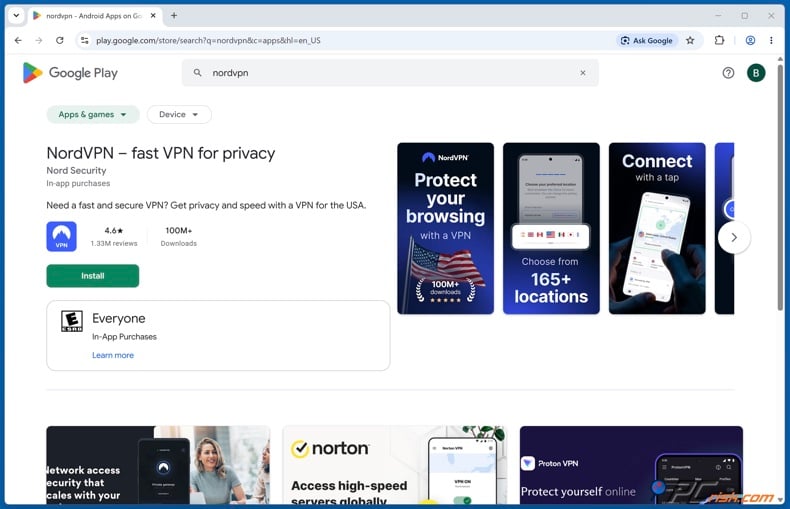
NordVPN is our top pick for Chromebooks because it performs well, is easy to use on Chromebooks, and offers both browser and Android options. We gave NordVPN a 4.5 out of 5 and ranked it first in the 2026 comparison.
In our review, NordVPN did especially well in security, speed, and streaming. We pointed out its audited no-logs policy, strong security features, fast connections, and its ability to access major streaming services. The NordLynx protocol, based on WireGuard, helps it handle high-bandwidth tasks.
NordVPN works well with Chromebooks. It has an official Android app for Chromebooks and a Chrome browser extension. You can choose to protect your whole device or just your browser traffic.
- Pros: Excellent speeds, strong streaming results, easy Chromebook setup, solid security and privacy features, and applications that are straightforward enough for beginners. PCrisk also found its apps feature-rich and easy to use.
- Cons: Short subscriptions can be expensive compared with budget providers. NordVPN does not have a permanent, unlimited free tier, and some advanced functionality varies by operating system.
For this article, NordVPN stands out as the most well-rounded choice. A VPN that works well but is hard to set up on ChromeOS would not be a good fit, so NordVPN’s clear Chromebook support is a big plus.
Surfshark - best value for multiple devices
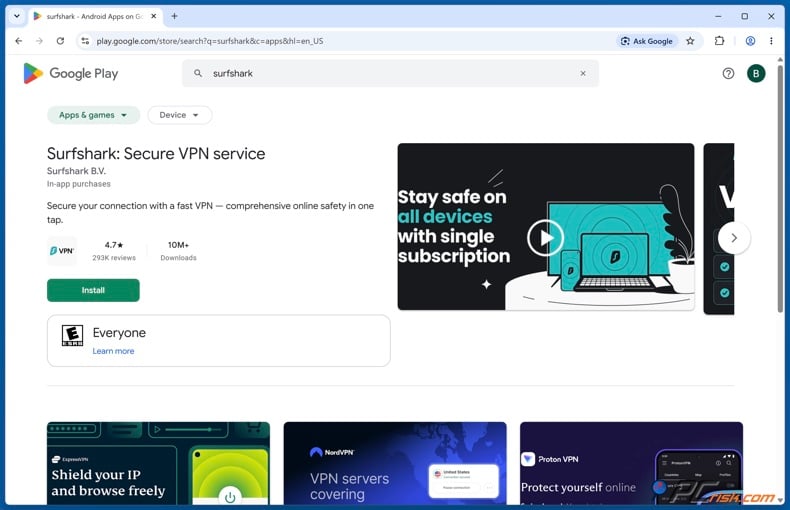
Surfshark is our second pick. We gave it a 4.4 out of 5 and highlighted its good performance, useful features, unlimited devices, and affordable long-term plans. In our tests, it was fast with WireGuard and worked well with Netflix, Hulu, and BBC iPlayer.
Surfshark officially works on Chromebooks that support Android apps. Setting it up is easy: open Google Play, install Surfshark, sign in, and connect. There is also a Chrome browser extension, updated with Chromebook instructions in July 2026.
One of Surfshark's best features is its unlimited device policy. This means you can use the same subscription on a Chromebook, phones, PCs, tablets, and more, not just on one school laptop.
- Pros: Great value on long-term plans, unlimited devices, fast speeds with WireGuard, strong streaming, and a good range of privacy and filtering features.
- Cons: Renewal prices are higher. There is no always-free plan, and some features depend on your operating system.
We would pick Surfshark over NordVPN if price and the ability to use many devices matter most.
ExpressVPN - excellent for streaming and simplicity
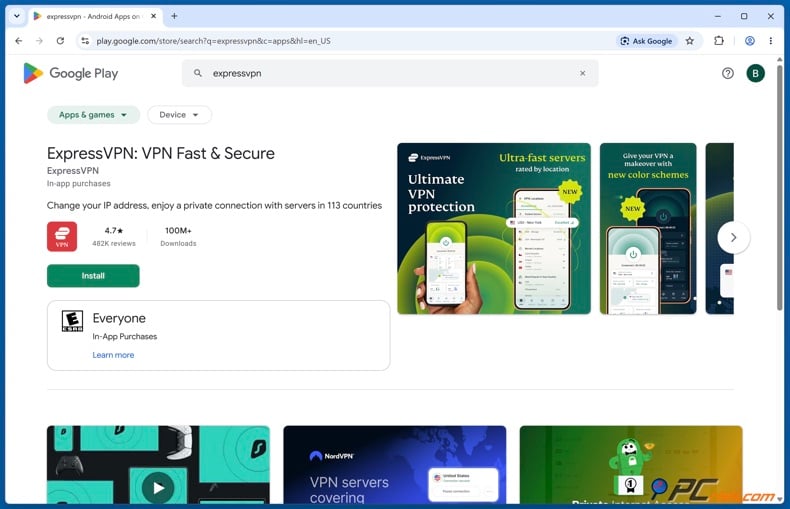
ExpressVPN is our third choice for this situation. We rated it 4.1, but that score does not reflect how well it works for streaming. In our tests, ExpressVPN worked very well with Netflix and other major streaming services, maintaining fast connections through easy-to-use apps.
ExpressVPN officially supports Chromebooks through its Android app. The setup instructions explain how to download the app, sign in, allow the VPN connection, and pick a server. ExpressVPN says its Chromebook app is made to work well on ChromeOS devices that support it.
ExpressVPN is very easy to use. In our review, we found the interface simple and reliable. It is a good choice if you do not want to deal with changing VPN settings or advanced options.
- Pros: Fast and reliable connections, great for streaming, easy-to-use interface, strong privacy, and official Chromebook support.
- Cons: It costs more than many other options. It also lacks some advanced features, such as a standard multi-hop option.
ExpressVPN is one of our top picks if streaming is more important to you than getting the lowest price.
Proton VPN - best free option for basic privacy
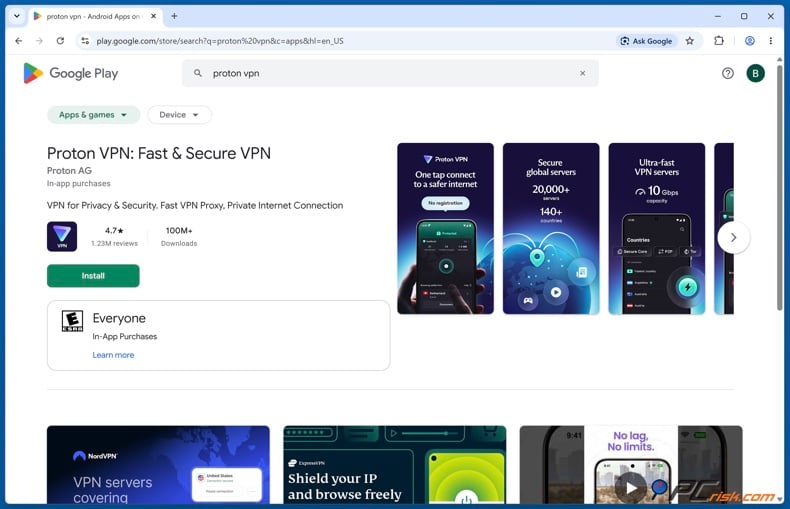
Proton VPN comes in fourth place. We gave it a 4.2 out of 5, highlighting its privacy features, open-source apps, Secure Core, NetShield, and a free plan that is more useful than most.
Proton officially supports Chromebooks through its Android app. Their Chromebook guide tells users to install Proton VPN from Google Play, sign in, and connect using the Android app.
Proton stands out primarily for its free plan. Proton says its free VPN has no data limit, and we also see the free tier as one of the best for basic VPN use. Paid Proton VPN plans add features that make it much better for streaming.
We found that Proton VPN Plus worked well with major streaming services and was fast enough for HD and 4K video on the servers tested. However, the free plan does not offer the same streaming features, so we would not pick Proton’s free plan just to watch blocked video services.
- Pros: Great privacy, open-source apps, strong leak protection in our tests, a very capable free plan, and official Chromebook support.
- Cons: Paid plans can be more expensive than some competitors, performance is good but not always the best, and support can be slower. The free service is also more limited than the paid version when it comes to streaming.
We suggest trying Proton VPN if you want to test a trusted VPN before committing to a long-term subscription.
Mullvad VPN - best for privacy-focused users
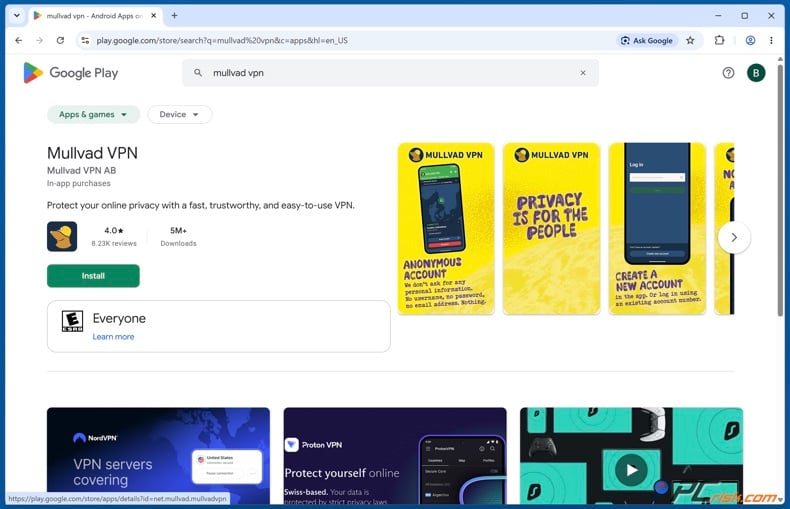
Mullvad is ranked fifth here, not because of poor quality, but because this article primarily focuses on website access and streaming. We gave Mullvad a 4.3 out of 5, highlighting its strong privacy, security, open-source apps, and stable local performance.
Mullvad works on Chromebooks that have access to Google Play. According to Mullvad's documentation from May 2026, you can use the Mullvad VPN app or WireGuard on supported Android and Chromebook devices.
The problem for this specific ranking is content access. Our review found that Mullvad struggled with some major streaming platforms and had a smaller location footprint than some competitors. It also does not offer the same range of consumer-convenience features as NordVPN or Surfshark.
- Pros: Strong privacy, anonymous account setup, open-source and audited apps, reliable performance on nearby servers, and straightforward pricing.
- Cons: Weaker streaming performance, fewer server locations than top competitors, no standard live chat support, and fewer convenience features.
If your main goal is to keep your personal information private when using a VPN, Mullvad is a strong choice. But if you're a student who mostly wants reliable browsing and video access on a Chromebook, I would choose one of the top four options.
How we test VPNs
At PCrisk, we don't just read feature lists or repeat what providers say. We test VPNs ourselves, evaluating security, privacy, performance, streaming, usability, and features under controlled conditions. This is the same approach we use for other security products. For example, when testing ad blockers, we compare results with and without protection and run several trials rather than relying on a single trial.
When testing VPN security, we check the encryption and supported protocols, and look for IP, DNS, and WebRTC leaks. We also intentionally disconnect the VPN to see whether the kill switch prevents traffic from leaking outside the encrypted tunnel.
For speed tests, we start by measuring the connection without a VPN. Then we connect to VPN servers at various distances and compare download and upload speeds, as well as latency. We test local, medium, and long-distance servers at different times to get a fair average, not just the fastest result.
We also run real-world tests, such as loading websites, streaming HD and 4K video, downloading large files, checking connection stability, and measuring how fast the VPN connects and switches servers. A VPN might be fast in a single test but still frustrating if it often disconnects, so stability is important in our ratings.
Streaming and content access receive dedicated testing. We try major services, look for VPN or proxy errors, switch servers when necessary, and evaluate whether playback remains usable. This is one reason NordVPN, Surfshark, and ExpressVPN rank highly in the specific scenario discussed in this guide. Our individual reviews document successful streaming tests for all three.
We look at more than just encryption when checking privacy. We review logging policies, independent audits, the company's background, where it is based, and what data it collects. Security software shouldn't make you trade one privacy issue for another.
We also check how easy the VPN is to use. We look at installation, server selection, connection speed, app design, feature clarity, platform compatibility, customer support, and advanced options.
Key features to consider when choosing a VPN
Start by checking if the VPN is compatible with your Chromebook. If your device supports Google Play, you can use many Android VPN apps. However, school administrators may block access to these apps or limit what you can install. Before subscribing, confirm that you can install your chosen VPN app.
Strong encryption and leak protection are crucial. The main job of a VPN is to create a secure tunnel, so don't pick a service just because it claims to "unblock everything." In our tests, we look for up-to-date VPN protocols, solid encryption, good DNS handling, IP leak protection, and a reliable kill switch.
Connection speed matters more than most people realize. All VPNs slow your connection a little, which is normal. What matters is how much speed you lose and if the connection stays stable. For web browsing, small slowdowns may not matter, but for video lessons, streaming, large downloads, or video calls, you might notice the difference.
Choosing the right server also matters. More available locations give you more options if one route is slow or down. For everyday browsing, we usually pick a nearby server because it usually has lower latency than one far away. That's why we compare VPN performance across different server distances.
If you plan to visit websites with lots of video, streaming performance is important. Our tests found that NordVPN, Surfshark, and ExpressVPN handled streaming well, while Mullvad did not perform as strongly for streaming.
Privacy policies and independent checks are just as important as speed. We consider logging practices, external audits, the company's location, security history, and leak tests before recommending a VPN. Since a VPN provider has access to your data, we don't recommend picking one just because it's free.
You should also consider using an app or a browser extension on your Chromebook. A Chromebook VPN app usually protects more of your device, while a Chrome VPN extension or proxy extension mostly covers browser traffic. For example, NordVPN clearly separates its Chromebook Android app from its Chrome extension.
Finally, keep in mind that a VPN can't get around school administration rules. If your administrator has blocked VPN installations or certain websites through managed Chrome policies, switching VPN providers won't give you extra access. Google clearly states that organizations can restrict Chromebook features.
Other ways to unblock websites on a school Chromebook
A VPN is just one way to try to unblock a website. Depending on the reason a page is blocked, one of the methods below might work better. However, none of these options can circumvent restrictions set by your school's administrator, and some only work against basic network or browser blocks.
Use a proxy server to unblock websites on a school Chromebook
A proxy sits between your browser and the website you want to visit. Unlike a VPN, a regular web proxy usually does not encrypt all your device’s traffic. If you can use both, we recommend choosing a trusted VPN for better overall protection.
ChromeOS includes proxy configuration controls. You can find instructions for this in Google’s Chromebook troubleshooting guide.
To configure a proxy:
1. Select the time in the lower-right corner of ChromeOS.
2. Open Settings.
3. Select Network.
4. Select the network you are currently using.
5. Select the network name again if ChromeOS displays a second network-details screen.
6. Open Proxy.
7. Choose the appropriate proxy configuration method.
8. Enter the server information supplied by your proxy provider or network administrator.
9. Save the configuration and test your connection.
Never make up a proxy address or use login details from a random website. Incorrect proxy settings can prevent your Chromebook from connecting to the internet. Google warns that changing these settings can break your connection, so ask your network administrator if you are unsure.
If your Chromebook is managed by the school, you might not be able to change the proxy settings. If that’s the case, don’t try to adjust them - just contact your administrator for help.
Change the Chromebook's site permissions
It’s important to know that Chrome’s site permissions are different from your school’s list of blocked websites.
Site Settings let you control what websites can do in Chrome. You can manage these permissions by going to Settings, then Privacy and security, and then Site settings.
If a page opens but functionality is being blocked:
1. Open Chrome.
2. Select the three-dot menu.
3. Select Settings.
4. Open Privacy and security.
5. Select Site settings.
6. Review permissions relevant to the affected website.
7. Find the site in the stored permissions, or open the individual permission causing trouble.
8. Reset the site's permission or change it from "Block" to "Allow" where appropriate.
9. Reload the website.
For example, this can help if a website needs JavaScript, pop-ups, your microphone, camera, notifications, or another feature you may have blocked before.
However, this will not unblock a website if your school administrator has added it to Chrome’s managed blocklist. Google treats URL blocking as a separate policy that users cannot change.
Bypass simple site blocks using an IP address
Every website has one or more IP addresses. Some older or basic blocking systems only block the website name, not all of its IP addresses.
ChromeOS includes Crosh, its developer shell, and Chromium's own ChromeOS source documentation confirms that Crosh provides a ping command.
You can check a domain's resolved address like this:
1. Press Ctrl+Alt+T to open Crosh.
2. Enter ping example.com, replacing example.com with the domain you are troubleshooting.
3. Read the IP address shown in the output.
4. Stop the command with Ctrl+C.
5. Enter the IP address into Chrome's address bar and try loading it.
This method has big drawbacks in 2026. Many large websites share IP addresses, use content delivery networks, or change their IPs often. Some also need the website name for secure connections. Because of this, typing in an IP address might show a warning, load the wrong site, or not work at all.
Administrators can also disable Crosh on managed ChromeOS devices, so even the diagnostic step may not be available.
Using an IP address is best as a troubleshooting step for simple cases, not as a reliable way to unblock websites today.
Use the mobile site version
Some websites have a separate mobile address, like m.example.com. If a filter blocks only the main website, not the mobile version, you might be able to access the site using the mobile address.
Enter the website's official mobile address in Chrome instead of the normal address. However, this trick no longer always works because most websites now use the same address on both desktop and mobile. Also, if your school blocks the entire website or a specific category, using the mobile address will not help.
To sum up
If a website won’t open on your school Chromebook, don’t start changing settings right away. First, figure out what type of restriction you’re facing.
If the website loads on a different network but not on the school Wi-Fi, the block is probably network-based. If you’re allowed to use VPN software, NordVPN is our top pick. Our tests found it offers a good mix of speed, security, ease of use, and streaming. NordVPN also supports both the Android Chromebook app and a Chrome extension.
For value and using several devices, Surfshark is a good alternative. ExpressVPN is a great choice if you want something simple and strong for streaming. If you need a trustworthy free option for basic privacy, Proton VPN stands out. Mullvad is best for those who care most about privacy, even over streaming.
A proxy might fix some network problems, but it doesn’t offer as much privacy as a VPN and can cause connection issues if set up incorrectly. Changing Chrome site permissions only helps if Chrome is blocking the website. Tricks like using direct IP addresses or mobile domains no longer work as well because websites and filters have gotten smarter.
Using a phone hotspot is often the easiest way to test things. If a website works as soon as your Chromebook is off the school Wi-Fi, it’s likely the network is blocking it. If the site is still blocked on a school-managed Chromebook, it’s probably due to a ChromeOS or Google Workspace policy. This is based on how Google separates network issues from managed Chrome policies.
Most importantly, just because you can change a network route doesn’t mean you’re allowed to go around school rules. Managed Chromebooks are set up so schools can control apps, features, accounts, and web access. If an educational site is blocked by mistake, the best long-term fix is to ask a teacher or administrator to add it to the allowlist. Google gives admins clear ways to make exceptions for this kind of access.
Frequently asked questions (FAQs)
Can I unblock every website on a school Chromebook?
No, there isn’t a single way to unblock every website on a school Chromebook. Schools can set up restrictions through Wi-Fi, DNS, firewalls, browsers, Google accounts, extensions, and ChromeOS management. Google administrators can block specific websites and control Chromebook features, so users can’t just bypass all these restrictions.
What is the best VPN for a school Chromebook?
From the VPNs listed in PCrisk’s 2026 comparison, we recommend NordVPN. We give it 4.5 out of 5 and highlight its strong performance, privacy, ease of use, and streaming features. NordVPN also has clear Chromebook setup guides for its Android app and Chrome extension.
Can a school block VPNs on a Chromebook?
Yes. If the school manages your Chromebook, it can decide which apps, extensions, and features you can use. Network administrators can also block certain types of traffic. Google says that managed Chromebooks let administrators control features and device use. So, if you can’t install a VPN, it’s probably because the school set it that way, not because of a ChromeOS issue.
Can I use a free VPN on a Chromebook?
Yes, as long as your Chromebook lets you use VPN apps. Of the five VPNs mentioned here, Proton VPN stands out because it offers a free plan that never expires. Proton says its free plan has no data or time limits. Some features, like full streaming support, do require a paid Proton VPN plan.
Will changing Chrome site permissions unblock a school-blocked website?
Usually not. Site permissions only control what features a website can use in Chrome. You can find these settings under Settings > Privacy and security > Site settings. However, if your school blocks a website using an administrator’s blocklist, changing things like camera, JavaScript, pop-ups, location, or insecure content won’t unblock it.
Why does a blocked website work on my phone but not on my Chromebook?
The two devices might be on different networks or have different rules. If your phone is using cellular data, it’s not on the school’s Wi-Fi, but your Chromebook might still have school policies set up on it. Google says managed Chromebooks can have administrator restrictions that work even if you’re not on the school Wi-Fi.
Will a mobile hotspot always unblock school websites?
No. Using a hotspot can get around blocks that are only on the school Wi-Fi, but it won’t remove any ChromeOS or Google Workspace rules set up on your Chromebook. If the block is still there when you use a hotspot, it probably means the restriction is set on the device itself, not just the network.
Can I open a blocked website by typing its IP address?
Sometimes, but this method isn’t as reliable as it used to be. You can use ChromeOS Crosh and the ping command to find out which IP a website uses, but many websites now use shared hosting, content delivery networks, changing IP addresses, and HTTPS, which often need the right hostname. So, typing in an IP address might not work even if the site is online.
What should I do when a legitimate educational website is blocked?
Write down the website address and the block message, then share them with your teacher or the school's IT team. Schools can allow certain educational sites while keeping other filters in place. This approach usually keeps working even if ChromeOS or network rules change later.
Share:
 Facebook
 X.com
X.com
 LinkedIn
 Copy Link

Rimvydas Iliavicius
Researcher, author
Rimvydas is a researcher with over four years of experience in the cybersecurity industry. He attended Kaunas University of Technology and graduated with a Master's degree in Translation and Localization of Technical texts. His interests in computers and technology led him to become a versatile author in the IT industry. At PCrisk, he's responsible for writing in-depth how-to articles for Microsoft Windows.
▼ Show Discussion