

Get free scan and check if your device is infected.
Remove it nowTo use full-featured product, you have to purchase a license for Combo Cleaner. Seven days free trial available. Combo Cleaner is owned and operated by RCS LT, the parent company of PCRisk.com.
What is "Youtube Lottery Email Scam"?
"Youtube Lottery" Email Scam (Mac) is used to trick people into believing that they have won a YouTube lottery. The main goal of this scam is to encourage recipients to send their full names, addresses, mobile telephone numbers, and other information to scammers.
Since this is merely a scam and YouTube has nothing to do with it, we recommend that you ignore "Youtube Lottery". Do not send any details whatsoever to these scammers.
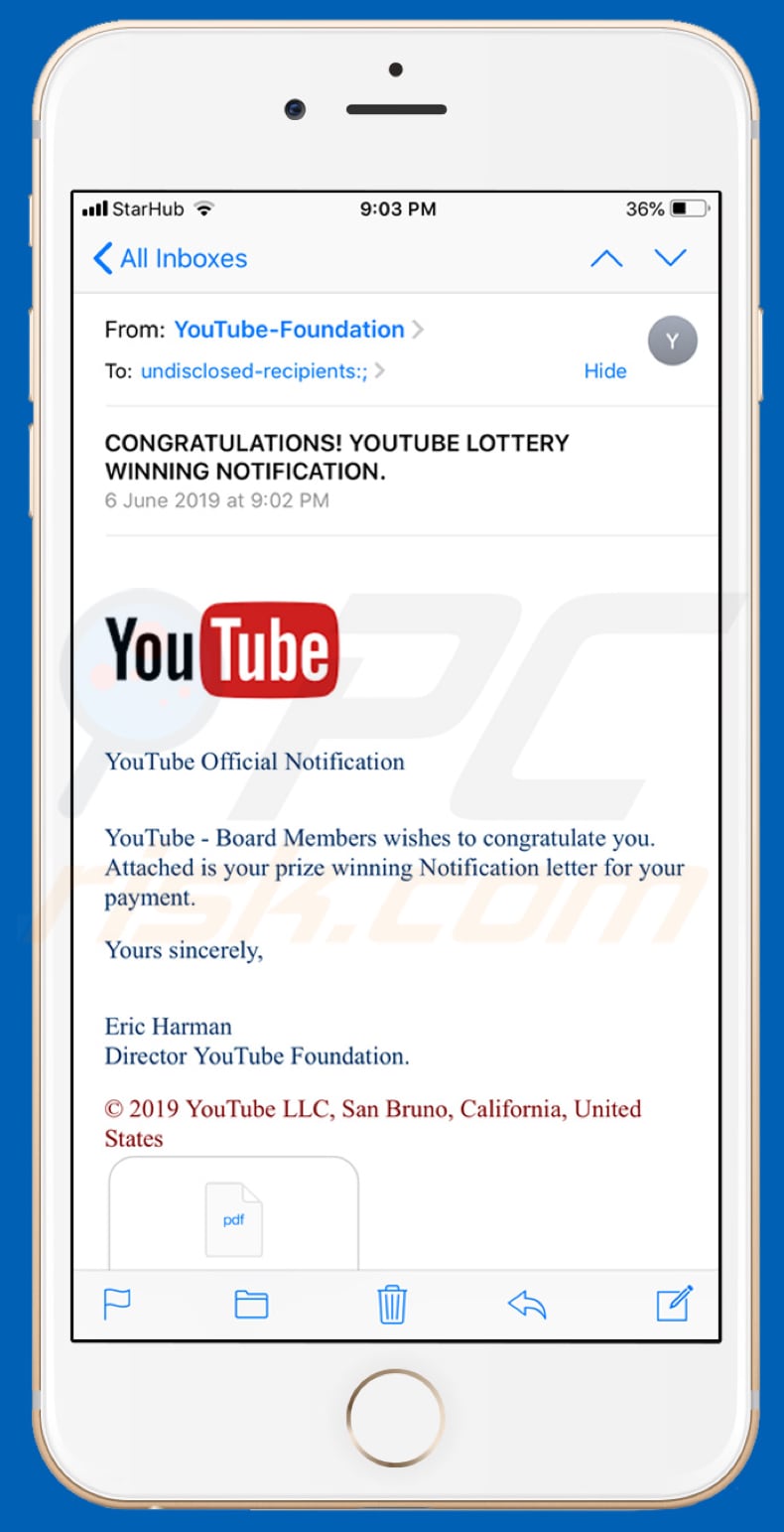
The email is designed to appear like an official notification from YouTube. Recipients are encouraged to open the attachment ("YOUTUBE PAYMENT 2019.pdf" file) and follow further instructions. The message in the attachment states that the recipient of this email was selected as a major customer - a YouTube users and winner of $970,000,000.
It is stated that this lottery is promoted by the International Lottery and Betting Institution. Additionally, recipients are encouraged not to share information about this email with anyone, since this might apparently cause fraudulent claims by unauthorized people.
To claim the prize, recipients are encouraged to send their full names, current contact addresses, and mobile numbers to claims@youtube-processing.icu. Once contacted, these scammers might request more details. Their objective is to obtain information and misuse it to generate revenue.
To avoid issues with privacy, browsing safety, or even identity theft, do not trust this email.
There are many different scams, many of which are designed to trick people into sending money to scammers. Some examples include "CVE-2019-1663", "Placed a malware on the xxx streaming site", and "This account was recently infected". Additionally, some scams are designed to infect computers. Scammers send emails that contain malicious attachments.
If opened, they download and install high-risk malware. Examples of malicious programs proliferated through emails include LokiBot, TrickBot, Emotet, and AZORult. Typically, cyber criminals spread malware that is designed to steal personal details, which could be used to generate revenue.
They attempt to trick people into installing programs that steal information such as logins, passwords, information relating to users' browsing habits, and so on. Victims usually experience problems such as data/financial loss, privacy issues, and so on. Do not trust these emails.
| Name | Youtube Lottery spam |
| Threat Type | Phishing, Scam, Social Engineering, Fraud |
| Fake Claim | Scammers claim that recipients have won the YouTube lottery and ask them to send personal information |
| Symptoms | Unauthorized online purchases, changed online account passwords, identity theft, illegal access of the user's computer. |
| Distribution methods | Deceptive emails, rogue online pop-up ads, search engine poisoning techniques, misspelled domains. |
| Damage | Loss of sensitive private information, monetary loss, identity theft. |
| Malware Removal (Windows) |
To eliminate possible malware infections, scan your computer with legitimate antivirus software. Our security researchers recommend using Combo Cleaner. Download Combo CleanerTo use full-featured product, you have to purchase a license for Combo Cleaner. 7 days free trial available. Combo Cleaner is owned and operated by RCS LT, the parent company of PCRisk.com. |
How did potentially unwanted applications install on my computer?
Spam campaigns (emails) are used to proliferate malicious programs, however, they can only infect systems if the files attached to them are opened. Attachments contained in emails of this type are usually Microsoft Office documents, PDF documents, ZIP, RAR and other archive files, JavaScript files or executables (.exe files). If left unopened, they cannot do any damage.
How to avoid installation of potentially unwanted applications?
There are various ways to proliferate malicious programs. To avoid having them installed unintentionally, be careful with suspicious emails. If an email is received from an unknown, suspicious address, contains an attachment/web link, or is irrelevant, you should ignore it. All software should be downloaded from official websites.
Other sources such as P2P (Peer-to-Peer) networks, unofficial pages, third party downloaders and so on, should not be trusted. Installed software must be updated properly, using implemented tools (or functions) provided by official software developers. It is not safe to activate installed programs or operating systems via third party activation tools ('cracks').
These are illegal and are often used to distribute malware (download and install malicious programs). Computers are safer if reputable anti-virus or anti-spyware suites are installed. Also scan systems for viruses regularly. If your computer is already infected with PUAs, we recommend running a scan with Combo Cleaner Antivirus for Windows to automatically eliminate them.
Text presented in the email:
Subject: CONGRATULATIONS! YOUTUBE LOTTERY WINNING NOTIFICATION.
YouTube Official Notification
YouTube - Board Members wishes to congratulate you.
Attached is your prize winning Notification letter for your payment.Yours sincerely,
Eric Harman
Director YouTube Foundation© 2019 YouTube LLC, San Bruno, California, United States
Screenshot of the text in the attached file ("YOUTUBE PAYMENT 2019.pdf"):
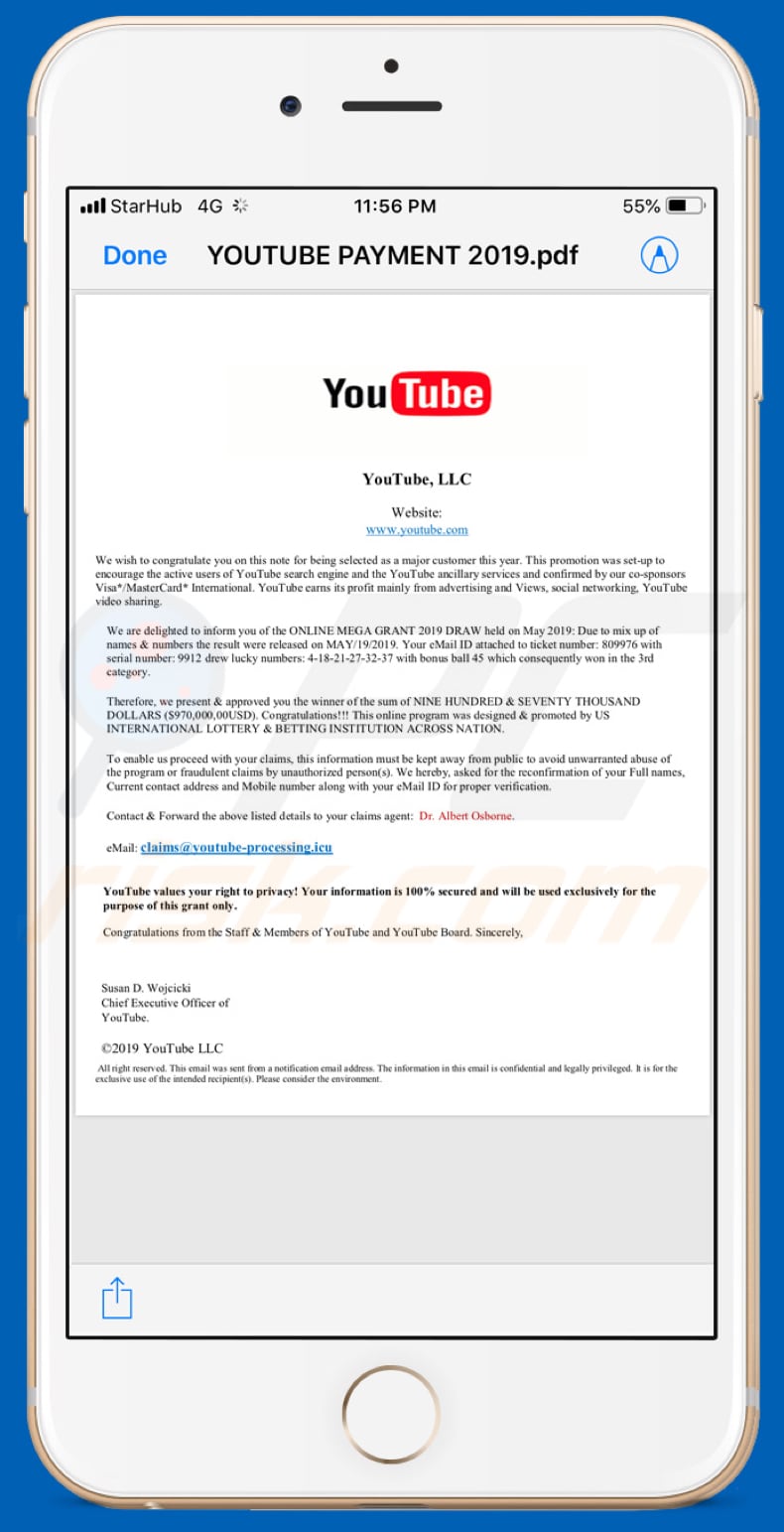
Text in this PDF document:
YouTube, LLC
Website:
www.youtube.comWe wish to congratulate you on this note for being selected as a major customer this year. This promotion was set-up to encourage the active users of YouTube search engine and the YouTube ancillary services and confirmed by our co-sponsors Visa*/MasterCard* International. YouTube earns its profit mainly from advertising and Views, social networking, YouTube video sharing.
We are delighted to inform you of the ONLINE MEGA GRANT 2019 DRAW held on May 2019: Due to mix up of names & numbers the result were released on MAY/19/2019. Your eMail ID attached to ticket number: 809976 with serial number: 9912 drew lucky numbers: 4-18-21-27-32-37 with bonus ball 45 which consequently won in the 3rd category.
Therefore, we present & approved you the winner of the sum of NINE HUNDRED & SEVENTY THOUSAND DOLLARS ($970,000,00USD). Congratulations!!! This online program was designed & promoted by US INTERNATIONAL LOTTERY & BETTING INSTITUTION ACROSS NATION.
To enable us proceed with your claims, this information must be kept away from public to avoid unwarranted abuse of the program or fraudulent claims by unauthorized person(s). We hereby, asked for the reconfirmation of your Full names, Current contact address and Mobile number along with your eMail ID for proper verification.
Contact & Forward the above listed details to your claims agent: Dr. Albert Osborne.
eMail: claims@youtube-processing.icu
YouTube values your right to privacy! Your information M 100% secured and will be used exclusively for the purpose of this grant only.
Congratulations from the Staff & Members of YouTube and YouTube Board. Sincerely,
Susan D. Wojcic1d
Chief Executive Officer of
YouTube.©2019 YouTube LLC
All fight reserved. This email was sent from a notification email address. The information in this email is confidential and legally privileged. h is for the exclusive use of the intended recipient(s). Please consider the environment.
Instant automatic malware removal:
Manual threat removal might be a lengthy and complicated process that requires advanced IT skills. Combo Cleaner is a professional automatic malware removal tool that is recommended to get rid of malware. Download it by clicking the button below:
DOWNLOAD Combo CleanerBy downloading any software listed on this website you agree to our Privacy Policy and Terms of Use. To use full-featured product, you have to purchase a license for Combo Cleaner. 7 days free trial available. Combo Cleaner is owned and operated by RCS LT, the parent company of PCRisk.com.
Quick menu:
- What is "Youtube Lottery Email Scam"?
- STEP 1. Remove PUA related files and folders from OSX.
- STEP 2. Remove rogue extensions from Safari.
- STEP 3. Remove rogue add-ons from Google Chrome.
- STEP 4. Remove potentially unwanted plug-ins from Mozilla Firefox.
Video showing how to remove adware and browser hijackers from a Mac computer:
Potentially unwanted applications removal:
Remove potentially unwanted applications from your "Applications" folder:
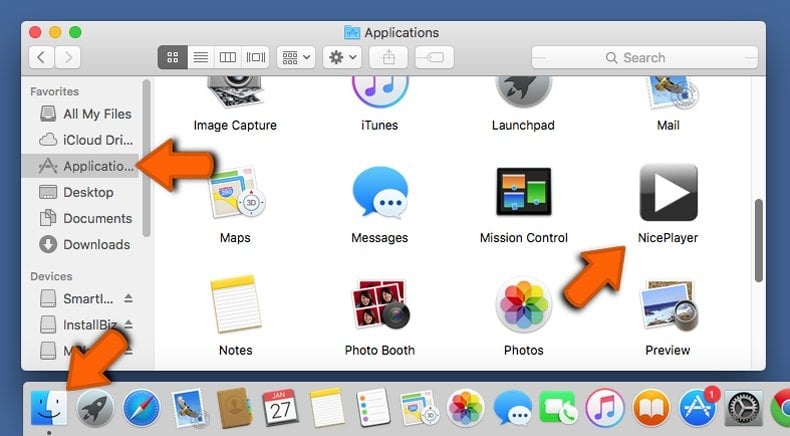
Click the Finder icon. In the Finder window, select "Applications". In the applications folder, look for "MPlayerX", "NicePlayer", or other suspicious applications and drag them to the Trash. After removing the potentially unwanted application(s) that cause online ads, scan your Mac for any remaining unwanted components.
DOWNLOAD remover for malware infections
Combo Cleaner checks if your computer is infected with malware. To use full-featured product, you have to purchase a license for Combo Cleaner. 7 days free trial available. Combo Cleaner is owned and operated by RCS LT, the parent company of PCRisk.com.
Mac malware removal and recovery procedure
Common Mac malware behaviors
VisibleAdware injection - browser hijackers and fake search engines
The most common Mac malware. Replaces your default search engine, homepage, or new-tab page with a lookalike domain that funnels every query through ad networks before passing it to a real provider. Often arrives bundled with cracked apps, fake Flash Player updates, or "free media player" downloads (MPlayerX, NicePlayer).
HiddenLaunchAgent / LaunchDaemon persistence
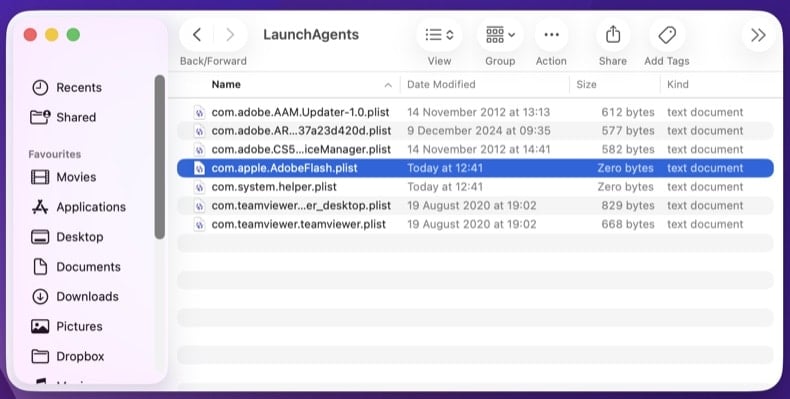
The standard way Mac malware survives reboots. A small .plist file in /Library/LaunchAgents/, /Library/LaunchDaemons/, or ~/Library/LaunchAgents/ tells launchd to run the malware at every login or boot. The .plist often picks a generic-looking name like com.apple.AdobeFlash.plist or com.system.helper.plist to blend in among legitimate Apple files.
HiddenConfiguration Profile abuse
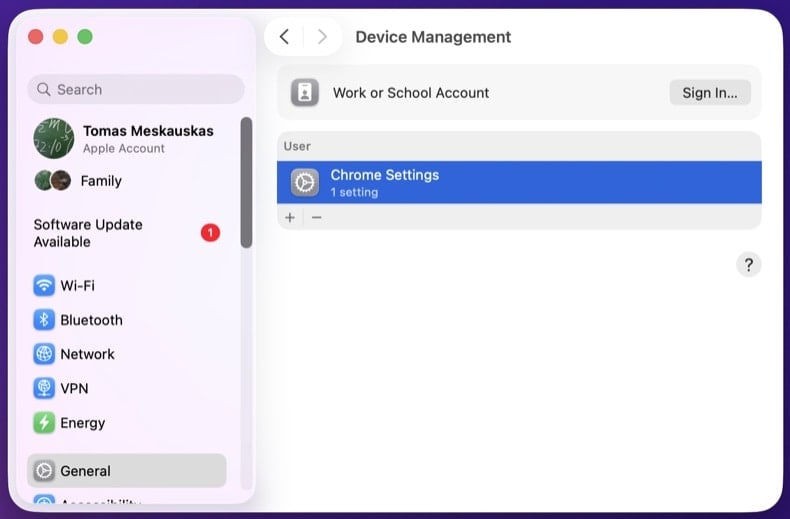
Configuration Profiles are an enterprise feature - they let an IT department enforce policy on managed Macs (homepage, DNS, certificates, password rules). Adware abuses this by silently installing a Profile that locks the browser homepage, default search, or DNS server at the OS level. Manual browser reset doesn't help - the Profile reapplies the hijack. Check System Settings → General → Device Management (or "Profiles" on older macOS).
VisibleFake update prompts (FlashPlayer.dmg variants)
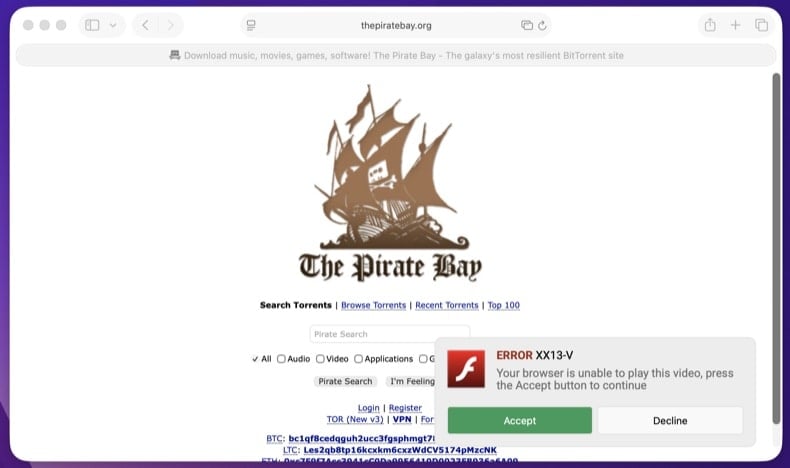
"Your Flash Player is out of date" or "Update your browser to view this content." Adobe killed Flash in 2020 - any current "Flash update" prompt is malware. The Atomic macOS Stealer (AMOS) family heavily uses this trick to deliver info-stealers that grab browser passwords, keychain items, and crypto wallet seed phrases. Apple's Software Update never appears as a browser pop-up.
SymptomCryptominer CPU usage
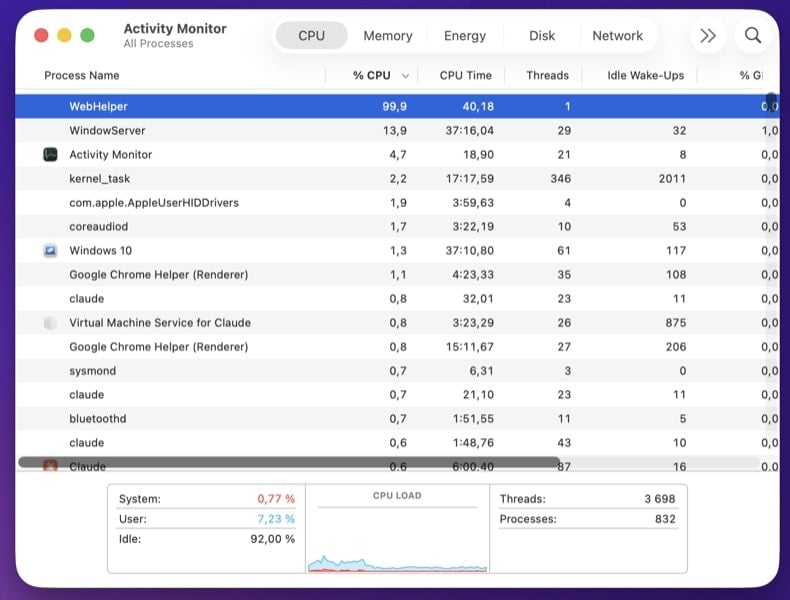
Fans spin loudly, the Mac runs hot, battery drains fast, Activity Monitor shows a process near 100% CPU. Cryptominers run silently in the background to mint cryptocurrency for the attacker. Often delivered via cracked apps from torrent sites, browser extensions, or supply-chain compromises in legitimate Mac software.
HiddenInfo stealing - AMOS, Banshee, Cthulhu, RustDoor
Modern Mac stealer families - AMOS (Atomic macOS Stealer), Banshee, Cthulhu, and RustDoor are the most active - read browser-saved passwords, cookies, autofill data, the macOS Keychain, crypto wallet seed phrases (Exodus, Electrum, Trezor Suite, MetaMask, etc.), and Apple Notes. AMOS is the most prolific overall, distributed via fake software installers, cracked apps, and fake "Spotlight" or "ChatGPT" sites. Once data is exfiltrated, the malware often deletes itself, leaving little trace - which is why credential rotation in Step 10 is critical even after the infection appears gone.
Click the Wi-Fi icon in the menu bar (or open Control Center) and turn Wi-Fi off. If you're on Ethernet, unplug the cable. This stops any active info-stealer or backdoor from sending data out or accepting commands. Keep the network off until you've booted into Safe Mode (next step) - you'll reconnect there briefly to download the scanner.
macOS Safe Mode loads only Apple-trusted kernel extensions and skips most third-party LaunchAgents and user login items, so persistent Mac malware doesn't auto-run while you set up the scanner. Network access works normally in Safe Mode.
- Choose
- Wait until the Mac is fully off
- Press and hold the Power button until "Loading startup options" appears
- Select your startup disk (usually "Macintosh HD")
- Hold Shift, then click Continue in Safe Mode
- Log in - the menu bar will show "Safe Boot" in red
Intel-based Mac
- Choose
- Immediately press and hold the Shift key as the Mac begins to boot
- Release Shift when the login window appears
- Log in - the menu bar will show "Safe Boot" in red
Once Safe Mode has loaded, turn Wi-Fi back on and download Combo Cleaner for Mac. Save the .dmg to your Desktop. You can disconnect Wi-Fi again before scanning if you want extra caution.
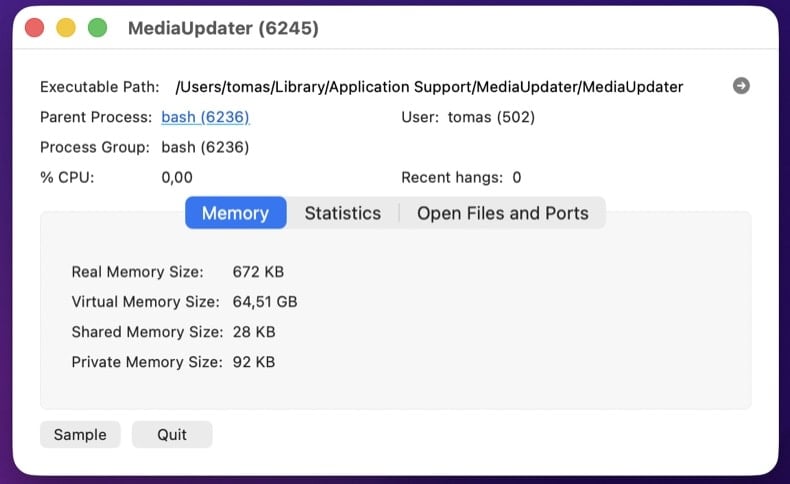
Open Activity Monitor (, or Cmd+Space and type "Activity Monitor"). Sort by CPU usage to spot cryptominers and runaway processes.
Click each unfamiliar process and choose (Cmd+I) to see:
- Path - anything in
/private/tmp/,~/Library/Application Support/<random-name>/, or with a generic-looking bundle ID is suspicious - Code signing - Apple's processes are signed by "Apple" or "Software Signing." Adhoc-signed or unsigned binaries from third parties warrant investigation
- Open Files and Ports - shows what the process is touching on disk and network
Download KnockKnock by Objective-See (Patrick Wardle's free tool, the Mac equivalent of Sysinternals Autoruns). It lists every place macOS malware can persist in a single window: LaunchAgents, LaunchDaemons, Login Items, Cron Jobs, Browser Extensions, Kernel Extensions, Authorization Plug-ins, Mail Plug-ins, Quicklook, Spotlight, and more.
Run KnockKnock and toggle "Filter Signed Items" to focus on unsigned or non-Apple-signed entries. Click any suspicious item to see its file path and code-signing status.
If you'd rather check manually, open Finder → (Shift+Cmd+G) and visit each path:
/Library/LaunchAgents/- system-wide, runs at login for any user/Library/LaunchDaemons/- system-wide, runs at boot before login~/Library/LaunchAgents/- user-level, runs at this user's login~/Library/Application Support/- where adware drops its data folder, often with a random or app-mimicking name
Then check additional persistence locations in System Settings:
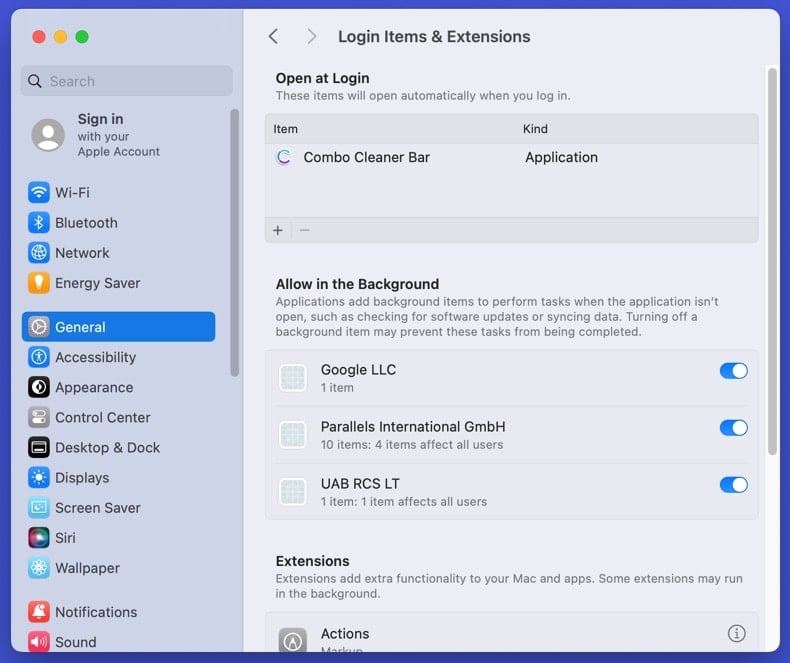
- Login Items & Extensions - . Click anything you don't recognize and remove it
- Background Items - same panel, "Allow in the Background" section. Mac malware often shows up as a background item with an obscure name
- Configuration Profiles - (or "Profiles" on older macOS). Remove any Profile you didn't install yourself
<key>Program</key> and <key>ProgramArguments</key> values tell you exactly what executable runs and from where. Don't delete yet - write down the file paths and entry names. We'll remove them after the Combo Cleaner scan in Step 7.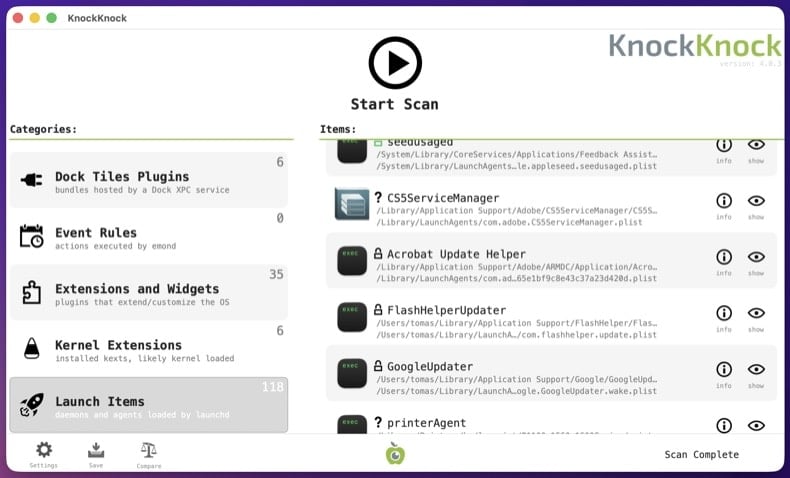
Mac malware sometimes redirects bank, Apple, antivirus, and update domains to attacker-controlled servers via the hosts file or DNS settings.
Hosts file: Open Terminal () and run:
sudo nano /etc/hosts
Legitimate entries are commented with #. Any uncommented IP-to-domain mapping is suspicious - especially redirects for apple.com, icloud.com, your bank, or your password manager. Press Ctrl+X to exit nano without saving.
DNS settings: → click your active connection (Wi-Fi or Ethernet) → Details → DNS. Confirm DNS servers point to your ISP, your router, or a known public resolver (Cloudflare 1.1.1.1, Google 8.8.8.8). Anything else has been hijacked.
chase.com and you'll be at the attacker's clone.Open the .dmg you downloaded in Step 2. Drag the Combo Cleaner icon to the Applications folder. Open it from Launchpad (or Applications), allow it to update its threat database, then click Start Combo Scan and let it complete fully. Review what it found and apply the recommended actions.
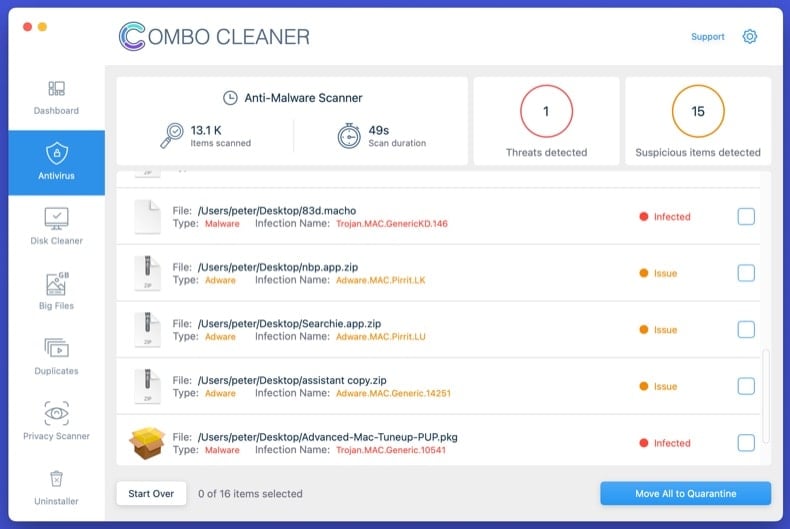
Reopen KnockKnock (or revisit the Finder paths from Step 4). Anything you flagged that's still present hasn't been caught by the automated scan. For each remaining suspicious entry:
- Note the executable path the .plist references (right-click the .plist → Open With → TextEdit, look at
<key>Program</key>) - Move the .plist to Trash
- Move the executable file at the referenced path to Trash
- Empty the Trash
Then go to /Applications and remove any unwanted apps the malware installed. Common adware-installed app names: MPlayerX, NicePlayer, MyShopcoupon, Advanced Mac Cleaner, Mac Cleanup Pro. Drag them to Trash, then check ~/Library/Application Support/ for any folder with the same name and delete it too.
Mac adware persists in browser extensions, search engine settings, homepage, and notification permissions. Reset each browser you use:
- Safari: - uninstall anything you don't recognize. Then - restore your preferred default search engine. Then - remove all unfamiliar sites. For a deep reset: → "all history."
- Chrome: visit
chrome://settings/reset→ "Restore settings to their original defaults." Thenchrome://settings/content/notificationsand remove unfamiliar sites. - Firefox: open
about:support→ Refresh Firefox. Then check .
Review installed extensions in each browser and remove anything you don't recognize, especially extensions you didn't install yourself.
Some Mac malware tries to weaken built-in security to make persistence easier. Verify each is on:
- Gatekeeper (blocks unsigned apps): → scroll to Allow applications downloaded from → confirm "App Store and identified developers" is selected (not "Anywhere"). If the malware added itself to the allow-list, the entry appears in the same panel - remove it.
- FileVault (full-disk encryption): → confirm "FileVault is on for this disk." If it was disabled by malware, turn it back on.
- System Integrity Protection (SIP): open Terminal and run
csrutil status. Output should be "System Integrity Protection status: enabled." If disabled, you'll need to reboot into Recovery Mode and runcsrutil enablefrom there.
Then run macOS Software Update () to apply the latest security patches.
If the malware was an info-stealer (AMOS, Banshee, Cthulhu, or RustDoor families are extremely common on Mac), assume every password saved in your browser is compromised. So is your iCloud Keychain if it was unlocked while the malware ran. Change passwords from a different, known-clean device - your iPhone is fine if it's not infected.
Recommended order:
- Apple ID first - it controls iCloud, Find My, Apple Pay, and the App Store
- Primary email - the recovery hub for everything else
- Banking and financial accounts
- Password manager master password (if you use one)
- Crypto wallet seed phrases - if you store any seed phrase or private key on the Mac, AMOS specifically targets these. Move funds to a fresh wallet from a clean device immediately, before changing other passwords
- Social media, shopping, and remaining accounts
Where available, enable phishing-resistant multi-factor authentication (passkeys / hardware keys / authenticator apps) - SMS-based MFA is bypassable.
Reconnect to the network and run one final full scan with Combo Cleaner. Open and confirm nothing suspicious has reappeared. Open Activity Monitor and verify no unfamiliar process is using significant CPU.
Over the next 7 days, watch for symptom recurrence: high CPU when the Mac is idle, browser redirects returning, fake update prompts, or unfamiliar Login Items reappearing. If anything returns, you missed a persistence point and the procedure needs to be repeated - or you may have a deeper compromise that requires a clean macOS reinstall.
When to reinstall macOS instead
Manual removal isn't always the right answer. Reinstalling macOS from scratch is the only way to be 100% certain when:
- The malware reappears after every removal attempt
- A kernel extension or system-level component was modified
- Confirmed credential-theft malware ran with admin rights - the system likely has multiple unknown payloads
- The Mac is used for online banking, crypto wallets, business email, or anything where partial doubt isn't acceptable
macOS reinstall is straightforward: shut down → boot to Recovery (Apple Silicon: hold the Power button → Options; Intel: Cmd+R during boot) → Erase Mac → Reinstall macOS. Back up documents to external storage first, scan the backup with Combo Cleaner before restoring it, and reinstall apps fresh - never restore them from a backup of the infected system.
Important: Manual removal of Mac malware requires care - deleting the wrong .plist or system app can prevent macOS from booting normally. If you're not confident identifying system files from malicious files, run an automated scan with Combo Cleaner for Mac and stop there - that path catches the vast majority of consumer Mac malware without the risk of breaking macOS.
Share:
 Facebook
 X.com
X.com
 LinkedIn
 Copy Link

Tomas Meskauskas
Expert security researcher, professional malware analyst
I am passionate about computer security and technology. I have an experience of over 10 years working in various companies related to computer technical issue solving and Internet security. I have been working as an author and editor for pcrisk.com since 2010. Follow me on Twitter and LinkedIn to stay informed about the latest online security threats.
PCrisk security portal is brought by a company RCS LT.
Joined forces of security researchers help educate computer users about the latest online security threats. More information about the company RCS LT.
Our malware removal guides are free. However, if you want to support us you can send us a donation.
DonatePCrisk security portal is brought by a company RCS LT.
Joined forces of security researchers help educate computer users about the latest online security threats. More information about the company RCS LT.
Our malware removal guides are free. However, if you want to support us you can send us a donation.
Donate
▼ Show Discussion