
We may earn commissions from products we recommend. Learn more.
How to bypass YouTube's ad block detection in 2026

How to bypass YouTube's ad block detection in 2026
At PCrisk, we believe it is important to be realistic about this topic. In 2026, getting around YouTube's adblock detection is no longer as simple as installing any browser extension and forgetting about it. YouTube clearly states that blocking ads goes against its Terms of Service and warns that continued ad blocking can interrupt playback. Still, many people want a cleaner, safer, and less distracting viewing experience, especially online, where ads, trackers, cookie banners, and autoplay can all add up. So, the smartest discussion in 2026 is not about risky shortcuts. It is about legal, low-risk ways for users to reduce hassle, while knowing the limits of these methods.
It is also important to separate two ideas that people often confuse. A method can be legal for everyday use, such as a standard browser feature, an accessibility tool, or a trusted commercial app, even if YouTube does not like it or tries to block it. That is the area we are focusing on here. We are not covering cracked apps, scripts with malware, or suspicious extensions. Instead, we are looking at reputable blockers, standard browser settings, reader modes, and official subscription options to help you find what really works in 2026.
Disclaimer: PCrisk.com does not support or encourage breaking YouTube's Terms of Service. This article is intended only to provide information, offer troubleshooting tips, and raise privacy and security awareness. If YouTube asks you to allow ads or use YouTube Premium, the safest legal choices are to follow YouTube's rules, use their official paid plans, or change your browser and extensions in ways that do not break the service's terms.
 Our top-rated VPN
4.5/5 in our review. Our top pick of the year: almost no slowdown in our speed tests, and it unblocked Netflix, BBC iPlayer and Disney+ without trouble.
Table of Contents:
- Introduction
- How does YouTube detect ad blockers?
- Why does YouTube not allow ad blockers?
- 3 proven ways to bypass YouTube's ad block detection
- Buy YouTube Premium for less
- Browser-Specific targeting by YouTube
- Manifest V2 vs V3 impact on ad blockers
- Final recommendations
- Frequently asked questions (FAQs)
How does YouTube detect ad blockers?
YouTube's adblock detection works as a layered system, not just a single pop-up. On your device, JavaScript often checks whether certain ad-related parts of the page, variables, or requests are missing before the page finishes loading. Simply put, YouTube compares what it expects your browser to load with what actually appears, and if something is missing, it can tell that ads were blocked. This is why basic cosmetic blocking usually is not enough. If the ad request, player state, or scripts look wrong, YouTube can still detect and flag your session.
But that is not the whole story. Google and YouTube have also tried server-side methods, in which ads are inserted directly into the video stream before it reaches your device. YouTube tested server-side ad injection, which makes it harder to detect and block ads because they are no longer sent as separate, clearly labeled items. For YouTube, this is a logical move. For users, it means older ad filters stop working more often, and the back-and-forth between blockers and YouTube speeds up.
Detection does not affect everyone the same way or at the same time. Some users see stricter messages, especially when signed in. This is important because many people think YouTube targets certain browsers, but it's often a mix of sign-in status, regional tests, account history, browser behavior, and which extensions or privacy tools are active. In reality, YouTube can seem more aggressive on one browser than another, even if the real reason is how that browser handles extensions.
At PCrisk, we sum up YouTube's detection system in 2026 as a mix of page integrity checks, ad-request visibility, checks on what is shown on the page, playback behavior checks, and tighter ad delivery built into the platform. Because of this, the most reliable methods now either work below the page level, simplify the page so detection scripts do not matter, or encourage you to use official plans if you want a consistent experience across devices.
Why does YouTube not allow ad blockers?
YouTube's reasoning is simple. The company says ads help support creators and keep the service free for billions of users. Its official help page tells users to either allow ads or subscribe to YouTube Premium, and it warns that blocking ads can stop playback. No matter how you feel about this policy, YouTube is clear about its stance. It wants the ad-supported version to remain profitable, and for ad-free viewing to require a paid subscription.
There is also a bigger business reason. Hosting videos costs a lot, and YouTube has to cover storage, delivery, moderation, development, and sharing revenue with creators on a huge global scale. If users get most of the paid experience without ads or a subscription, YouTube loses its ability to promote Premium, and creators have less reason to support the free version. This is the business logic behind the crackdown, even if many users dislike how strict it feels.
At PCrisk, we think there is another side to this issue that matters. Ad blockers are not just for convenience. People also use them to reduce tracking, block heavy scripts, clean up clutter, and avoid harmful ads. Firefox's documentation says ad blockers can stop content from loading and block trackers and video ads, but warns that some sites may not work right when ads are blocked. So, while YouTube sees lost revenue, many users see more privacy, speed, and safety. Both views are true at the same time.
3 proven ways to bypass YouTube's ad block detection
Our top-rated VPN4.5/5 in our review. Our top pick of the year: almost no slowdown in our speed tests, and it unblocked Netflix, BBC iPlayer and Disney+ without trouble.
1. Use a reliable YouTube ad blocker
If you are looking for the best method in 2026, using a reputable, regularly updated ad blocker that is honest about what it can and cannot do is still the top choice. No ad blocker can promise perfect, permanent results on YouTube. Our ad blocker roundup makes it clear that no tool can block every ad because YouTube keeps changing its anti-adblock scripts, ad formats, and how ads are built into content.
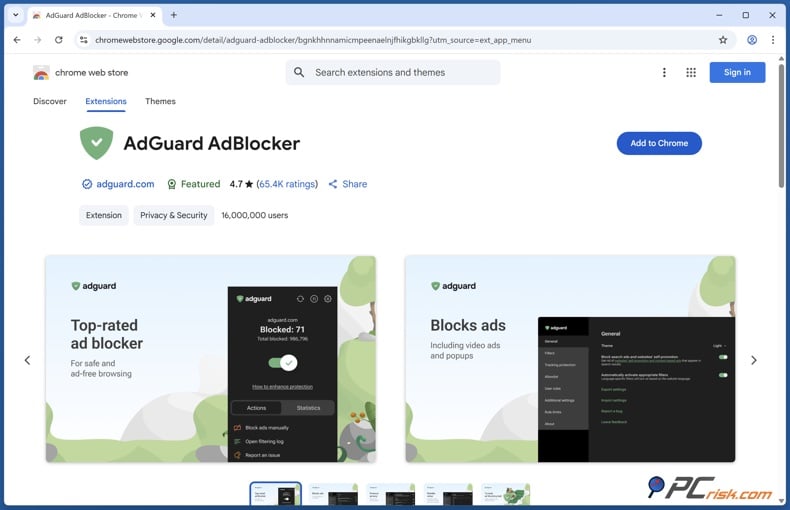
AdGuard is ranked first because we give it the highest score of 4.5 and note that it blocks almost all ads, including those on YouTube and in apps. It also offers system-wide filtering, Stealth Mode, and works across many platforms. Pricing starts at about $29.88 per year for three devices, with a family plan for up to nine devices. It is available on Windows, macOS, Linux, iOS, Android, and Android TV. However, getting the best results may take some adjustments, the full features require payment, and iOS has some restrictions, so blocking is mostly limited to Safari or DNS filtering. For most desktop users, AdGuard is the best all-around choice.
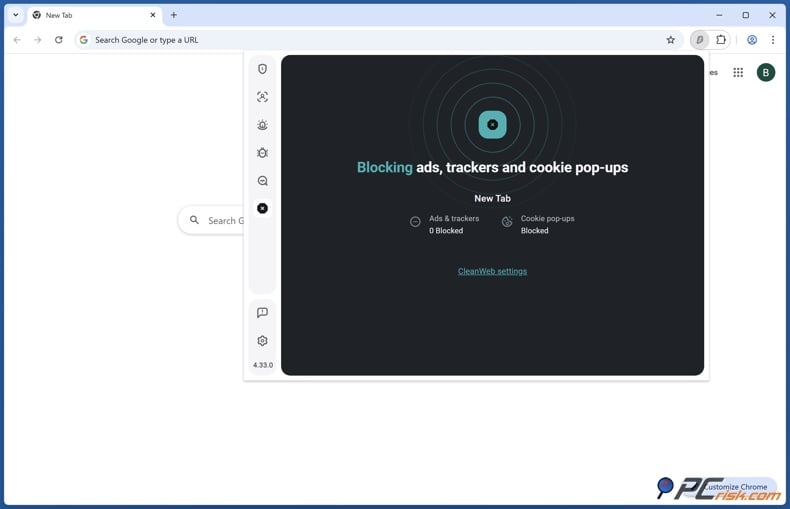
Surfshark CleanWeb is ranked second, which is a good fit if you are already interested in a VPN. We give it a 4.4 score and highlight its strong ad, pop-up, and malicious-site blocking, as well as unlimited device support. It costs about $47.85 per year as part of Surfshark's full subscription, so you cannot buy it separately. This bundle is helpful if you want more privacy features, but it may not be ideal if you only want ad blocking. We also found that its mobile coverage is not as strong, with the Android and iOS apps not matching the browser extension's performance, and YouTube ads still showing up in the mobile app during tests. This option is best for people who want a privacy suite first and an ad blocker second.
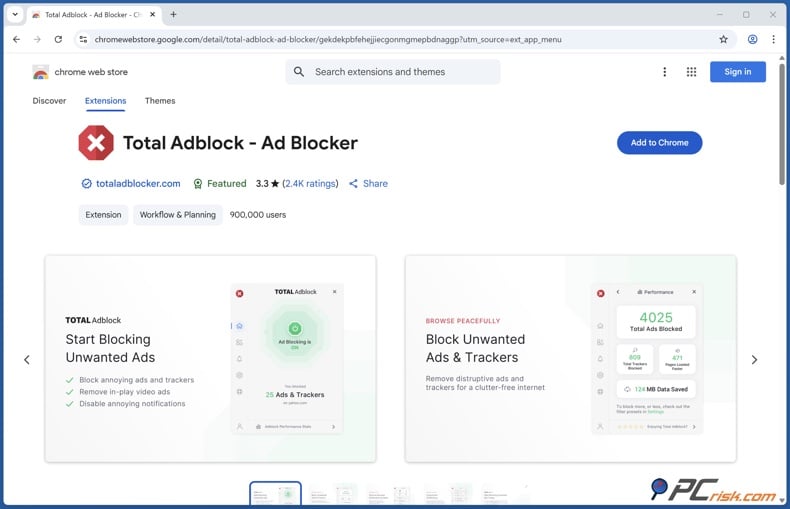
Total Adblock is third on the list and is one of the easiest options for beginners. We give it a 4.3 score and point out that it removes many types of ads, including YouTube video ads, and is simple to install and use on both desktop and mobile. The first-year price is about $19, and it usually covers six devices. The main downside is not its effectiveness, but its long-term value. Renewal prices are high, the trial is limited, and some users have trouble canceling. On Android, it works well to reduce clutter, but on iOS, it mainly blocks ads in Safari and does not remove ads in the YouTube app.
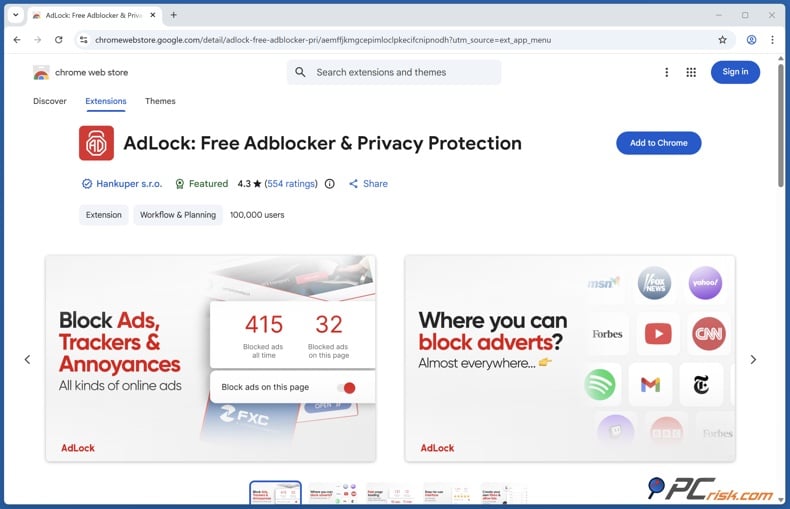
AdLock is fourth on the list and is more specialized. We give it a 4.2 score and appreciate its strong ad-blocking, support for multiple platforms, five-device license, and strict policy against "acceptable ads." The free browser extension is good for cleaning up web pages, while the paid app covers more platforms. We found its performance to be close to the best blockers in several tests, but there are some trade-offs. The Android app is not available on Google Play, so you need to download it from AdLock's website. It uses a local VPN on Android, which can conflict with other VPN services. There can also be occasional issues with certain ads and site compatibility. AdLock is a good choice for advanced users who want strong blocking beyond the browser and are willing to put in a bit of extra setup.
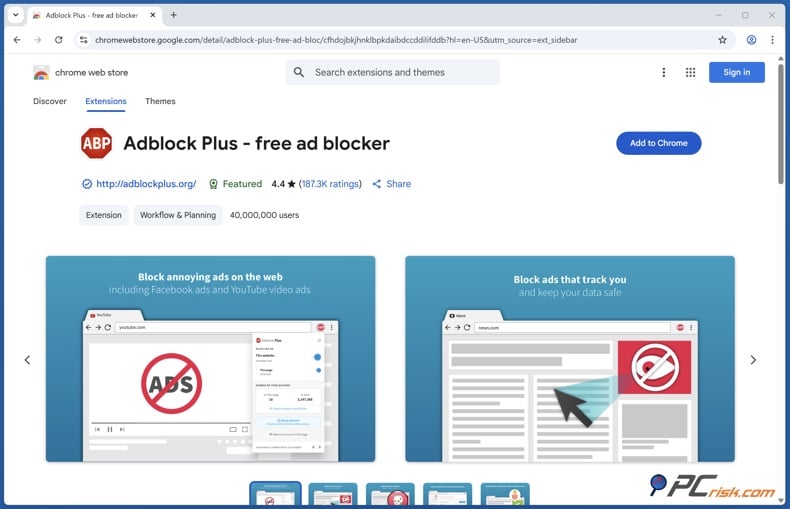
Adblock Plus is fifth on the list. We give it a 4.1 score and like its easy setup, wide browser support, and generally good ad blocking. The basic version is free, while Premium costs about $40 per year and adds more advanced blocking. However, PCrisk points out some weaknesses. Adblock Plus allows "acceptable ads" by default, though you can turn this off, and its YouTube ad blocking is less reliable than the others above. We found it could not reliably skip YouTube ads due to recent anti-ad-block updates. It works on most browsers and mobile devices, but on mobile, it only blocks ads in the browser, not in the YouTube app. It is the easiest and most familiar option, but not the best for blocking YouTube ads.
2. Disable JavaScript
Disabling JavaScript is one of the oldest tricks for avoiding detection, since many anti-adblock tools depend on it. However, YouTube also needs JavaScript to work properly. This method is best used in specific situations, like testing, bypassing overlays, or reading non-video pages. It is not a reliable way to use YouTube fully. Mozilla and Apple warn that turning off JavaScript can break websites, and Chrome and Edge treat it as a site permission because so much of the web relies on it.
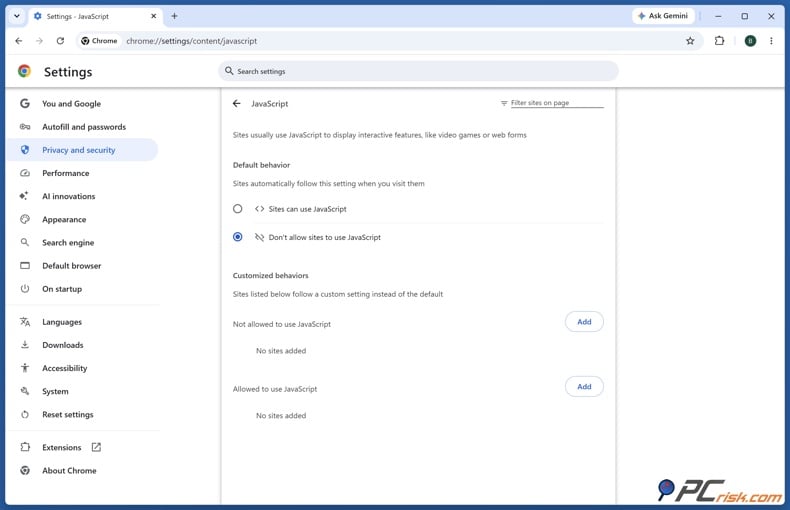
In Chrome, it is easy to disable JavaScript. Open Chrome, go to Settings, then Privacy and security, then Site settings, then JavaScript, and change the setting from allowing to blocking. If you only want to test this on one site, it is better to change the permission just for that site instead of turning it off everywhere.
In Microsoft Edge, go to Settings, then Privacy, search, and services, then Site permissions, then All permissions, and finally JavaScript. You can turn JavaScript from allowed to blocked, or block it only for a specific site to avoid problems elsewhere. Like in Chrome, turning off JavaScript can break video playback or other features, so use this as a troubleshooting step, not for everyday browsing.
Firefox no longer has a simple menu option for this. Mozilla’s support article says advanced users can type about:config, accept the warning, search for javascript.enabled, and switch it from true to false. Mozilla warns that only experienced users should do this, since changes in about:config can affect stability, security, and performance. So, Firefox still allows it, but you need to know what you are doing.
On Safari for macOS, Apple still gives you a direct option. Open Safari, go to Safari > Settings, click Security, and uncheck Enable JavaScript. Apple points out that some websites will not work right without JavaScript, so this should only be a temporary fix. If a site still acts up after you turn JavaScript back on, try clearing website data to reset the page.
3. Install a user script manager
A user script manager is the most advanced and possibly the riskiest option in this guide. Tools like Tampermonkey let you run small JavaScript scripts that change how pages work in your browser. Tampermonkey is widely used on Chrome, Edge, Safari, Opera, and Firefox. Violentmonkey warns users to only install scripts they trust, since any changes come from the scripts you add, not the manager itself. The main risk is the script, not the manager.
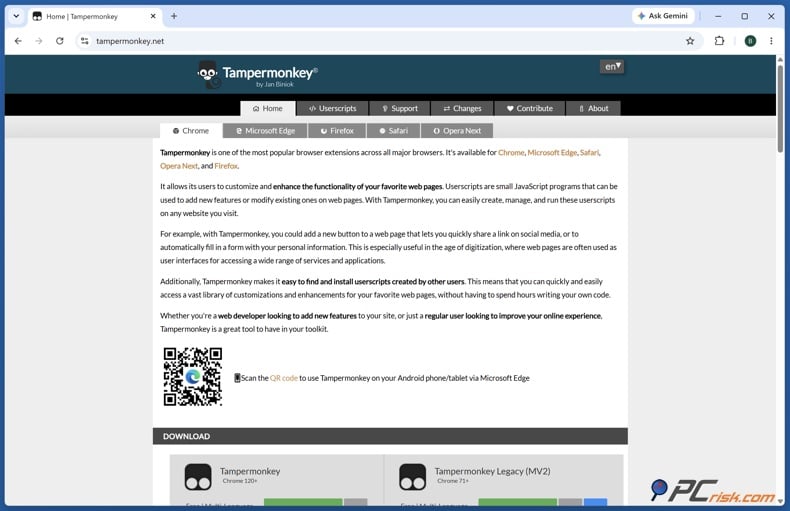
If you use a user script manager carefully, it can help advanced users block annoying overlays, clean up pages, or change how a site works when a normal blocker is not enough. If you are not careful, it can expose your browsing, break pages, or give too much control to a script you did not check well. At PCrisk, we only suggest this if you install the manager from an official browser store, review the script’s source and update history, and test it in a separate browser profile first. If these steps seem too much, it is better to use a safer method from this guide.
If you want the most reliable ad-free experience, YouTube Premium is still the best choice. The real question is how to pay less for it without running into billing problems. PCrisk’s 2026 YouTube Premium buyers' guide points out the difference between the lowest price and the best practical option. While Argentina’s price may look lowest, India, Ukraine, and Turkey are more realistic choices, with the Philippines and Brazil also offering good discounts compared to U.S. prices. In 2026, it will be harder to switch regions because YouTube now checks your country, payment, and location more closely.
That is why we recommend looking for official discounts first. The safest ways to save are annual plans, student pricing, real same-household family plans, and two-person plans where available. The annual plan is only available in some countries and for individual users, but it is the easiest legal discount to get if you can. Student discounts require verification, family plans are for real households, and the two-person plan is a good option where it is offered. These are safer and simpler than switching regions just to save money.
If you want to compare regional prices, PCrisk’s shortlist is helpful. The update lists Turkey at TRY 79.99 for individuals and TRY 159.99 for families, India at Rs 149 for individuals and Rs 299 for families, and Ukraine at 99 UAH for individuals and 149 UAH for families. The Philippines is still cheaper than the U.S., but not as cheap as before, and Brazil is discounted but no longer extremely cheap. The key point is not to trust old viral lists. Our article focuses on countries with stable, recent prices and fewer billing issues.
One more thing to consider in 2026: Premium Lite might be enough for some users. Premium Lite now includes offline viewing and background play for most videos, but it is not a full replacement for Premium if you use YouTube for music or YouTube Music Premium. If your main goal is to see fewer ads and you do not need every feature, Lite can be a good budget option to try before spending time on blockers that might stop working.
Browser-Specific targeting by YouTube
Many users say YouTube targets certain browsers, and sometimes that is true, though the real reasons are more complex. Chrome and other Chromium browsers often get changes first because their extension systems are now more limited, especially after Manifest V2 was removed. Firefox is usually more flexible because it still allows stronger blocking tools, while Safari is different because Apple restricts what blockers can do, especially on iOS. So, your experience depends on the browser, but it is not always because YouTube is picking on one browser. Often, the browser’s own design causes problems before YouTube even adds new detection scripts.
There is also an account and group effect. Not everyone sees the same anti-adblock messages, and some only appear when you are signed in. So, if it seems like "YouTube is targeting Firefox today," it might just mean your account or group is seeing a new test. For troubleshooting, this matters because switching browsers can help, but so can trying a clean profile, signing out, or turning off privacy extensions that might cause issues. YouTube’s official help page also suggests checking extensions and testing with them turned off.
In our view, the main browser lesson for 2026 is straightforward. If you want the most flexible extensions, desktop Firefox is still the best for blockers and privacy tools. For the best reader mode in Chromium browsers, Edge is better than many expect. For cleaning up articles on macOS, Safari Reader is great, but it does not fully solve issues with the YouTube app. If you use Chrome, keep in mind that extension-based YouTube blocking now faces the strictest limits.
Manifest V2 vs V3 impact on ad blockers
If you only read one technical part of this article, make it this one. The switch from Manifest V2 to Manifest V3 is the main reason many YouTube ad blockers are weaker on Chrome in 2026. Google’s Chrome documentation says Manifest V2 was turned off everywhere by July 24, 2025, and Chrome 138 was the last version to support it in some business cases. So, Chrome users are not waiting for this change - it has already happened.
Why does this matter for YouTube? Older blockers could inspect and filter traffic more freely, but the new MV3 rules are stricter. This means blockers on Chrome have a harder time keeping up when YouTube changes how ads work. The Verge reported in June 2026 that Google was updating Chrome 150 and 151 to close the last loopholes for old ad blockers. This shows that Chrome’s new direction is not just a temporary change - it is here to stay.
This is also why we recommend blockers that do more than just browser filtering. AdGuard, Total Adblock, and AdLock stand out because they offer filtering at the app, system, or network level. Surfshark CleanWeb also makes sense for this reason. As browser extensions become less powerful, tools that work outside the browser become more appealing. They are not perfect, but they are not as limited as browser-only solutions.
Final recommendations
At PCrisk, our main advice is to pick the method that fits your real needs, not just what sounds clever. If you want the best desktop web blocking, start with AdGuard. If you need a VPN and unlimited devices, Surfshark CleanWeb is a good choice. For something easy and beginner-friendly, Total Adblock is still a strong option, especially in the first year. If you are more technical and want system-wide coverage, try AdLock. If you prefer something familiar and simple, Adblock Plus still works, but it is not our top pick for blocking YouTube ads.
Our second tip is to keep your expectations realistic. There is no permanent, perfect solution. YouTube keeps changing its detection methods, and browser tricks like turning off JavaScript or using reader modes only work in certain cases. These are helpful tools, but they are not a substitute for a reliable subscription that works on all your devices. We suggest saving these tricks for testing, cleanup, accessibility, text-heavy pages, or as a quick backup.
Our third recommendation may not be popular, but it is important. If you want the most stable ad-free YouTube experience on desktop, mobile, tablets, and TVs, Premium is still the best choice. The key in 2026 is to pay for it wisely. Official annual, student, family, two-person, and Lite plans are safer and simpler than relying on workarounds that could stop working at any time.
Frequently asked questions (FAQs)
Why do I see "ad blocker detected" when I do not have one installed?
A dedicated ad blocker is not the only thing that can interfere with YouTube's ads or playback. YouTube recommends checking for extensions that affect video playback, and Mozilla points out that sites can misreport problems with JavaScript or script blocking when extensions, tracking protection, or old site data are involved. Privacy extensions, strict protection settings, and cached cookies can all make it seem like you are using a blocker.
Is using an ad blocker on YouTube illegal?
YouTube officially says that blocking ads goes against its Terms of Service, but that does not mean every common browser method is illegal. This article covers standard consumer tools and settings, not illegal software. Whether something follows YouTube's contract is different from whether it is legal where you live.
Why do ad blockers work better in some browsers than others?
Browsers give extensions different levels of control. Chrome's move from Manifest V2 to V3 made many older blockers less flexible, while Firefox still supports more traditional add-ons. Safari has its own limits, especially on mobile, and Edge shares many of Chrome's restrictions, even though its reader tools work well.
Does disabling JavaScript permanently solve YouTube's anti-adblock popups?
No. Disabling JavaScript can block some detection checks, but YouTube also needs JavaScript to work properly. Often, you will just swap one problem for another and end up with broken playback or a page that does not work right. It is better to use this as a test, not a long-term solution.
Why did my blocker stop working after a browser update?
For Chromium browsers, the main reason is the switch from Manifest V2 to V3 and Google's efforts to close old loopholes. When browsers change extension rules, some blockers lose features or need major updates. That is why a browser update can suddenly break a setup that used to work.
Which blocker is best for mobile YouTube?
For the YouTube app, none of our top five blockers is as reliable as Premium. Mobile blockers have clear limits, especially on iOS and in the YouTube app. AdGuard, Total Adblock, AdLock, and Surfshark each have some mobile strengths, but blocking ads in apps is much less predictable than on desktop browsers.
Is Premium Lite worth considering?
Yes, for some people. In 2026, Premium Lite added offline viewing and background play for most videos, but it still does not replace full Premium for music or YouTube Music Premium. If you want fewer ads at a lower price and do not care much about music, Lite can be a good choice.
What is the safest way to save money on YouTube Premium?
The safest discounts are still the official ones: annual billing, student pricing, real family plans for the same household, and two-person plans in supported markets. These options are less likely to cause problems with verification, payment, or cancellation than trying to use a region-based setup, which YouTube now checks more strictly.
Share:
 Facebook
 X.com
X.com
 LinkedIn
 Copy Link

Rimvydas Iliavicius
Researcher, author
Rimvydas is a researcher with over four years of experience in the cybersecurity industry. He attended Kaunas University of Technology and graduated with a Master's degree in Translation and Localization of Technical texts. His interests in computers and technology led him to become a versatile author in the IT industry. At PCrisk, he's responsible for writing in-depth how-to articles for Microsoft Windows.
▼ Show Discussion