
We may earn commissions from products we recommend. Learn more.
How to block ads on Crunchyroll in 2026

How to block ads on Crunchyroll in 2026
Crunchyroll is still one of the top places to stream anime in 2026, but the viewing experience is not always perfect. While the service encourages users to upgrade to Premium, many people still want to cut down on clutter, limit tracking, boost performance, and get rid of ads or promotions that interrupt their experience. Some just want a cleaner browser when checking out episodes, anime news, or their account.
At PCrisk, we think this is about more than just convenience. A good ad blocker can make Crunchyroll faster and less distracting, but it also helps reduce tracking, block harmful sites, stop pop-ups, and lower the risk of scam redirects from fake pages or bad browser extensions. In this guide, we cover why people still use ad blockers for Crunchyroll in 2026, which features matter most, our top five ad blocker picks, and how to set them up on desktop and mobile.
Block ads on Crunchyroll with AdGuardSpecial deal30-day money-back guarantee→
Table of Contents:
- Introduction
- Why use an ad blocker for Crunchyroll?
- Features to look for in an ad blocker
- Best ad blockers for Crunchyroll
- How to install and use an ad blocker for Crunchyroll
- Final recommendations
- Frequently asked questions (FAQs)
Why use an ad blocker for Crunchyroll?
The main reason is simple: people want fewer interruptions. Anime is more enjoyable when the flow is not broken by pop-ups, banners, autoplay promos, or other distractions. Even if you use Premium most of the time, a cleaner browser still helps when searching for shows, browsing categories, reading episode details, or using Crunchyroll on a slower device.
Another reason is performance. Ads, trackers, banners, and other third-party elements can slow down pages. Blocking them can cut clutter, speed up loading, and make scrolling smoother. This is especially helpful on older laptops, budget Android phones, crowded browsers with lots of tabs, or slow internet connections.
Privacy is also important. Streaming pages often have more than just video because they can include trackers, analytics, marketing widgets, social features, and other third-party requests. A good ad blocker can reduce this extra activity and give you a more private browsing experience.
Security is another key reason, and it is something we focus on at PCrisk. Crunchyroll is a trusted service, but the wider world of ads and streaming is not always safe. People often end up on unofficial sites, fake 'free premium' offers, or suspicious pages pretending to be Crunchyroll. This is where pop-ups, fake updates, redirects, and malicious ads can be a real problem. A strong ad blocker helps protect you from these risks.
Here are the main reasons people want to block ads or clean up pages on Crunchyroll:
- To reduce interruptions during browsing or browser-based playback
- To remove banners, overlays, and pop-ups
- To lower tracking and improve privacy
- To make pages load faster and feel lighter
- To save some mobile data by blocking unnecessary page elements
- To reduce the chance of scam redirects or malicious advertising domains
- To clean up the experience on older computers and phones
- To make browser-based streaming feel closer to a premium viewing setup
If you notice Crunchyroll pop-ups appearing outside the site or your browser opens odd tabs by itself, you might be dealing with more than just regular ads. In these situations, scan your device with Combo Cleaner before adjusting ad blocker settings. Combo Cleaner can find adware, browser hijackers, unwanted apps, and other junk that often causes fake streaming pop-ups and annoying redirects.
Features to look for in an ad blocker
Not all ad blockers work well with streaming sites. Some are great at blocking regular ads but struggle with video ads, anti-ad-block tools, trackers, or mobile issues. When we review ad blockers for Crunchyroll, we look at a few key areas.
First, there’s browser performance. If you watch Crunchyroll in a desktop browser, your ad blocker should handle video ads, not just remove banners. No tool blocks every video ad all the time, since streaming sites keep changing. Still, a good blocker should do more than just hide page clutter.
Second, privacy protection matters. We like tools that block not only visible ads but also trackers, analytics, cookie pop-ups, and harmful sites. This makes browsing safer and cleaner, especially on sites with lots of media.
Third, platform coverage is important. Most people use more than one device. You might watch anime on a laptop, search for shows on your phone, and read Crunchyroll news on a tablet. A good blocker in 2026 should work across different platforms or at least offer a solid browser extension and decent mobile support.
Fourth, consider how well the blocker works on mobile. Android and iOS are different. On Android, some blockers use a local VPN to filter more ads. On iOS, ad blocking is more limited and works best in Safari. Be cautious if a blocker claims it can remove every ad from every iPhone app.
Fifth, ease of use matters. Some people want a blocker that’s quick to install and simple to use. Others want more control, like custom rules and privacy settings. The best blocker is one that works for both beginners and advanced users.
Sixth, honest pricing is important. A low first-year price can be tempting, but check the renewal cost. Look at how many devices are covered, if there’s a free version, how easy it is to cancel, and whether you’re paying for just an ad blocker or a bundle with extras like antivirus or VPN.
Finally, trust matters. A fake ad blocker can be worse than having none. Bad extensions might add their own ads, collect your data, or change your search settings. That’s why we recommend using well-known products and only downloading from official websites or app stores.
Best ad blockers for Crunchyroll
Here are the five ad blockers we recommend for Crunchyroll, based on our PCrisk ad blocker roundup.
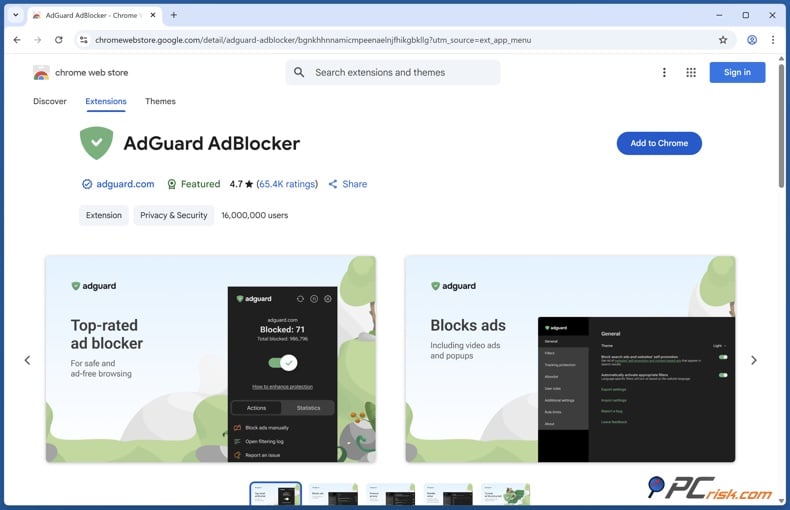
AdGuard is our top pick for Crunchyroll in 2026. It offers the most balanced features for users. You can use it as a free browser extension, or choose paid desktop and mobile apps for more control and better filtering across different devices.
We like that AdGuard goes beyond just blocking ads. It also has anti-tracking tools, custom filters, security features, phishing protection, Stealth Mode, and advanced settings for users who want more control. This makes it a great choice for Crunchyroll and for anyone who wants a cleaner, more private web experience.
For Crunchyroll, AdGuard works best in a browser. The extension is quick to install and easy to try. If you want to block ads in more than one browser or need stronger filtering, the paid desktop version is a better choice.
AdGuard works on Windows, macOS, Linux, iOS, Android, Android TV, and all major browsers. The Personal plan covers up to 3 devices and starts at about $29.88 per year. The Family plan covers up to 9 devices and costs more. The browser extension is free.
AdGuard’s mobile support is better than most others. On Android, it uses a local VPN method to filter more traffic, which is a real advantage. On iOS, it works best in Safari, but this is due to how the platform works, not a flaw in AdGuard.
Pros:
- Best overall balance of power, privacy, and flexibility
- Excellent browser extension and strong paid apps
- Very good at blocking pop-ups, trackers, and video-related clutter
- Broad platform support
- Strong customization options for advanced users
- Useful on both desktop and mobile
Cons:
- Full value comes from the paid version, not just the free extension
- Advanced settings may feel overwhelming to beginners
- Android filtering can conflict with another VPN if you use one
Best for users who want the strongest setup for Crunchyroll in a browser, along with better privacy and a cleaner experience on other websites.
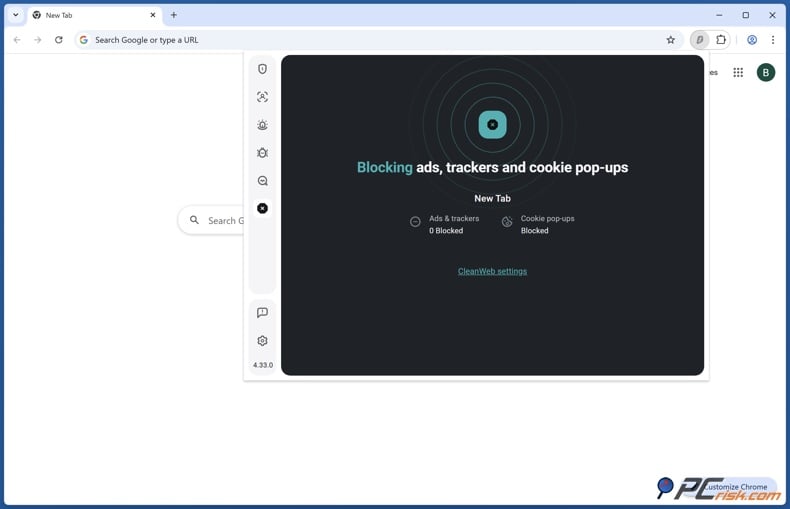
Surfshark CleanWeb comes in second because it works well for people who want both ad blocking and VPN protection together. Unlike AdGuard, it is not a standalone ad blocker. Instead, it is part of Surfshark's VPN service, which is both its main advantage and its main drawback.
If you already want a VPN, CleanWeb is a convenient choice. It gives you ad blocking, tracker blocking, malicious site filtering, and the privacy of a VPN in one service. In 2026, Surfshark still stands out because it lets you use unlimited devices, which is great for bigger households or people with lots of gadgets.
For Crunchyroll, CleanWeb works best as a browser extension. This gives you a cleaner browsing experience and is usually the easiest way to set things up. The VPN app can also help block ads and trackers, but using a VPN can sometimes change how streaming services work, depending on your region, account, or connection settings.
Surfshark CleanWeb is available for Windows, macOS, Linux, iOS, Android, and as browser extensions. Prices start at around $47.85 per year, depending on the plan. There is no true free version; there are only trial and refund options.
The main downside is that CleanWeb offers little customization. Compared to AdGuard, it is more hands-off. This is fine for some people, but not ideal if you want detailed controls, manual filters, or more precise settings for each site.
Pros:
- Bundles ad blocking with a VPN
- Unlimited devices is excellent value
- Easy to use
- Helpful for blocking trackers and malicious sites
- Good choice for households with a lot of devices
Cons:
- Not a standalone ad blocker
- Less customizable than AdGuard
- VPN use can introduce extra streaming complications
- Not ideal if you only want ad blocking and nothing else
Best for users who want a single subscription that covers both privacy and ad blocking on many devices.
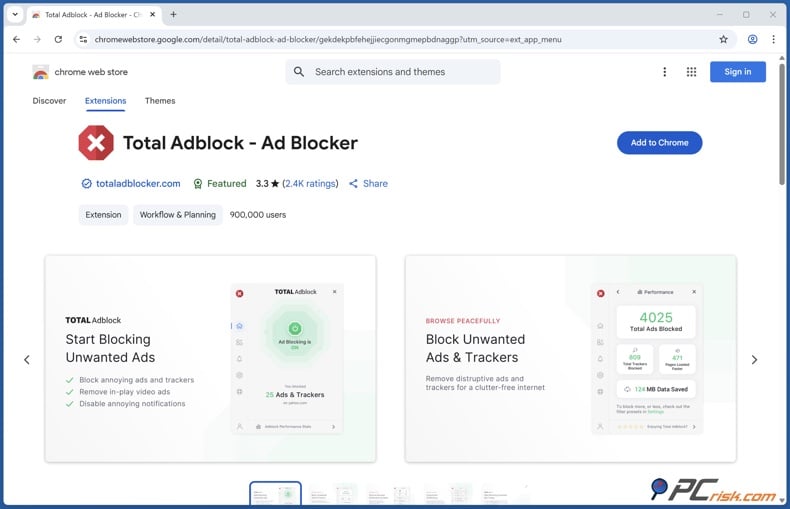
Total Adblock is a good choice if you care more about simplicity than advanced settings. It is very beginner-friendly, which is a real plus. Many people just want to install it, turn it on, and stop dealing with cluttered pages.
In our tests, Total Adblock did a good job blocking common ads, trackers, and other annoying formats that make browsing harder. It works on Windows, macOS, iOS, and Android, and the plan we looked at covers 6 devices. Prices start at about $19.00 per year, which looks very appealing at first.
However, we always suggest looking past the first-year price. With Total Adblock, the renewal cost can be much higher than what you pay at first. Some people are fine with this once they know, but others may find it frustrating.
For Crunchyroll, Total Adblock works best in desktop browsers. It can help on mobile too, but like most blockers, it is more effective in browsers than in streaming apps. If you mostly use Safari or desktop browsers and want something simple, Total Adblock is easy to recommend - just keep the pricing in mind.
Pros:
- Very easy to install and use
- Good ad-blocking performance
- Works across desktop and mobile
- Suitable for users who want a simple interface
- Decent bundled value for mainstream users
Cons:
- Renewal pricing can be much steeper than the first-year price
- Free version is limited
- Some users may dislike the upsell-heavy sales flow
- Less appealing for advanced users who want deep control
Best for users who want a simple, straightforward blocker and are willing to check the subscription terms closely.
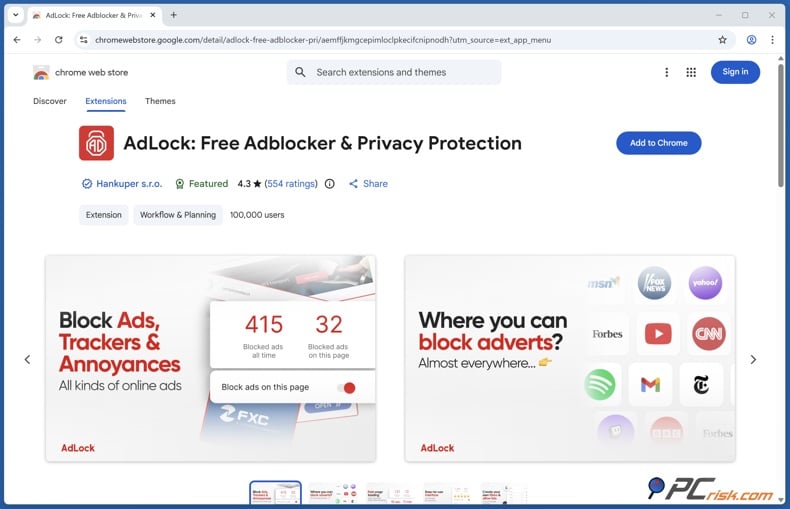
AdLock comes in fourth, but that does not mean it is weak. It is actually a strong blocker and one of the stricter choices here. We like that it has a no "acceptable ads" policy, so it blocks ads more aggressively instead of letting some ads through by default.
AdLock is available as a free browser extension and as paid apps for Windows, macOS, iOS, Android, and Android TV. A premium license covers 5 devices, and prices start at about $33.60 per year. This puts it in a good middle spot between simpler tools and bigger premium packages.
For Crunchyroll, AdLock is a good choice if you want strong filtering and a focus on privacy. It blocks many common ads and lets you set up custom blacklists, whitelists, and anti-tracking features. It is also helpful if you want more than just browser-based blocking.
The biggest hassle is on Android, where you usually have to download the full app from the official website instead of the Play Store. This is not necessarily bad, but it does make setup less beginner-friendly. Like AdGuard, AdLock can also have issues if you already use another VPN-based service, since local VPN filtering and a separate VPN do not always work well together.
Pros:
- Strong overall ad-blocking performance
- No acceptable ads policy
- Good privacy stance
- Free browser extension plus broader premium apps
- Covers 5 devices per license
Cons:
- Android setup is less convenient than normal Play Store installs
- Can conflict with VPN-based tools
- Occasional site hiccups may require whitelisting
- Less polished overall than AdGuard
Best for users who want strict ad blocking and a privacy-focused approach, but do not need a tool with lots of extra features.
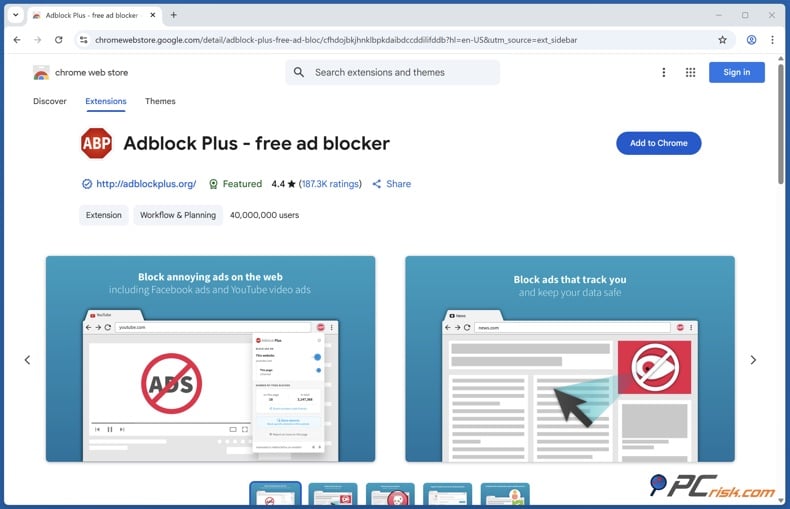
Adblock Plus is the last of our top five. It is still one of the most well-known options and is a good fit for casual users who want something familiar and easy to use. The basic version is free, while Premium costs about $40.00 per year. In our comparison, it supports unlimited devices through your account and works on major desktop browsers and mobile devices.
The main issue with Adblock Plus is that "acceptable ads" are turned on by default. Some people do not mind, but others think it defeats the purpose of an ad blocker. We suggest turning this off if you want a cleaner, stricter experience on Crunchyroll and other sites.
Adblock Plus is not our top pick for people who stream a lot. It does help clean up pages and block many ads, but compared to stronger options, it can be less reliable when streaming platforms change how they show video ads or use tougher anti-ad-block measures.
Still, Adblock Plus is worth mentioning because it is easy to use, widely supported, and good enough for many casual users who just want to cut down on everyday clutter instead of building the strongest setup.
Pros:
- Free core version
- Very easy to install and understand
- Broad browser support
- Works on mobile in supported contexts
- Good fit for casual browsing cleanup
Cons:
- Acceptable Ads enabled by default
- Not our first choice for harder streaming cases
- Some useful extras are pushed into Premium
- Less privacy-minded than stricter competitors
Who we think it suits best: casual users who want a familiar free option and are willing to adjust the default settings.
How to install and use an ad blocker for Crunchyroll
If you want to make Crunchyroll as clean as possible, it’s best to start in a browser instead of the app. Browsers are easier to filter, fix, and customize. Apps, especially on iOS, are more limited.
We use AdGuard for the steps below because it’s our top pick and the best overall choice from the five products listed earlier.
Block ads on Crynchyroll with AdGuardSpecial deal30-day money-back guarantee→
How to block ads on browsers
The easiest way is to use the AdGuard browser extension.
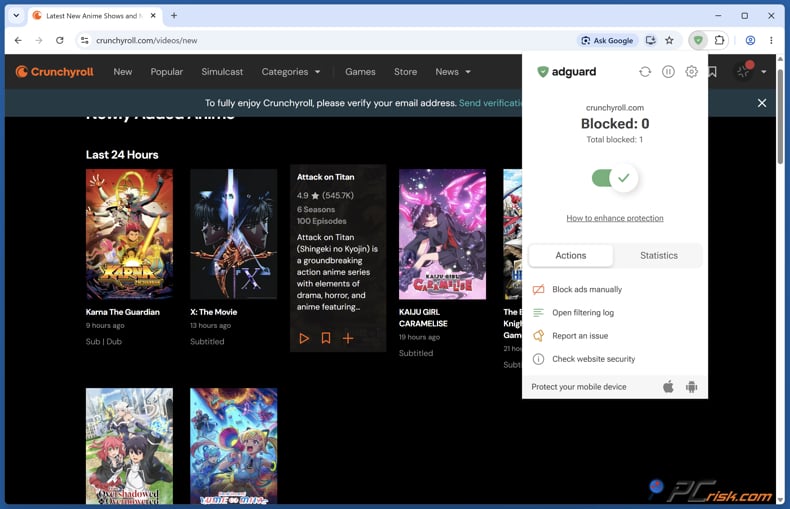
Download AdGuard from your browser’s extension store or from AdGuard’s website. Install it, pin it if your browser allows, and turn on the protection toggle. Then, open the extension settings and check that ad blocking and tracking protection are enabled.
After setup, open Crunchyroll in the same browser and try a few pages. Visit the homepage, an anime series, a category, and your video page. If everything looks cleaner and loads well, your setup is working.
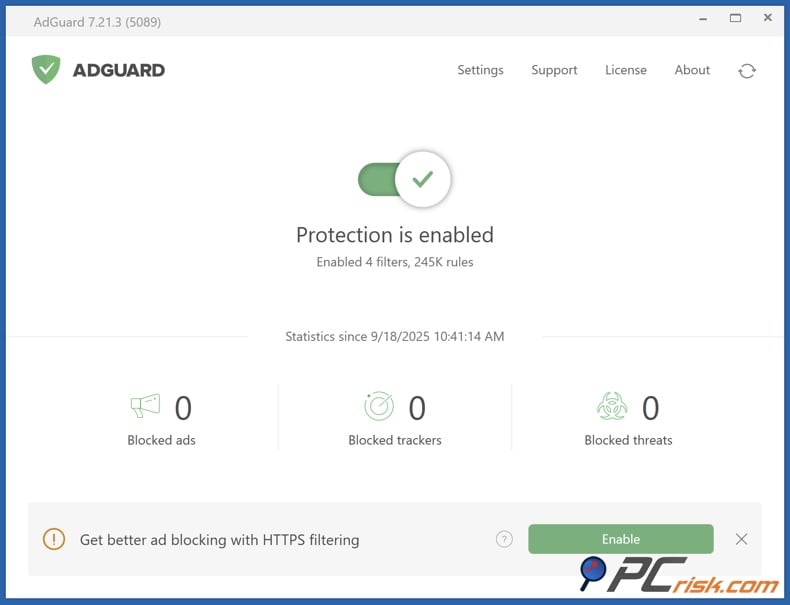
If you need stronger filtering than the extension offers, install the full AdGuard desktop app for Windows or macOS. It gives you more options and control, like HTTPS filtering, custom rules, and DNS settings. If you stream a lot in browsers, the desktop app is often worth it.
If Crunchyroll acts strangely, don’t assume the blocker is broken. Sometimes, a filter is too aggressive or a site part needs to be allowlisted. Try these steps:
- Update AdGuard and refresh filter lists
- Disable other ad blockers so only AdGuard is active
- Clear the browser cache and reload the page
- Temporarily disable the most aggressive annoyance filter
- Test another browser
- Add Crunchyroll to the allowlist temporarily to see whether playback returns
It’s important to know that ad blockers and streaming sites are always trying to outsmart each other. What works today might need a small tweak later, and that’s normal. This is why using a well-supported blocker like AdGuard is safer than picking a random extension.
How to block ads on mobile devices
Setting up on mobile depends a lot on whether you use Android or iOS.
On Android, AdGuard does more than a basic content blocker because it filters traffic using a local VPN method. Your traffic isn’t sent to a commercial VPN server. Instead, the app creates a local tunnel on your device to check and block ad requests.
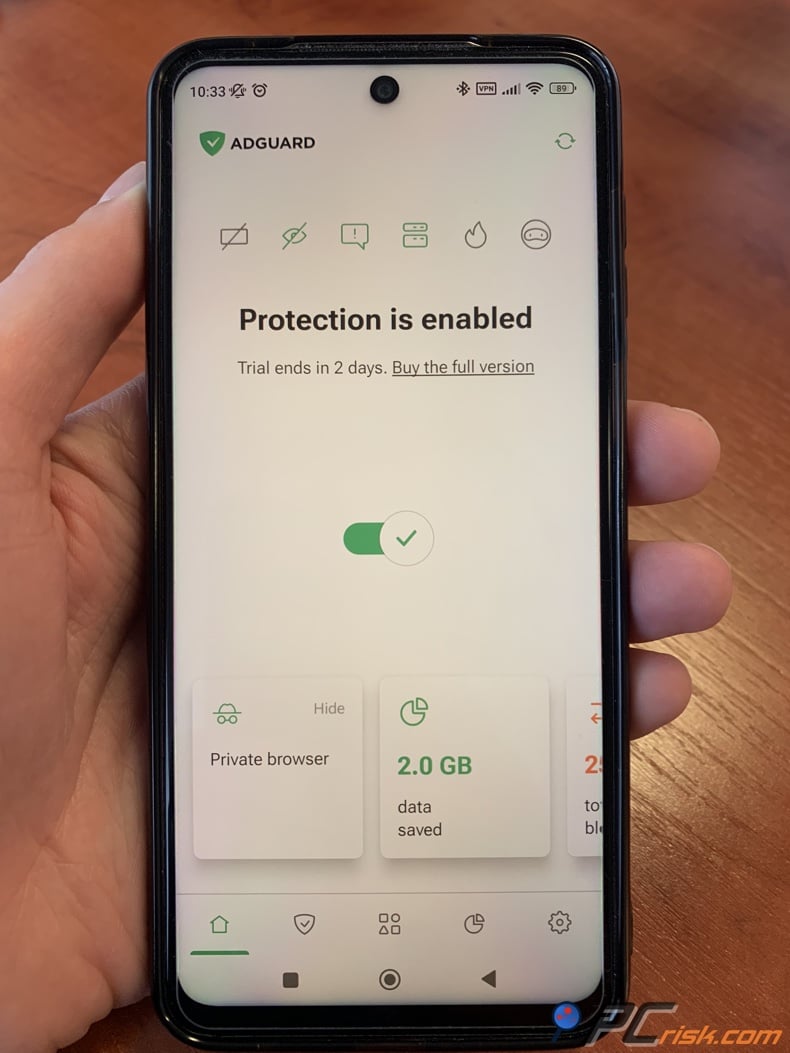
To use AdGuard on Android, download the official app from AdGuard’s website for full-device filtering. When setting up, Android will ask you to approve the local VPN connection - accept it, turn on protection, and enable ad-blocking and tracking filters. Then, test Crunchyroll in a browser like Chrome, Firefox, Brave, or Opera. Browsers are still easier to clean up than apps.
Will it block everything in the Crunchyroll Android app every time? We can’t promise that. Apps are more complicated, so results vary. Still, Android offers better system-wide filtering than iOS.
On iOS, options are more limited. AdGuard works best in Safari, acting as a content blocker and supporting DNS-based protection. To set it up, install AdGuard from the App Store, open the app, enable Safari protection, and allow the AdGuard Safari extensions in your iPhone settings. Then, open Crunchyroll in Safari and test it.
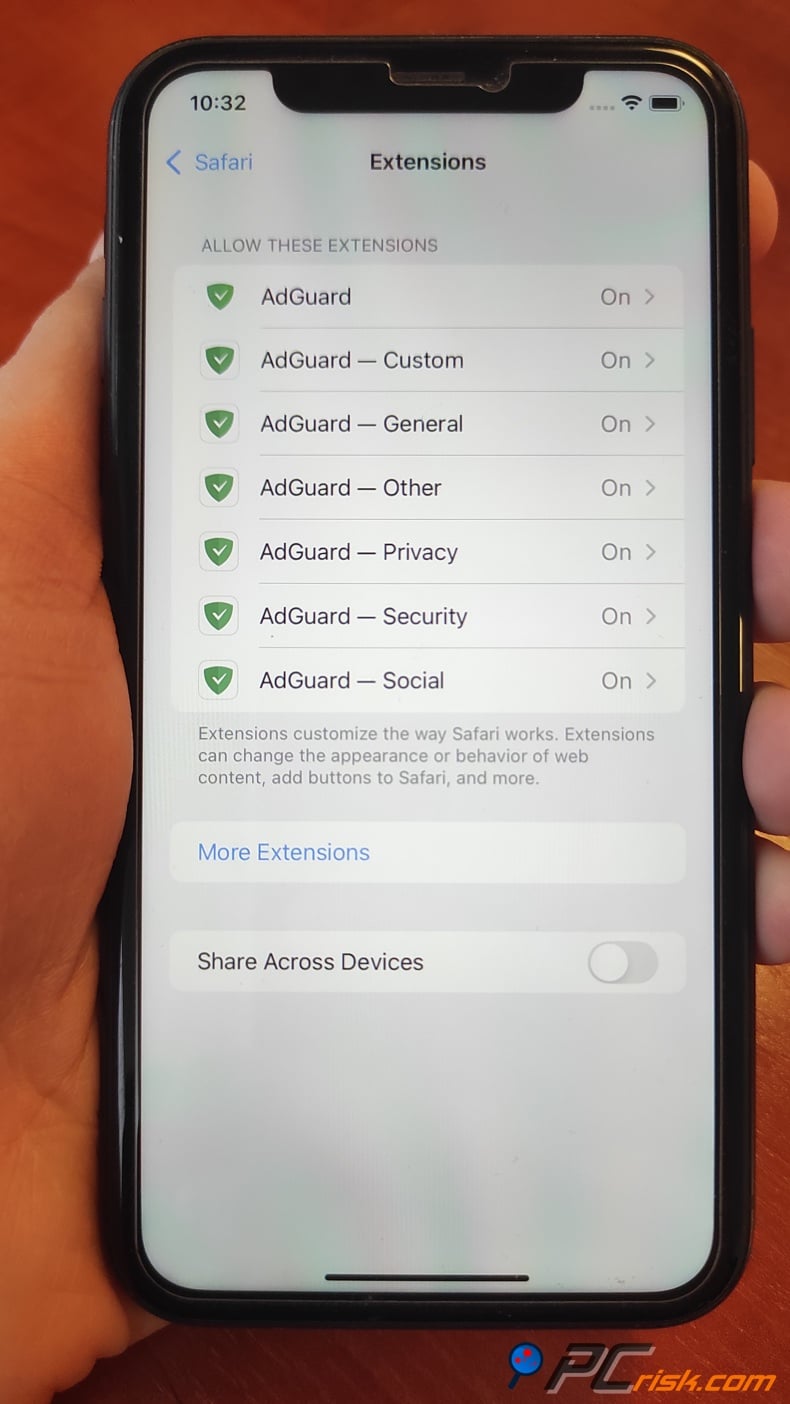
For iPhone and iPad users, the main thing to remember is to use Safari if you want to reduce Crunchyroll page clutter with an ad blocker. In apps, iOS doesn’t give blockers as much freedom as browsers do.
Use a browser with an ad blocker
You can also use a browser with built-in ad blocking or privacy protection. This is a good, simple option if you don’t want to manage extra extensions. Browsers like Brave and Opera have built-in features that reduce ads and trackers with minimal setup.
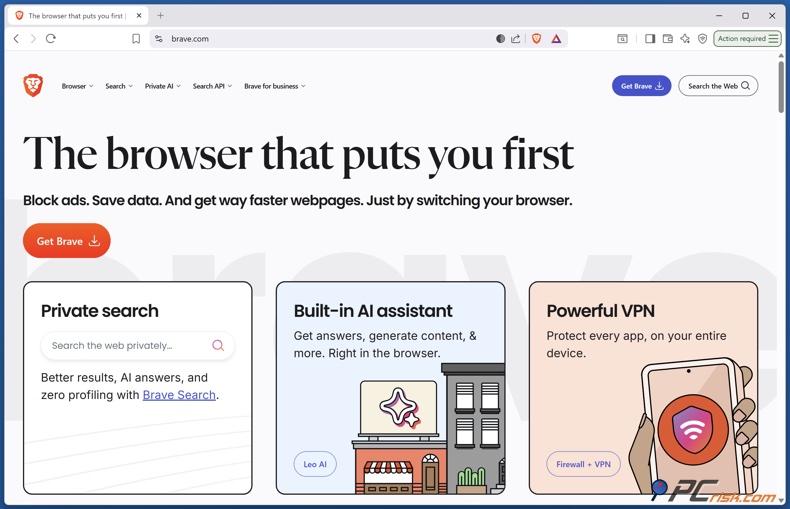
This option is best if you want a quick fix instead of the most powerful setup. Built-in browser blocking is easy to use, but it’s not as flexible or strong as a dedicated ad blocker like AdGuard. You’ll have fewer controls, filter options, and ways to troubleshoot if a site changes.
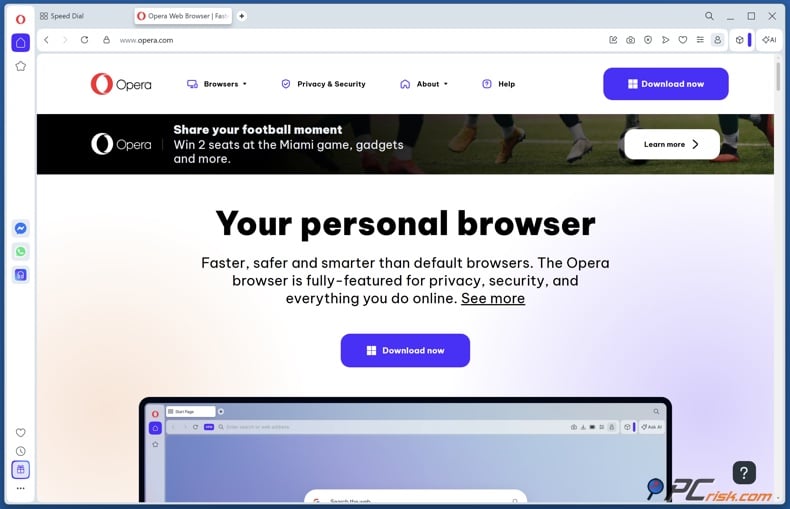
Still, it’s a good place to start. If you mostly use Crunchyroll on the web and want a cleaner experience with little effort, a browser with built-in blocking might be enough. If you run into limits, try AdGuard or another blocker from our list.
Buy a Crunchyroll Premium subscription
If you want guaranteed ad-free Crunchyroll, especially on official apps and TV devices, Premium is still the best choice. In 2026, paid plans are the most reliable way to get smooth playback, better perks, and fewer tech problems.
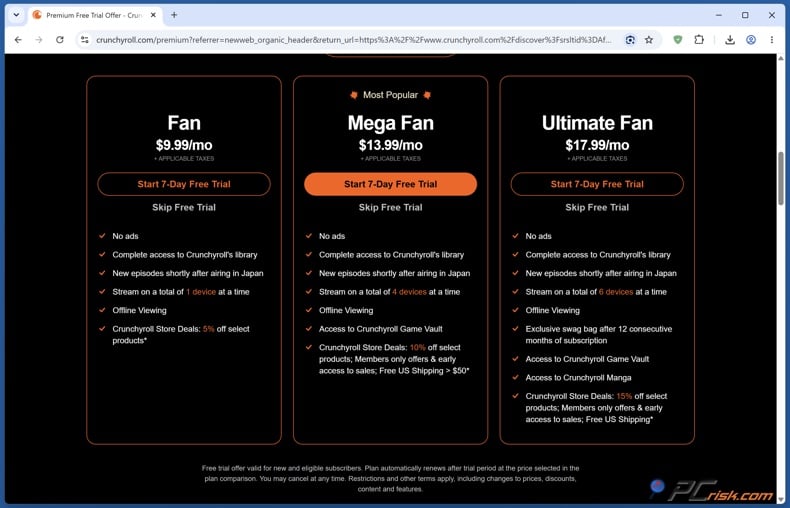
In the US, monthly prices in 2026 are about $9.99 for Fan, $13.99 for Mega Fan, and $17.99 for Ultimate Fan. Fan is the basic paid plan and is good for solo users. Mega Fan lets you stream on more devices and adds perks. Ultimate Fan gives the most bonuses for dedicated fans.
We think Premium is especially worth it if you mostly watch in the official mobile app, on a smart TV, on a console, or on a device where extensions don’t work well. That’s where ad blockers are weakest, and Premium is the easiest way to go ad-free.
To sum up, an ad blocker is best if you use Crunchyroll in a browser and want more privacy and a cleaner web experience. Premium is best if you want the official app with the least hassle.
Final recommendations
If we had to pick one product for most people, it would still be AdGuard. It offers the best mix of browser support, mobile use, tracker blocking, customization, and everyday ease of use. It’s easy to recommend because it works for both beginners and advanced users.
Surfshark CleanWeb is the best alternative if you want a VPN and unlimited device coverage. Total Adblock is good if you want something simple. AdLock is a strong choice for privacy and strict blocking. Adblock Plus is a reliable backup, but not our top pick for streaming.
Our main advice for 2026: if you watch Crunchyroll in a browser, use AdGuard. If you mostly use native apps or TV devices, consider Premium. If you keep seeing pop-ups or fake ads outside Crunchyroll, scan your device for adware first. Sometimes the problem isn’t the website, but what’s already on your device.
Frequently asked questions (FAQs)
Why am I getting Crunchyroll ads?
You might see ads or pop-ups if you are not on a Premium plan, are logged out, or if your account is not showing Premium status correctly. Sometimes, what looks like a Crunchyroll ad is actually caused by browser adware, suspicious extensions, or fake streaming sites.
Is it legal to block ads on Crunchyroll?
In most places, it is legal to use an ad blocker on your own device. Still, Crunchyroll and other services may not allow them, can detect them, or might ask you to turn them off. If you want an easy and fully supported ad-free experience, Premium is the safest choice.
Can Crunchyroll ads be dangerous?
Most risks come from the broader streaming world, not Crunchyroll itself. Fake Crunchyroll sites, fake Premium offers, harmful redirects, and bad browser notifications are bigger problems than normal website ads. That is why we suggest using a trusted blocker and staying away from unofficial downloads.
Are ad blockers legal and safe?
Trusted ad blockers are usually safe if you get them from official sources. The main danger is from fake blockers, copycat extensions, cracked apps, or low-quality tools that ask for too many permissions. Always use well-known products from official stores.
Do ad blockers track you?
Some ad blockers collect more data than others, and low-quality ones can gather too much. That is why we always suggest checking the developer, privacy policy, app permissions, and reviews before installing. A good blocker will be clear about what it collects and why.
Does an ad blocker work in the Crunchyroll app?
Sometimes, but not as reliably as in a browser. Android gives blockers more room to work than iOS, especially if the blocker uses local VPN-style filtering. On iPhone and iPad, Safari is where ad blocking is strongest. If you want consistent app-based ad-free viewing, Premium is more dependable.
Why is my ad blocker not working on Crunchyroll?
Your ad blocker might not work because its filters are outdated, Crunchyroll changed how it loads content, another extension is causing a conflict, or the blocker is too aggressive and breaks the page. Try updating the blocker, refreshing filter lists, turning off other blockers, using another browser, or watching Crunchyroll in a browser instead of the app.
Should I use more than one ad blocker at the same time?
No, using more than one ad blocker at the same time often causes problems, wastes resources, and can break websites. It also makes fixing issues harder. It is better to pick one good blocker and set it up well, rather than using several at once.
Is Crunchyroll Premium better than an ad blocker?
Yes, Premium is more reliable for official apps, TV devices, and a guaranteed ad-free experience. If you use a browser and want more privacy and a cleaner web experience, a good ad blocker is helpful. Many people find that Premium and a browser ad blocker work well together, each serving a different purpose.
What is the best free option for reducing Crunchyroll page clutter?
From our list, AdGuard's browser extension is the best free place to start. It does more than most people expect and is a smart choice if you mostly watch Crunchyroll in a browser. Adblock Plus is another option, but we suggest turning off “acceptable ads” if you use it.
Share:
 Facebook
 X.com
X.com
 LinkedIn
 Copy Link

Rimvydas Iliavicius
Researcher, author
Rimvydas is a researcher with over four years of experience in the cybersecurity industry. He attended Kaunas University of Technology and graduated with a Master's degree in Translation and Localization of Technical texts. His interests in computers and technology led him to become a versatile author in the IT industry. At PCrisk, he's responsible for writing in-depth how-to articles for Microsoft Windows.
▼ Show Discussion