

Get free scan and check if your device is infected.
Remove it nowTo use full-featured product, you have to purchase a license for Combo Cleaner. Seven days free trial available. Combo Cleaner is owned and operated by RCS LT, the parent company of PCRisk.com.
What kind of malware is BAVACAI?
BAVACAI is ransomware that we discovered while examining malware samples submitted to VirusTotal. It belongs to the MedusaLocker ransomware family. BAVACAI encrypts files stored on the victim's computer and exfiltrates data from the network, then demands a ransom in exchange for decryption and to prevent publication of the stolen data.
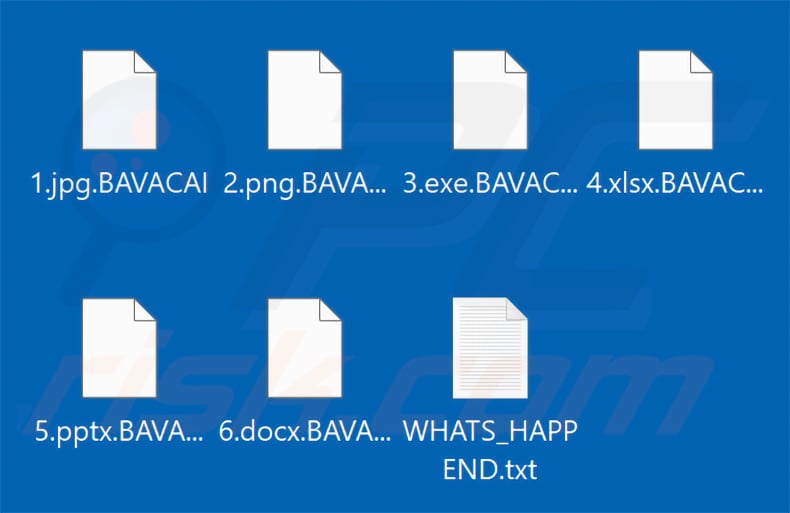
On our test machine, this ransomware encrypted files and appended the ".BAVACAI" extension to their names. A file originally called "1.jpg" became "1.jpg.BAVACAI", "2.png" turned into "2.png.BAVACAI", and so on. After completing encryption, BAVACAI dropped a ransom note in a text file titled "WHATS_HAPPEND.txt".
Screenshot of files encrypted by BAVACAI ransomware:
BAVACAI ransom note overview
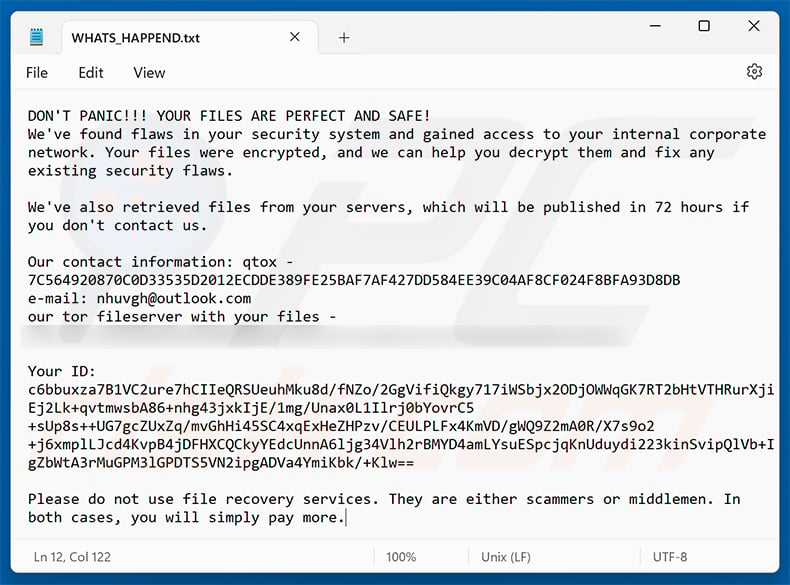
The ransom note is a text file named "WHATS_HAPPEND.txt". Despite its reassuring opener - claiming the victim's files are "perfect and safe" - the note makes clear that the attackers have both encrypted the files and stolen data from the victim's servers.
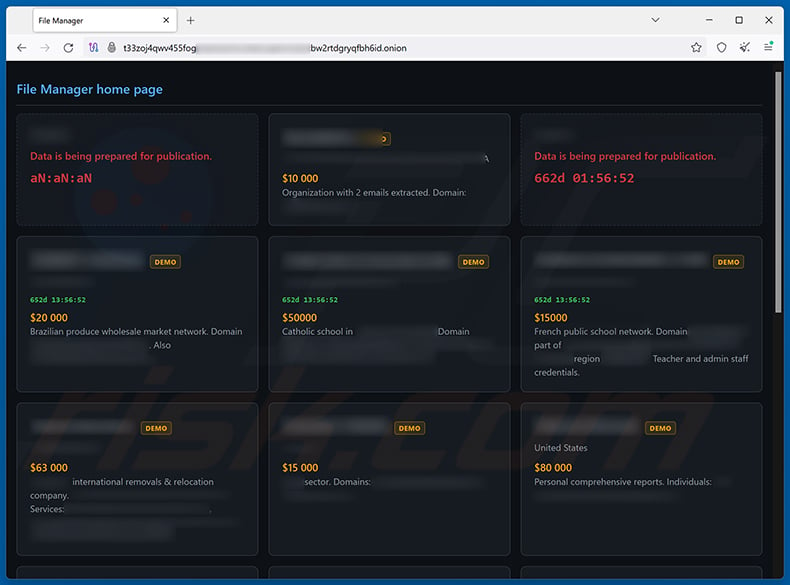
Victims are warned that the stolen data will be published within 72 hours unless they make contact. The note provides a qTox contact ID and the email address nhuvgh@outlook.com, as well as a Tor website where the exfiltrated files are stored. No specific ransom amount is stated in the note.
The message also discourages victims from turning to file recovery services, describing them as "either scammers or middlemen" who will only result in paying more.
BAVACAI ransomware overview
BAVACAI belongs to the MedusaLocker family, a ransomware group primarily known for targeting businesses and corporate networks. Beyond encrypting files, MedusaLocker variants typically steal data before the encryption phase, using the threat of public exposure as additional leverage against victims who might otherwise restore from backups and ignore the ransom demand.
In general, files encrypted by ransomware cannot be recovered without the attacker's decryption key. The rare exceptions involve ransomware with serious coding flaws, but this cannot be relied upon. Maintaining offline backups - stored on a device that is not connected to the infected network - remains the most reliable way to recover data after an attack.
Paying the ransom is strongly discouraged. Cybercriminals frequently accept payment and send nothing in return. Even when they do provide a tool, there is no guarantee it will work correctly. We strongly advise against paying.
Removing BAVACAI from the system is important to stop further encryption and prevent potential spread to other machines on the same network. That said, removal alone does not restore already-locked files. Recovery depends on whether a clean backup existed before the infection occurred.
Ransomware in general
The core purpose of ransomware is to extort money from victims by locking their files and demanding payment for a decryption tool. Our team has analyzed thousands of ransomware programs. They largely follow the same pattern, though they differ in the symmetric or asymmetric encryption algorithms they use and the ransom amounts they demand.
Additional ransomware examples are BARADAI, Rex, and KRYBIT.
How did ransomware infect my computer?
As a MedusaLocker variant, BAVACAI is likely targeted at corporate environments. Attackers in this family are known to exploit exposed RDP services, using brute force techniques to gain initial access with weak or reused credentials. Once inside the network, they move laterally across connected systems before deploying the ransomware and exfiltrating data.
More broadly, ransomware reaches victims through phishing emails with malicious attachments or links, trojans that silently download additional malware, and Microsoft Office documents with malicious macros. Malicious files are frequently disguised as PDFs, spreadsheets, archives, or standard-looking installers.
Pirated software and illegal activation tools (cracks) are also common delivery vectors, as are fake software updates and untrustworthy third-party download sites. Keeping software up to date and avoiding unofficial sources significantly reduces the risk of infection.
| Name | BAVACAI virus |
| Threat Type | Ransomware, Crypto Virus, Files locker |
| Encrypted Files Extension | .BAVACAI |
| Ransom Demanding Message | WHATS_HAPPEND.txt |
| Free Decryptor Available? | No |
| Cyber Criminal Contact | nhuvgh@outlook.com, qTox, Tor website |
| Detection Names | Avast (Win64:MalwareX-gen [Ransom]), Combo Cleaner (Gen:Variant.Cerbu.264176), ESET-NOD32 (Win64/Filecoder.MedusaLocker.A Trojan), Kaspersky (HEUR:Trojan-Ransom.Win32.Generic), Microsoft (Ransom:Win64/MedusaLocker.YAA!MTB), Full List Of Detections (VirusTotal) |
| Symptoms | Cannot open files stored on your computer, previously functional files now have a different extension (for example, my.docx.locked). A ransom demand message is displayed on your desktop. Cyber criminals demand payment of a ransom (usually in bitcoins) to unlock your files. |
| Additional Information | BAVACAI is part of the MedusaLocker family. |
| Distribution methods | Infected email attachments (macros), torrent websites, malicious ads. |
| Damage | All files are encrypted and cannot be opened without paying a ransom. Additional password-stealing trojans and malware infections can be installed together with a ransomware infection. |
| Malware Removal (Windows) |
To eliminate possible malware infections, scan your computer with legitimate antivirus software. Our security researchers recommend using Combo Cleaner. Download Combo CleanerTo use full-featured product, you have to purchase a license for Combo Cleaner. 7 days free trial available. Combo Cleaner is owned and operated by RCS LT, the parent company of PCRisk.com. |
How to protect yourself from ransomware infections?
Be cautious when opening emails from unknown senders, and avoid clicking unexpected links or downloading attachments you did not request. Download software only from official websites and developer pages. Always use legitimate channels to activate or update programs, and keep a reputable antivirus tool installed and up to date.
If your computer is already infected with BAVACAI, we recommend running a scan with Combo Cleaner Antivirus for Windows to automatically eliminate this ransomware.
Screenshot of BAVACAI's ransom note ("WHATS_HAPPEND.txt"):
Text presented in this ransom note:
DON'T PANIC!!! YOUR FILES ARE PERFECT AND SAFE!
We've found flaws in your security system and gained access to your internal corporate network. Your files were encrypted, and we can help you decrypt them and fix any existing security flaws.We've also retrieved files from your servers, which will be published in 72 hours if you don't contact us.
Our contact information: qtox - [qTox ID]
e-mail: nhuvgh@outlook.com
our tor fileserver with your files - [.onion URL]Your ID:
[victim ID]Please do not use file recovery services. They are either scammers or middlemen. In both cases, you will simply pay more.
Screenshot of BAVACAI ransomware's data leaking site:
BAVACAI ransomware removal:
Instant automatic malware removal:
Manual threat removal might be a lengthy and complicated process that requires advanced IT skills. Combo Cleaner is a professional automatic malware removal tool that is recommended to get rid of malware. Download it by clicking the button below:
DOWNLOAD Combo CleanerBy downloading any software listed on this website you agree to our Privacy Policy and Terms of Use. To use full-featured product, you have to purchase a license for Combo Cleaner. 7 days free trial available. Combo Cleaner is owned and operated by RCS LT, the parent company of PCRisk.com.
Removal and file recovery procedure
If your files are encrypted with a new extension and a ransom note has appeared, you've been hit by ransomware. Don't pay. The procedure below works in order: contain the infection, identify the variant, remove the ransomware itself (so anything you restore doesn't get re-encrypted), and try to recover files using free decryption tools, Windows Volume Shadow Copies, or backups. Run a full system scan with Combo Cleaner to remove the infection - then move on to file recovery.
Common ransomware behaviors
VisibleEncrypts your files and renames them
The ransomware reads each file, encrypts the contents with the attacker's public key, and writes the encrypted bytes back to disk. Most variants also rename the file by appending a new extension - .net, .locked, .crypt, .lockbit, .djvu, etc. Without the matching private key, the encrypted files cannot be opened normally. Recovery depends on a free decryption tool, a recoverable Volume Shadow Copy, or a clean backup.
VisibleDrops a ransom note in every encrypted folder
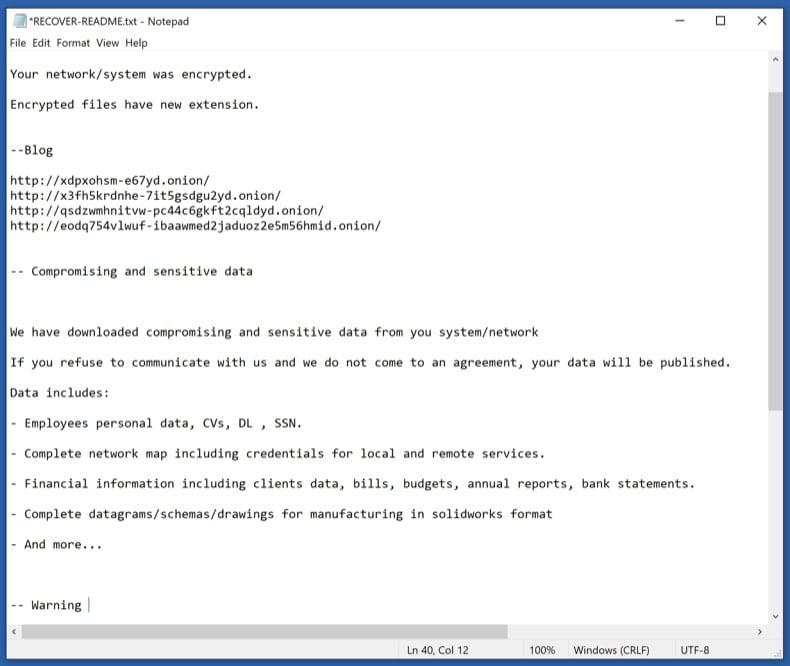
A text or HTML file (usually named HOW_TO_DECRYPT.txt, README.txt, _readme.txt, or similar) is placed in every folder that contains encrypted files. The note explains the situation, lists a payment amount in cryptocurrency, gives a deadline, and provides a contact email or .onion site. Save the note - don't delete it. Its exact wording, the email address, and the bitcoin wallet are how you identify the variant in the next phase.
VisibleReplaces the desktop wallpaper
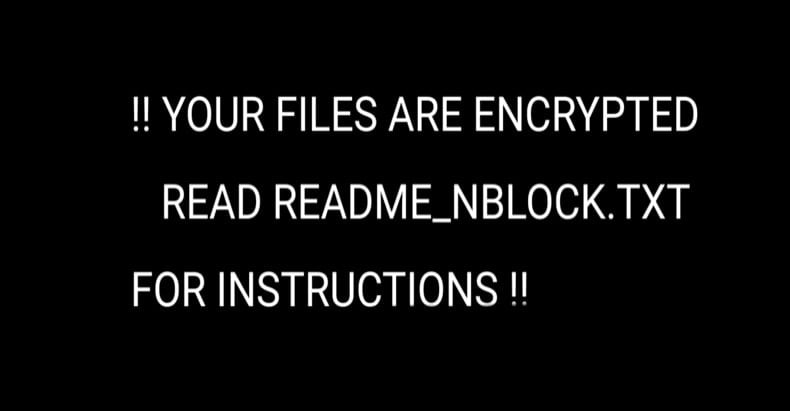
Many ransomware variants change the Windows wallpaper to a black or red image with the ransom message and instructions. The wallpaper is just a visual scare tactic - it doesn't add any actual capability and reverts to normal once the ransomware is removed. Photograph it before removal in case the contact details are useful for variant identification or for reporting to authorities.
HiddenDeletes Volume Shadow Copies
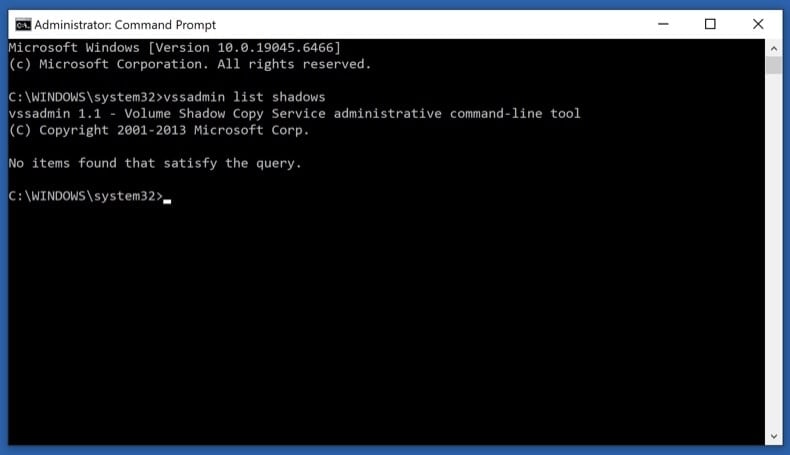
One of the first things modern ransomware does after launching is run vssadmin delete shadows /all /quiet to wipe Windows' built-in Volume Shadow Copies - the snapshots that Previous Versions and System Restore rely on. Some ransomware doesn't fully succeed (especially on systems where the user lacks full admin rights), leaving partial shadow copies recoverable. Phase 4 step 11 covers how to check what survived.
HiddenDisables Windows Defender and other security tools
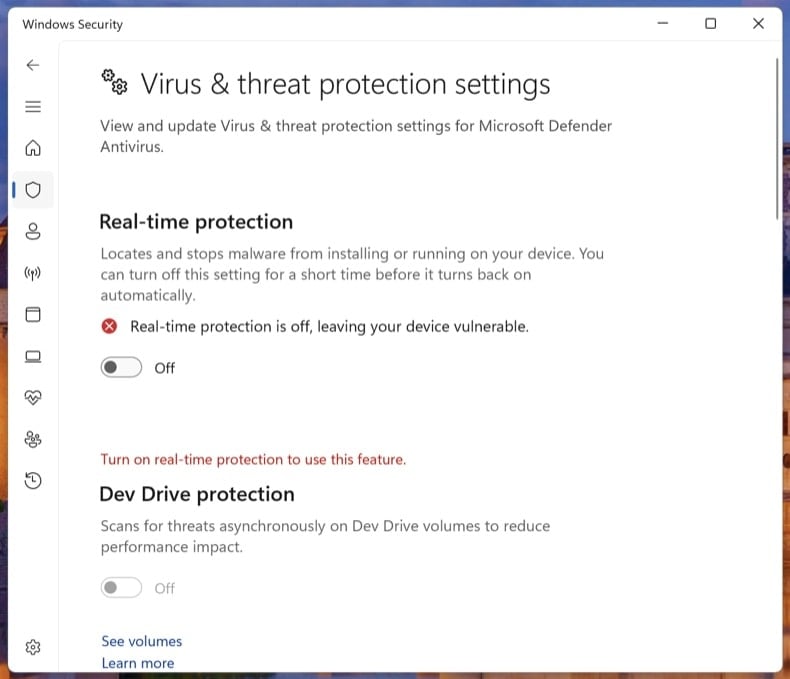
Before encrypting, the ransomware tries to silence anything that could alert you or block it - Windows Defender real-time protection, third-party antivirus services, backup agents (Veeam, Acronis), and sometimes the Windows Event Log service. It often modifies Group Policy or registry keys to keep these off after reboot. Phase 3 step 9 explicitly turns Tamper Protection back on so the next ransomware attempt can't repeat the trick.
HiddenSpreads laterally to other PCs on the network
Network-aware ransomware (LockBit, Conti, BlackCat, Akira families) doesn't stop at the first machine. It scans for SMB shares, mapped drives, and other PCs on the same network, then encrypts whatever it can reach. On Windows domains, a single compromised user with admin rights can lead to all-domain encryption. This is why Phase 1 step 2 disconnects the network as the very first action - it stops the spread immediately.
HiddenSteals data before encrypting (double extortion)
Modern ransomware (LockBit, BlackCat / ALPHV, Akira, Cl0p, Royal) almost always exfiltrates data before encrypting. The attacker then runs a "double extortion" play: pay the ransom for decryption, plus pay again to prevent the stolen data from being leaked on the group's leak site. Paying the first ransom does not get the leaked data back - assume that anything the ransomware could read was uploaded. This is one more reason not to pay: the data is already out.
Don't pay the ransom
Paying the ransom does not guarantee you'll get your files back. Major ransomware response studies consistently show that a meaningful percentage of paying victims either receive a non-working decryptor, only partial decryption, or no decryptor at all. Beyond that:
- Paying confirms you as a willing target - re-attack rates within 12 months are high
- Several ransomware groups have been sanctioned (US OFAC, UK OFSI). Paying these groups may be illegal under sanctions law in your country
- The ransom funds the next attack - on you or someone else
- Modern ransomware almost always exfiltrates data first, so paying doesn't get the leaked data back. Assume anything the malware could read was uploaded
- Decryptors, even when they work, often leave files corrupted because the encryption itself was buggy or rushed
The path below tries every legal, free recovery option first. Pay only as an absolute last resort, after consulting a lawyer and your country's cyber crime authority.
Disconnect from the network and log out of cloud storage
Pull the Ethernet cable and turn off Wi-Fi on the affected PC. If multiple computers share the network, do the same on every machine you suspect could be affected, including any servers and NAS units.
Then sign out of cloud storage clients (OneDrive, Dropbox, Google Drive, iCloud) from their app settings. If you can, pause the sync. Some ransomware uses the running sync client to push encrypted versions over your clean cloud copies.
Modern ransomware spreads laterally across SMB shares, mapped drives, RDP, and reachable network neighbors. Disconnecting stops the spread the moment you do it. Logging out of cloud sync clients prevents the ransomware from encrypting the cloud copies of your files via the sync API.
Unplug external drives and USB storage
Safely eject any external drives, USB sticks, SD cards, and network-attached storage shares - then unplug them. If a drive was connected when the ransomware ran, the files on it may already be encrypted, but unplugging stops further damage.
Critically: don't reconnect any drive (including your most recent backup) to this PC until the ransomware is removed in Phase 3. Reconnecting an external backup to an actively-infected PC is the most common way that backup gets encrypted too.
Save the ransom note and a sample encrypted file
Copy the ransom note and one small encrypted file (under 1 MB) to a USB stick, or photograph the note with your phone. You'll need both for the variant identification step.
The ransom note is usually one of:
- A
.txtfile in every encrypted folder (typicallyHOW_TO_DECRYPT.txt,README.txt, or_readme.txt) - An
.htmlfile with the same purpose - A changed desktop wallpaper - photograph it
- A lock-screen interrupt that runs at startup - rarer
Don't delete the note. Variant identification depends on its exact wording, the contact email, and the bitcoin wallet address. The note is also evidence if you report to authorities.
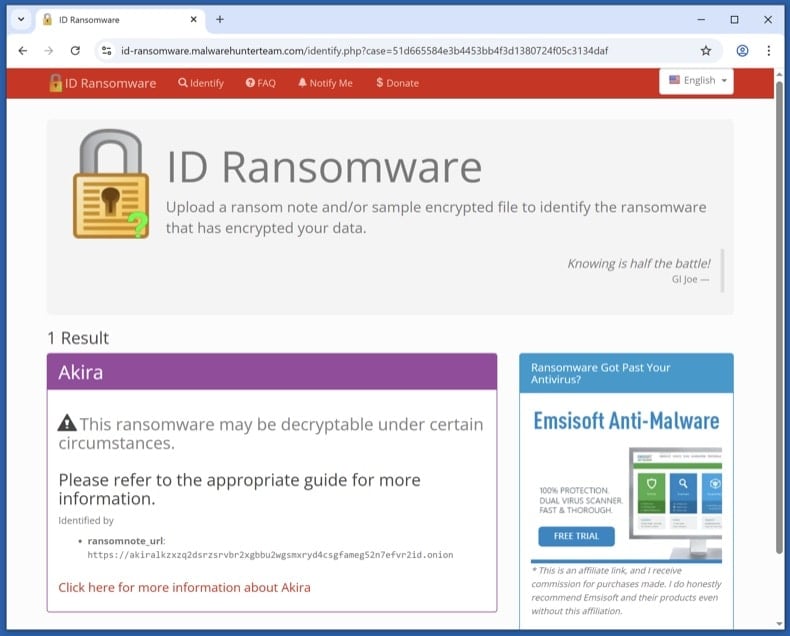
Identify the variant with ID Ransomware
From a clean device (your phone is fine, or another PC that wasn't on the affected network), visit id-ransomware.malwarehunterteam.com. Upload the ransom note and the sample encrypted file. The site identifies the variant family and tells you whether a free decryptor exists.
ID Ransomware is run by the Malware Hunter Team. Files you upload are kept private - they're used for analysis, not published. If you're concerned about uploading data anyway, you can paste the contact email and bitcoin wallet from the note - those are often enough for identification.
The ransomware itself must be removed before any file recovery. If it's still active, anything you restore in Phase 4 gets re-encrypted within minutes.
Boot to Safe Mode with Networking and download the scanners
Safe Mode loads only the minimal Windows drivers, which prevents most ransomware from auto-running while you set up the scanners.
Windows 11: open , click Restart now next to Advanced startup. After the restart, click , then press 5 or F5.
Windows 10: click the Windows logo, hold Shift, click the Power icon and choose Restart. From the Choose-an-option screen, click , then press F5.
Once Safe Mode has loaded, turn Wi-Fi back on and download Combo Cleaner (used in step 8) and Microsoft Safety Scanner (used in step 9). Save both installers to your Desktop, then disconnect Wi-Fi again before scanning.
Run Microsoft Defender Offline
Reboot to normal Windows. Open . Select Microsoft Defender Antivirus (offline scan) and click Scan now. The PC restarts into a stripped-down environment and scans the disk before Windows fully loads.
Some ransomware variants drop bootkit components or kernel hooks that hide from any scanner running on the same Windows session that's already infected. A pre-boot offline scan sees the disk before the malware can load itself.
VB100 certified. Includes anti-trojan, registry/persistence scanning, and anti-spyware in one pass. The 7-day free trial is available.
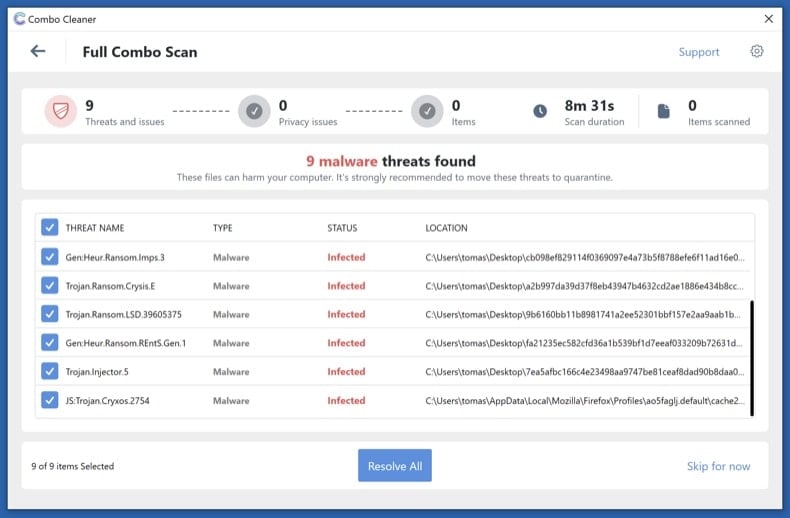
Download Combo CleanerRun a full Combo Cleaner scan
Run the installer you downloaded in step 6 and start a full system scan (not the quick scan). Let it complete, review what it detected, and apply the recommended actions. Combo Cleaner quarantines the ransomware executable and the registry / scheduled-task entries that re-launch it on reboot.
Run Microsoft Safety Scanner and re-enable Defender
Run Microsoft Safety Scanner (MSERT.exe) as a second-opinion full scan. The binary expires every 10 days so the copy you downloaded has the latest signatures.
Once it finishes, open and confirm Real-time protection, Cloud-delivered protection, and Tamper Protection are all on. Many ransomware variants disable Defender during the attack - this is where you switch it back on so the next attempt can't repeat the trick.
Different scanning engines catch different threats. Running an additional Microsoft scan after Combo Cleaner is the most underused verification step in malware removal - and free.
Try the steps in order. The first decryptor that works ends the recovery process - no need to do all four.
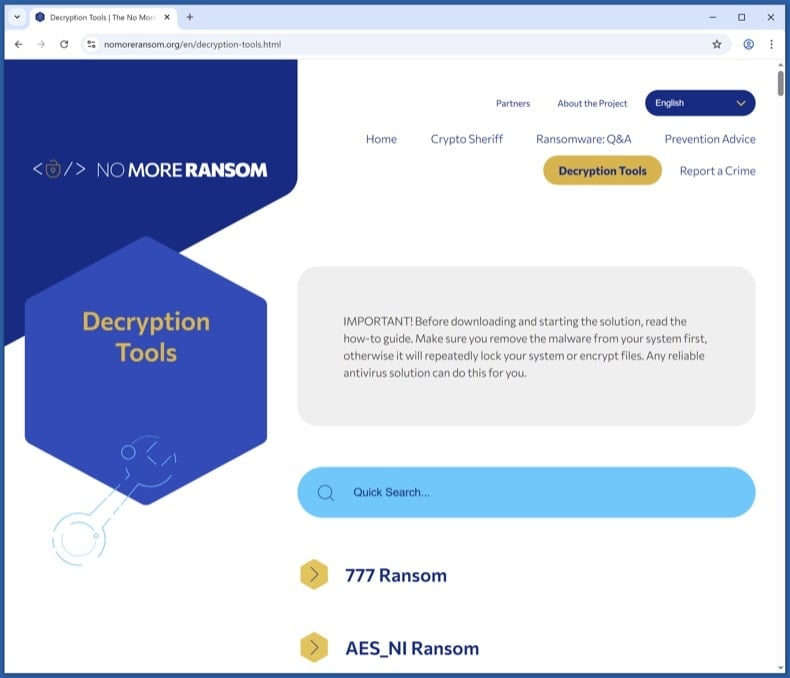
Check the No More Ransom Project for a free decryptor
Visit nomoreransom.org and search the Decryption Tools list for the variant name returned by ID Ransomware. The project is run by Europol, the Dutch Police, and security vendors - everything listed is legitimate and free.
If a decryptor exists, download it onto a clean PC, copy it across, and follow its instructions exactly. Decryptors usually want you to point them at a sample encrypted file plus its known unencrypted version (sometimes any image you previously had a backup of works).
Free decryptors exist for parts of the STOP/Djvu, GandCrab, REvil, Avaddon, Conti and Hive families, among others. Most modern variants don't have public decryptors - if yours isn't listed, that's expected; move to the next step.
Try Windows Volume Shadow Copies
Windows automatically creates Volume Shadow Copies of files when System Restore points are made or scheduled backups run. Most ransomware tries to wipe these (vssadmin delete shadows /all /quiet), but the deletion sometimes fails partially - especially if the running user doesn't have full admin rights. When it does fail, snapshots survive that contain pre-encryption versions of your files.
First, check what's there. Open Command Prompt as Administrator and run:
vssadmin list shadows
If you see entries listed, shadow copies survived. To restore from them:
- Built-in: right-click any folder → Properties → Previous Versions tab. Pick a snapshot dated before the infection and restore.
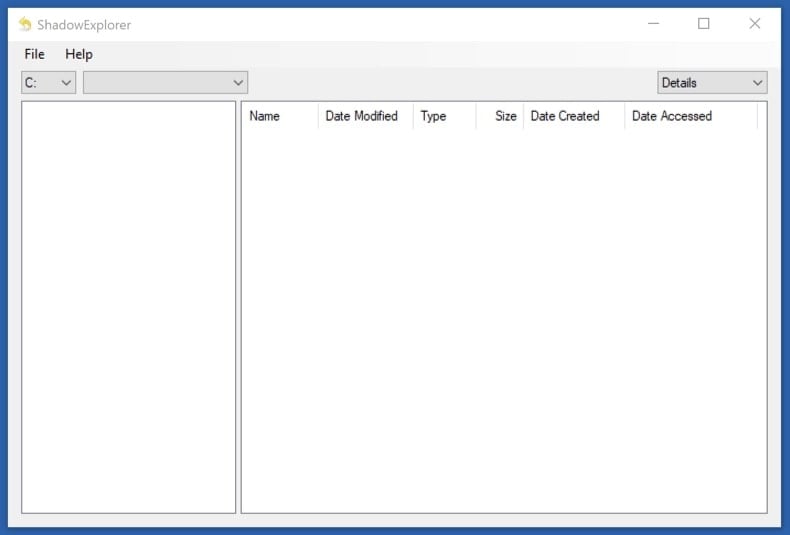
- Better tool for browsing: install Shadow Explorer (free). It shows all snapshots as a normal file tree and lets you copy out only the files you want.
Shadow Copies recover the original files exactly, with no risk of decryption errors. If they survived, this is faster and cleaner than running a decryptor on the encrypted set.
Restore from cloud or external backup
If you have a backup that pre-dates the infection, this is the cleanest recovery available. Important precautions:
- Don't reconnect a backup drive until Phase 3 is complete. If the ransomware is still active, plugging in the backup encrypts it too.
- For cloud backups (OneDrive, Dropbox, Google Drive, iCloud), use the Version History feature to roll individual files back to pre-encryption versions.
- OneDrive specifically has a "Restore your OneDrive" feature: if it detected mass file changes, you can roll back the entire account up to 30 days. Sign in at OneDrive on the web, click the Settings gear, and choose Restore your OneDrive. Microsoft 365 subscribers also get ransomware detection alerts; non-subscribers get one free recovery.
- Verify the restored files open correctly before you delete the encrypted set. Test a few documents, photos, and any database / project files.
Try Recuva as a last-resort recovery
Recuva is a long shot, not a primary recovery tool. Most modern ransomware encrypts files in place - it reads the original, encrypts the data, and writes the encrypted bytes back to the same disk location. In that case, the original isn't deleted, just rewritten - and Recuva has nothing to find.
But for older or simpler variants that deleted originals before creating encrypted copies (rather than encrypting in place), Recuva can sometimes pull the originals from unallocated disk space. Worth trying as a last resort, especially before you use the disk much further.
If you try it:
- Stop using the disk as much as possible - every disk write reduces recovery odds
- Run Recuva from a USB stick, not from the affected disk
- Use Deep Scan mode (slower but the only mode worth running for this scenario)
Don't skip the steps above expecting Recuva to bail you out. It works in maybe 5-20% of cases, depending on the variant and how soon you try.
Report the attack to authorities
Even if your files aren't recovered, your report helps authorities track variants, attribute groups, and warn future victims. In some jurisdictions (especially the US and UK) early reporting can sometimes help recall a wired ransom payment via banking partners.
Save the report number - banks, insurers, and credit bureaus will ask for it. If you operate a business, you may also have legal disclosure obligations (GDPR in the EU, state breach laws in the US) that run on a 72-hour clock.
Plan 3-2-1 backups going forward
The single best defense against ransomware is a tested backup. Use the 3-2-1 rule:
- 3 copies of your data
- 2 different storage media (e.g., internal drive + external drive)
- 1 offline / air-gapped copy (an external drive that isn't always connected)
Recommended cadence:
- Daily: cloud sync (OneDrive, Dropbox, Google Drive) - convenient, but vulnerable if the ransomware reaches the sync folder. The Version History feature is what saves you
- Weekly: external drive that you connect briefly, then disconnect - the air-gap is what protects against ransomware
- Monthly: a second external drive stored off-site (different physical location) - protects against fire, theft, flood
Test the backup at least once. Open a few files from it, check sizes match, restore one to a different folder. An untested backup isn't a backup - it's a hope.
Patch the entry point and monitor for 30 days
Most reinfections happen via the same vector that worked the first time. Until you've patched the entry point, watch for:
- Unusual disk activity, unexpected file modifications, or unfamiliar processes in Task Manager
- Unexpected reboots or new accounts you didn't create
- Defender or your antivirus turning itself off again
Common entry vectors and what to do about each:
- Phishing email with a malicious attachment - review email filters and train yourself / staff to recognise the patterns - see pcrisk's Phishing/Scam reference
- Exposed RDP with weak passwords - disable Remote Desktop from if you don't need it. If you do, put it behind a VPN and require a long password plus MFA
- Unpatched VPN appliances or public-facing apps - check the vendor's advisories page and apply the latest firmware
- Cracked / pirated software - was the most common vector for STOP/Djvu in particular. Don't run software from torrent sites
Run a Combo Cleaner scan weekly for the first month. Update Windows, browsers, and applications aggressively.
Important: Removing a ransomware infection requires a full system scan, not a manual file delete. If you're not confident with the manual procedure, run an automated scan with Combo Cleaner and Windows Defender and stop there - that combination removes the vast majority of consumer ransomware variants. Then move to Phase 4 for file recovery, or to Phase 5 if your files are unrecoverable and you need to start fresh from a clean Windows install.
Frequently Asked Questions (FAQ)
How was my computer hacked and how did hackers encrypt my files?
Ransomware is typically spread through disguised files that look harmless but run malicious code when opened. Common delivery routes include phishing emails, trojans, pirated software, fake software updates, illegal activation tools, and compromised websites. Corporate environments can also be targeted directly via brute force attacks on remote access services such as RDP.
How to open ".BAVACAI" files?
Files with the .BAVACAI extension have been locked by ransomware and cannot be opened in any way until they are decrypted with the correct key.
Where should I look for free decryption tools for BAVACAI ransomware?
If you've been affected by ransomware, check the No More Ransom project website (more information above).
I can pay you a lot of money, can you decrypt files for me?
We do not provide decryption services. In most cases, recovering encrypted files without the attacker's tool is not possible, unless the ransomware itself has significant flaws. Third-party paid decryption offers are typically scams or middlemen who take a fee and pass the payment along to the criminals anyway.
Will Combo Cleaner help me remove BAVACAI ransomware?
Combo Cleaner can detect and remove an active BAVACAI infection from your system. It is worth noting that while removal stops the ransomware from causing further damage, it does not decrypt files that have already been locked. Recovering those files requires a decryption key, not an antivirus scan.
Share:
 Facebook
 X.com
X.com
 LinkedIn
 Copy Link

Tomas Meskauskas
Expert security researcher, professional malware analyst
I am passionate about computer security and technology. I have an experience of over 10 years working in various companies related to computer technical issue solving and Internet security. I have been working as an author and editor for pcrisk.com since 2010. Follow me on Twitter and LinkedIn to stay informed about the latest online security threats.
PCrisk security portal is brought by a company RCS LT.
Joined forces of security researchers help educate computer users about the latest online security threats. More information about the company RCS LT.
Our malware removal guides are free. However, if you want to support us you can send us a donation.
DonatePCrisk security portal is brought by a company RCS LT.
Joined forces of security researchers help educate computer users about the latest online security threats. More information about the company RCS LT.
Our malware removal guides are free. However, if you want to support us you can send us a donation.
Donate
▼ Show Discussion